Configuring Numeral Sales Tax in Grid
Last updated: May 1, 2026
A contract can be approved through direct action, manual invoice creation, or automatic invoice generation from an automatically approved contract. Grid can use Numeral to calculate tax items on Grid.
Before sending invoices, it is strongly recommended to fully configure the Numeral Integration settings.
Numeral Integration Settings
Navigate to Billing > Settings and select the data source to connect to Grid Billing.
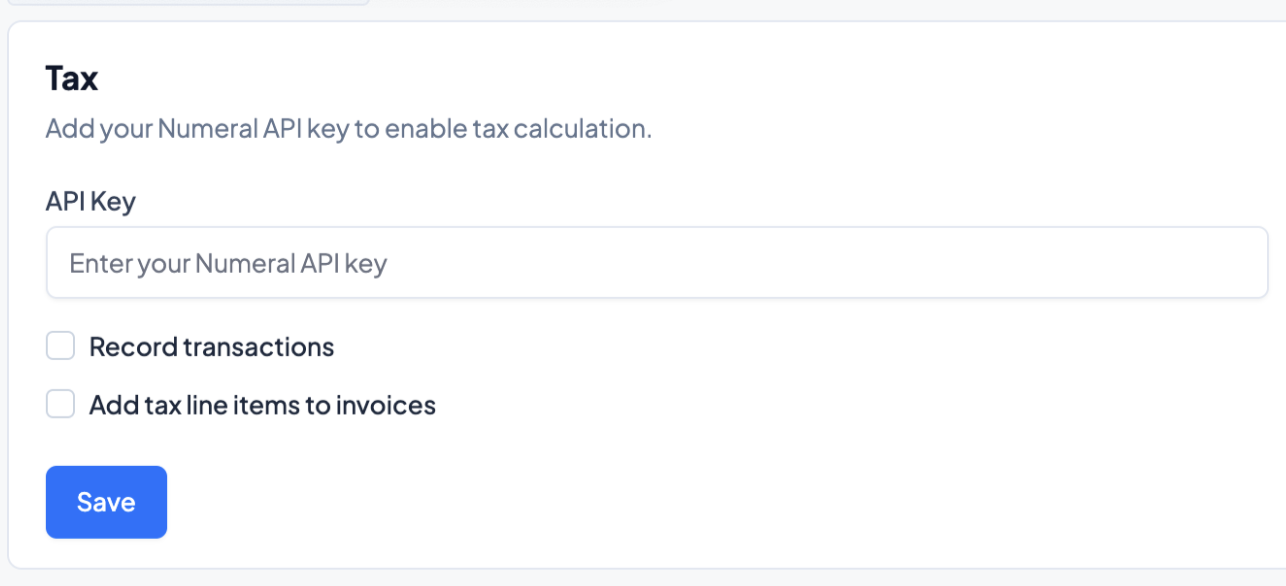
On the main page, enter the Numeral API key. Choose from the following selections:
Record transactions: Selecting this option ensures all transaction details are recorded within Numeral.
Apply tax line items: This setting appends tax line items to all automatically created invoices, determined by the configured Product Mappings.
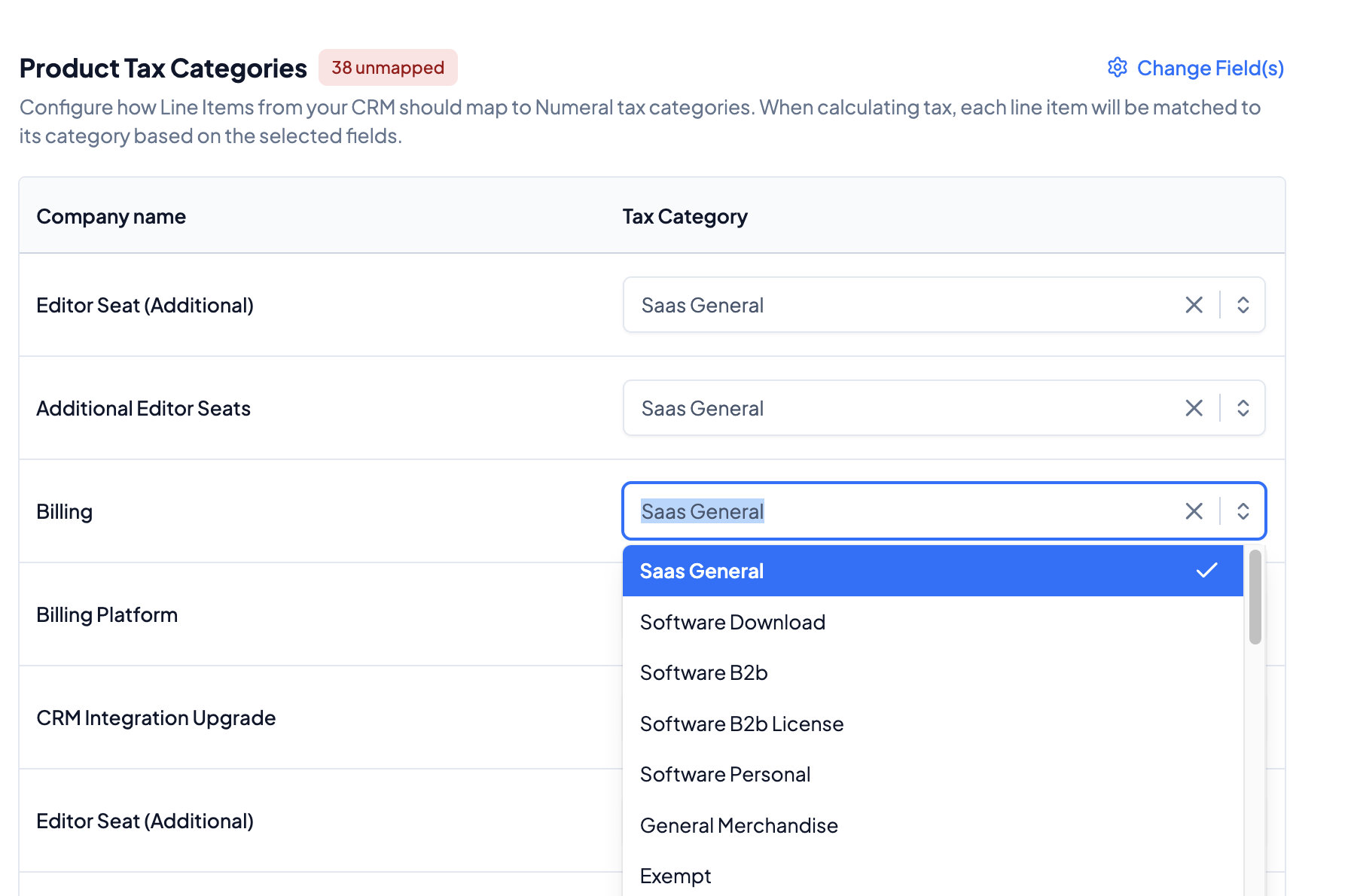
In the table below, specify the tax category for each product within a contract. They serve as the default for both automatic and manual invoices and may be manually overridden for individual transactions.
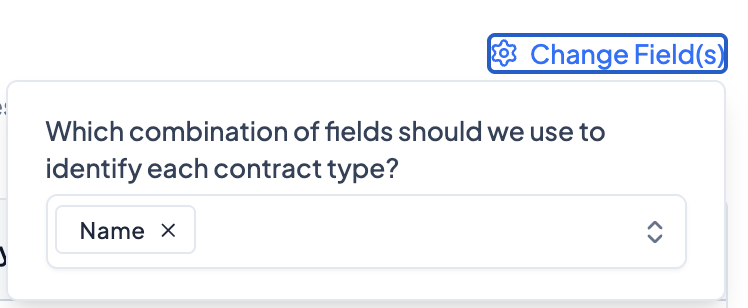
Use the Change Field feature to specify the attribute that dictates different tax categories. Generally, product names are the recommended field.
Contract and Invoice Settings
When approving a contract, each invoice line will display a tax amount.
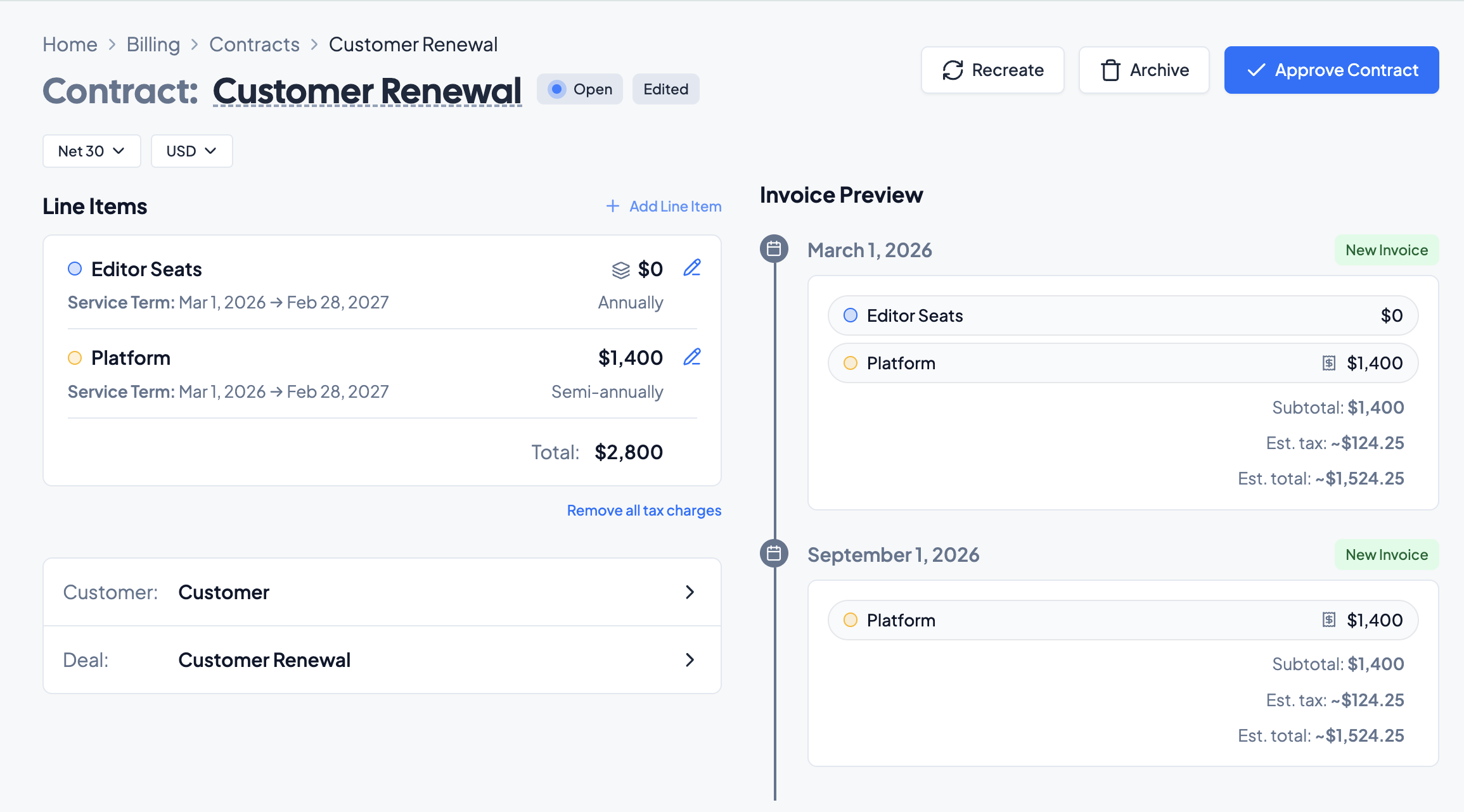
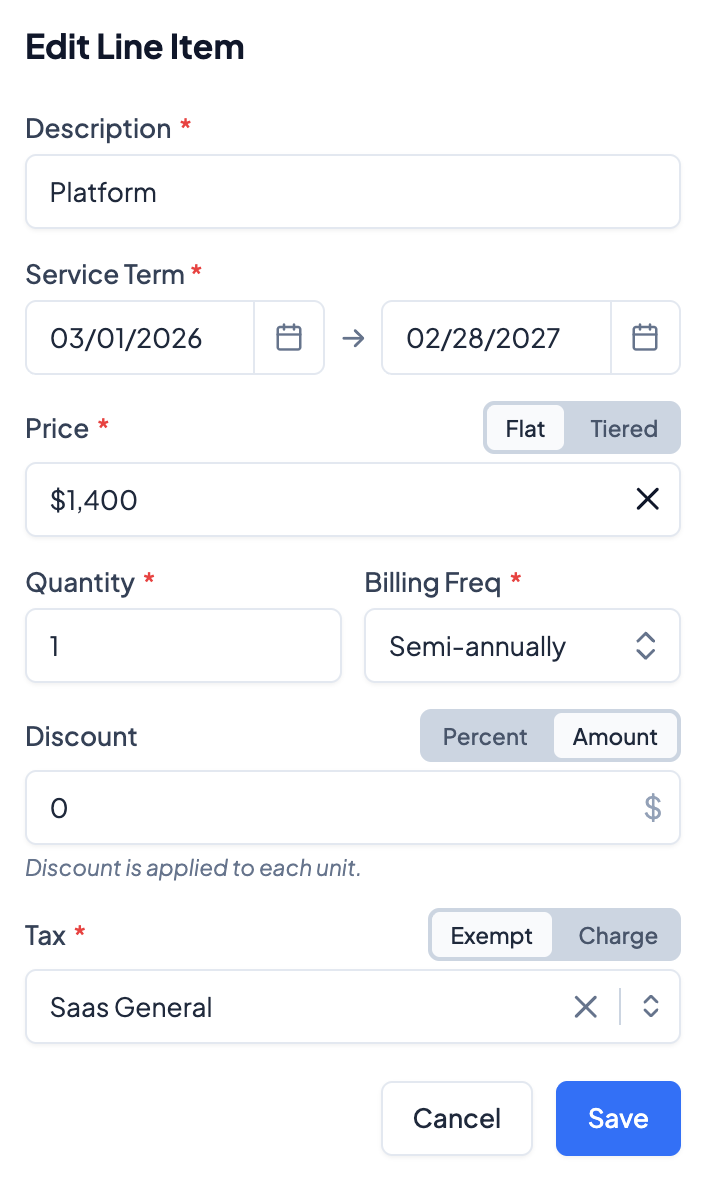
If taxes are enabled on invoices, every line item must be assigned a tax category. Available categories are generated from Numeral and have different allocations specified. To edit the category for a particular line item, click on the pen icon and adjust the Tax category.
In the selection toggle, choose from the following:
Exempt: This line item will not have a tax specified in the invoice and will not be charged to the customer.
Charge: This line item has a tax allocation and will be charged to the customer.
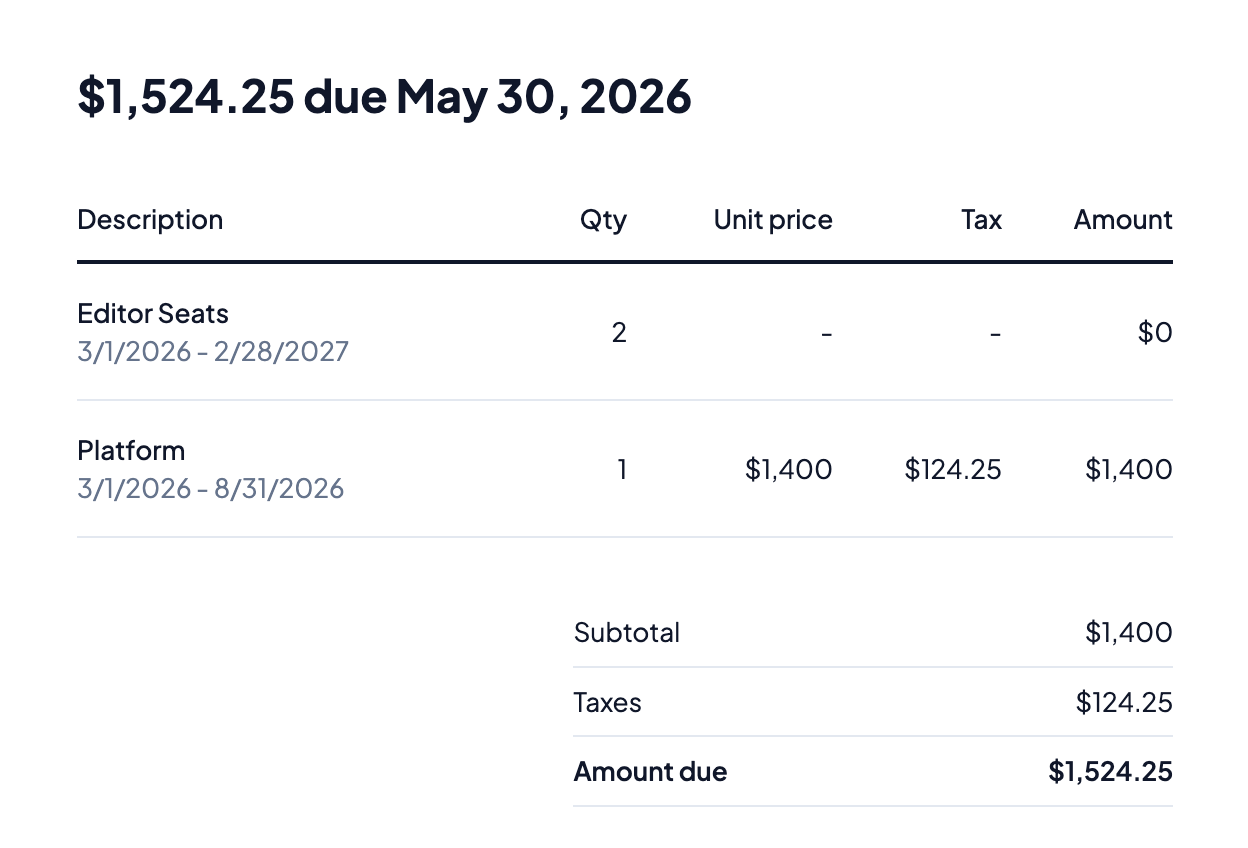
If Charge is selected, the invoice will detail the tax amount:
A paid invoice, when Record transactions is enabled, is logged as a Transaction in Numeral, enabling access to associated Numeral features.
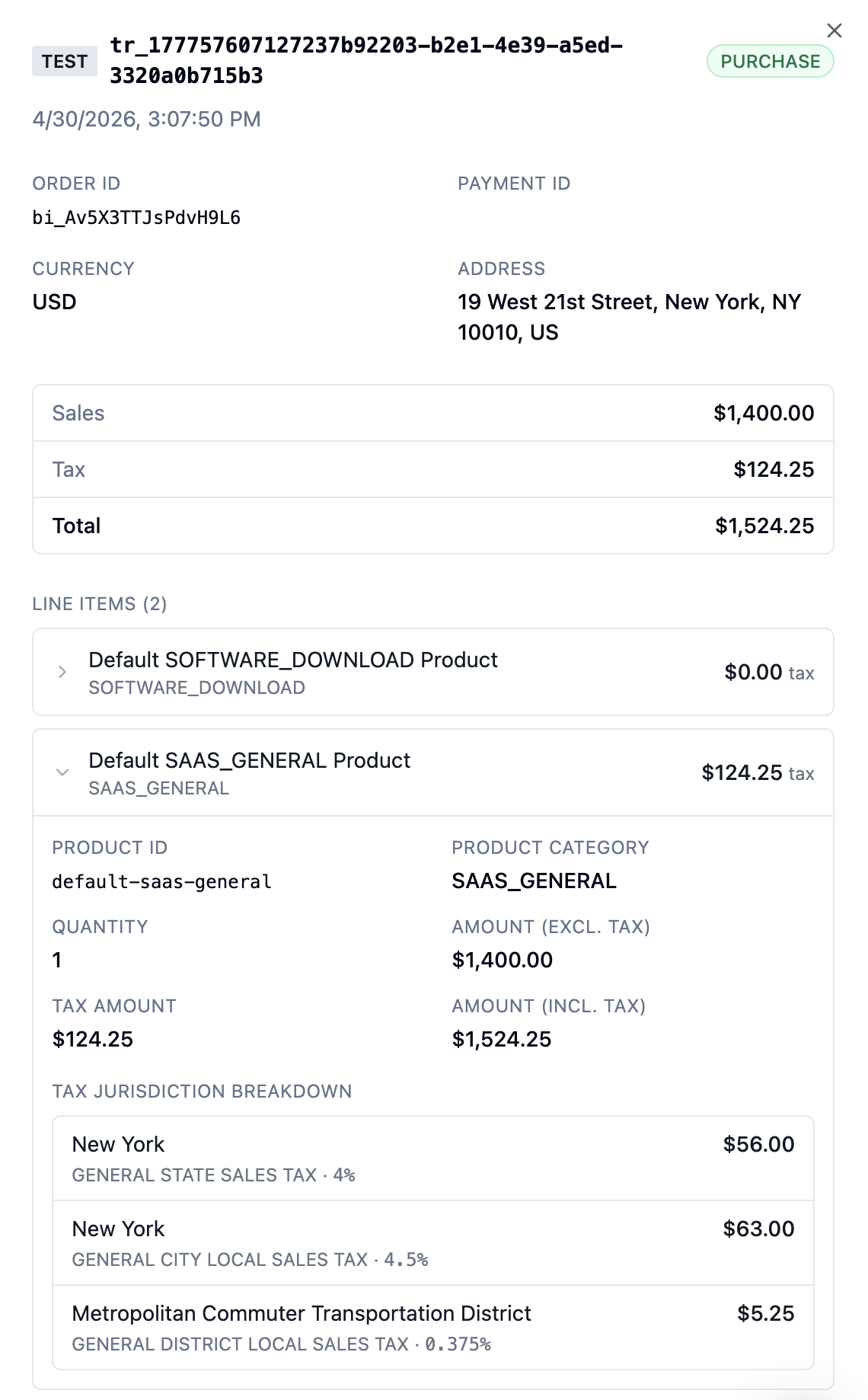
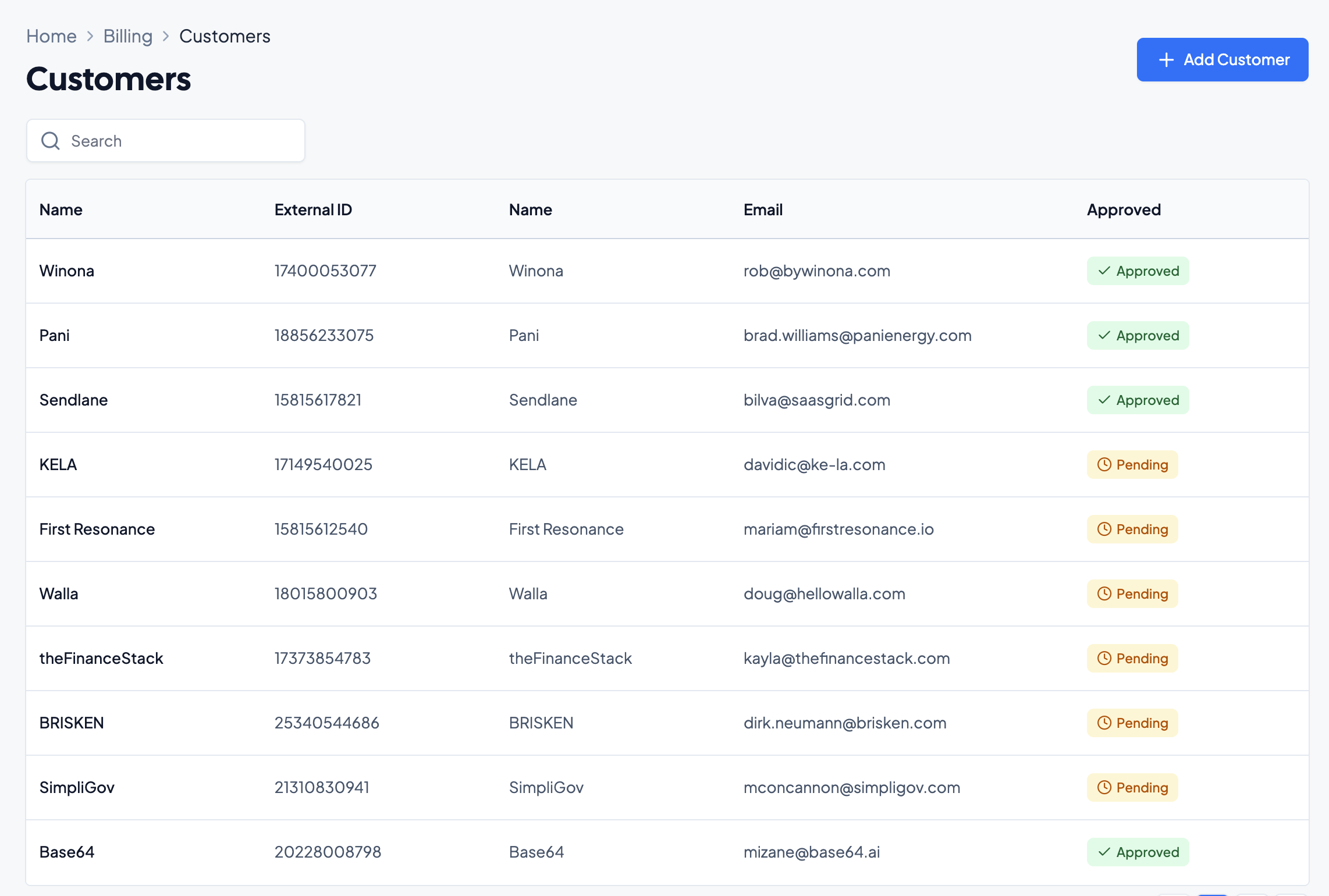
Valid addresses are mandatory for tax calculation, as they are required for correct tax allocation within Numeral. Invalid addresses are flagged and can result in incorrect records.
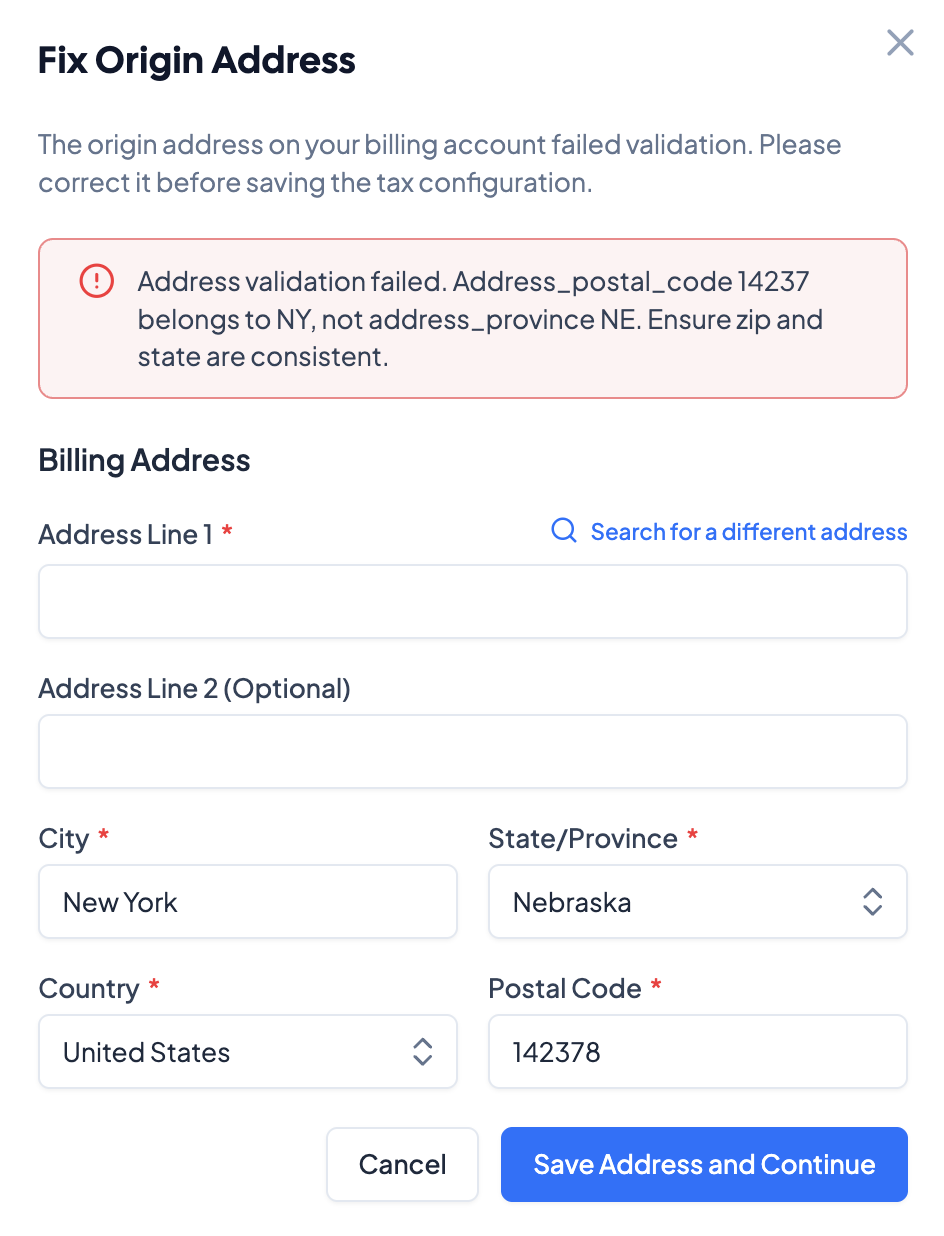
It is strongly recommended to configure the tax integration prior to approving contracts to ensure all tax rules are correctly applied to contracts generated in Grid. All customers with invalid addresses will revert to the Pending state when taxes are enabled. Correct addresses under customer records by navigating to Customers > Billing.
Contracts approved before the integration rules are configured will not inherit any integration rules. If taxes are enabled while approved contracts with recurring invoices exist, the line items for those invoices will have their tax categories set to Exempt - any change will need to made manually.