QuickBooks (Billing)
Last updated: April 17, 2026
Adding your QuickBooks Linked Account as a Workspace Data Source
Once set up as a Linked Account, you should be able to configure the QuickBooks account on a Workspace by Workspace basis. Navigate to Workspace Data.
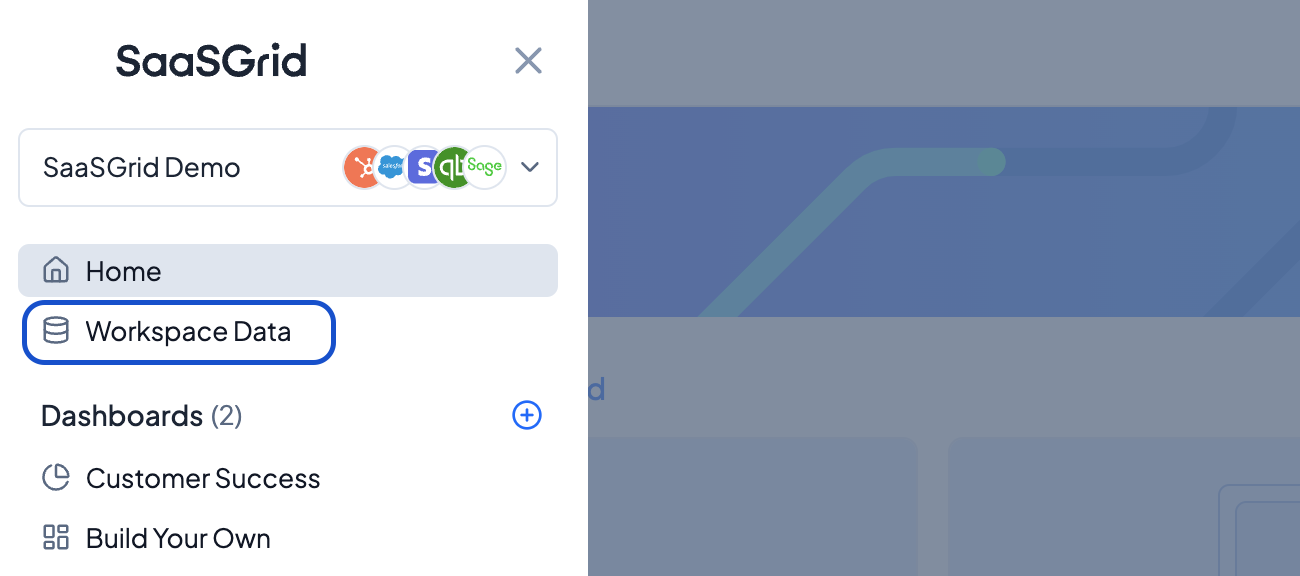
Select Configure Data on the top right and then +Add Data Source.
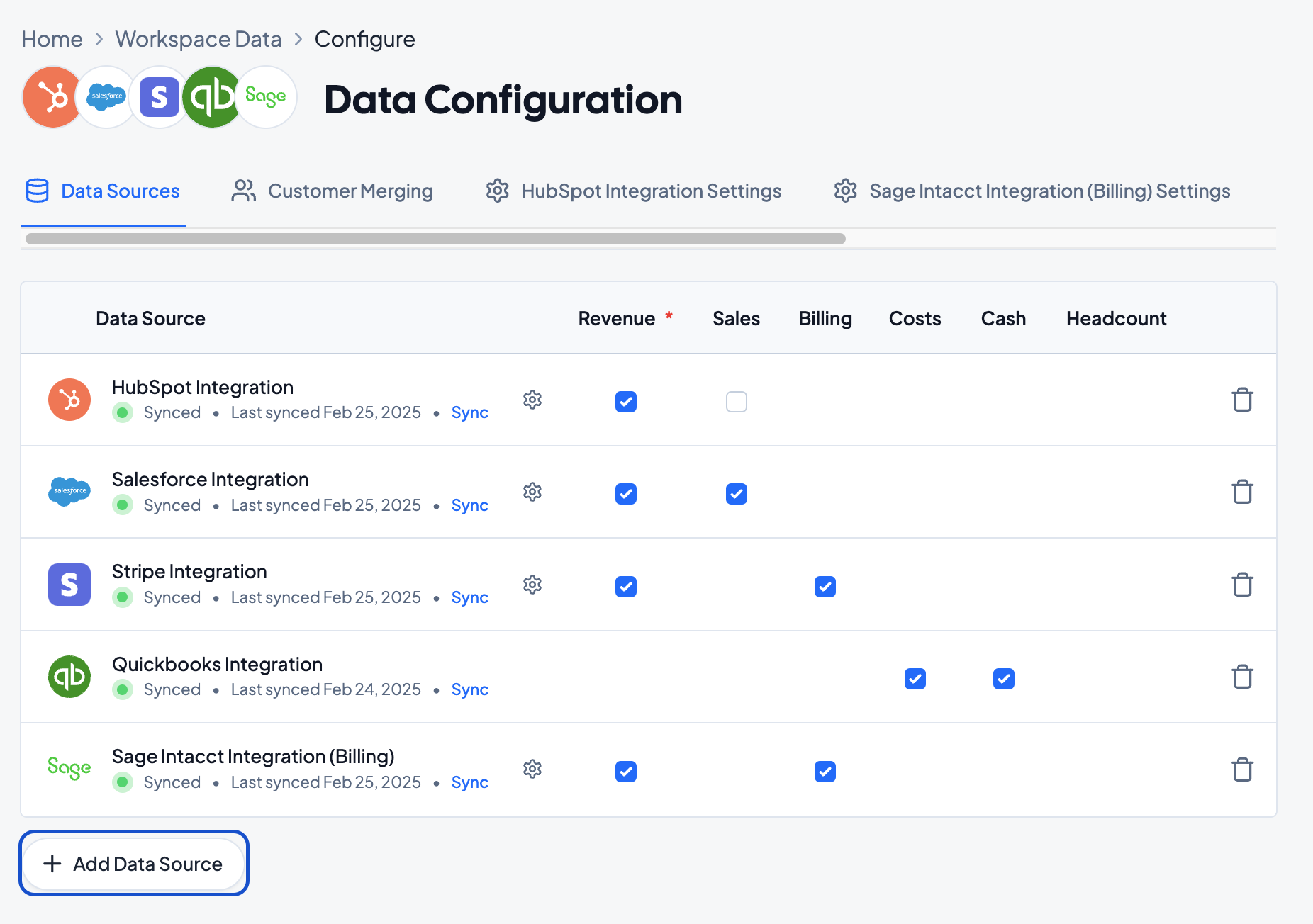
Select the QuickBooks tile. You should see your newly configured QuickBooks Linked Account on this page.
Configuring the QuickBooks Rules Flow
Step 1 - Products
Grid will read all the available products in QuickBooks and prompt you to classify each of the QuickBooks products.
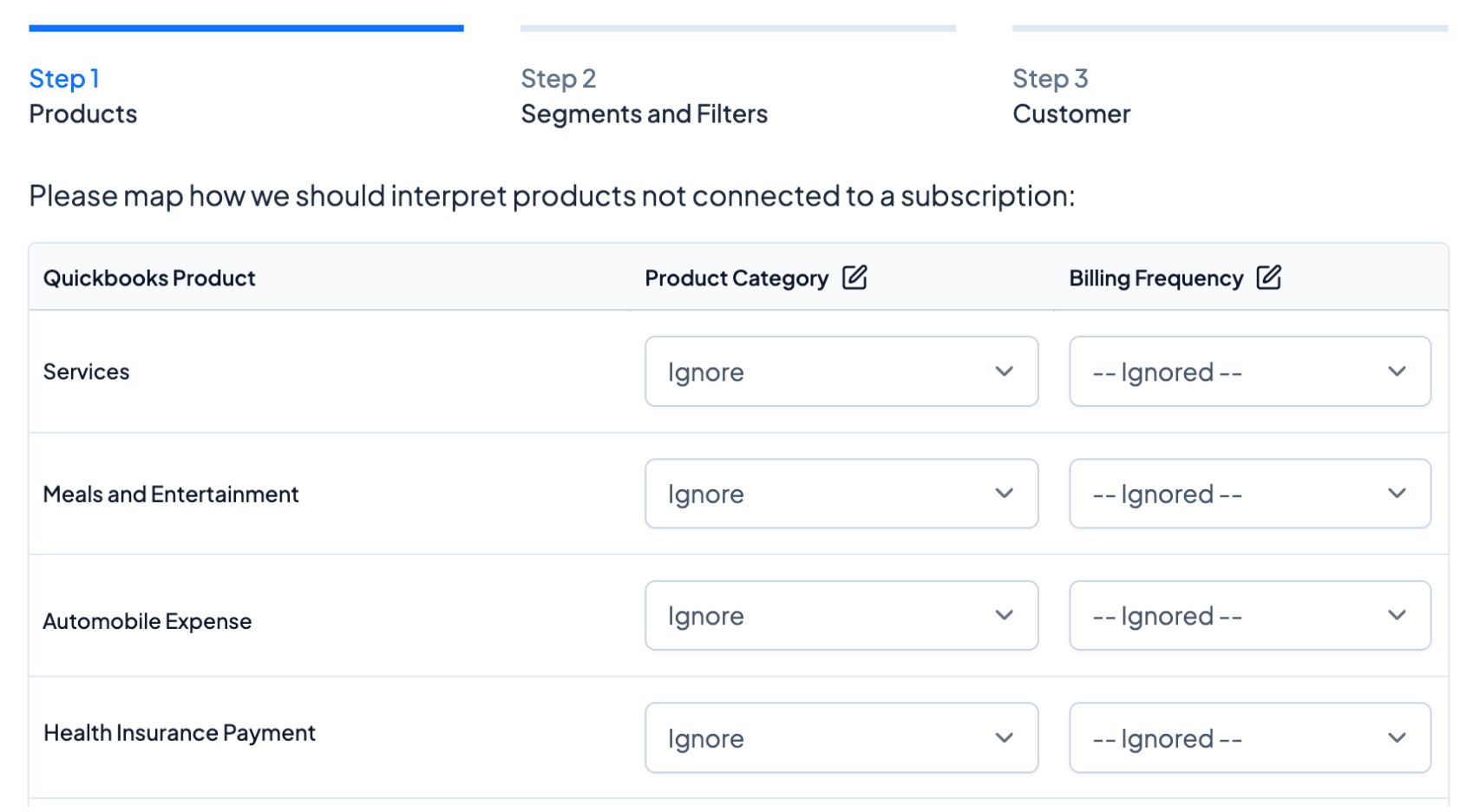
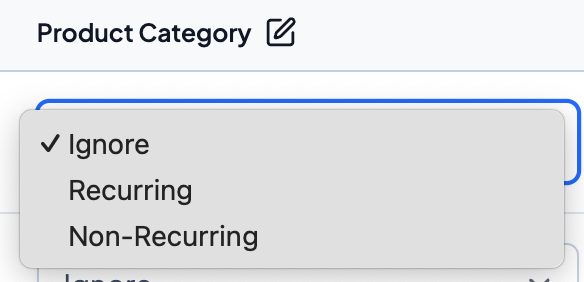
Select if each product should be marked as recurring, non-recurring, or ignored.
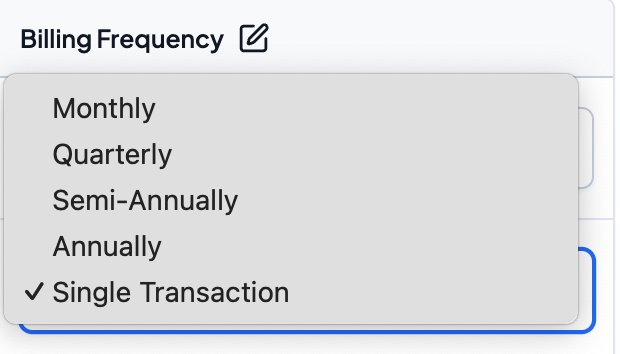
For Products that are not Ignored, select the appropriate Billing Frequency.
Step 2 - Segments and Filters
If there are fields at the Transaction, Customer, Product and/or Subscription level that you'd like to create Segments (see more about Segments here), configure those here. You can always index more fields in the future as you need them.
Step 3 - Customers
Fill out information about how you want your customer names within QuickBooks to be pulled into Grid.
Step 4 - Customers
Revenue Dates
Configure which date field should be used within Grid. Use the arrows to determine which field should be referenced by default (top of the list), with the other 2 fields only being used in case the first field is empty.
Taxes, Credits & Discounts
Toggle on/off whether taxes, credits and / or discounts should be included in Grid's revenue calculations.
From there, click Create Data Source. You should be all set to go with your QuickBooks Data Source!