Xero (Billing)
Last updated: February 26, 2026
Adding your Xero Linked Account as a Workspace Data Source
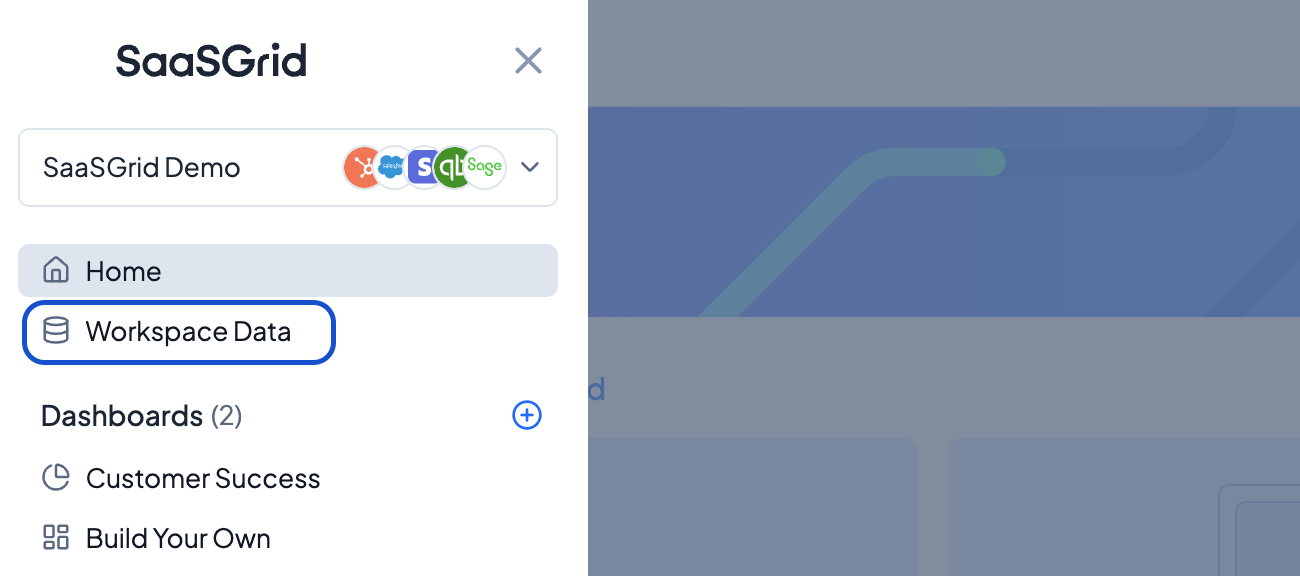
Once set up as a Linked Account, you should be able to configure the Xero account on a Workspace by Workspace basis. Navigate to Workspace Data.
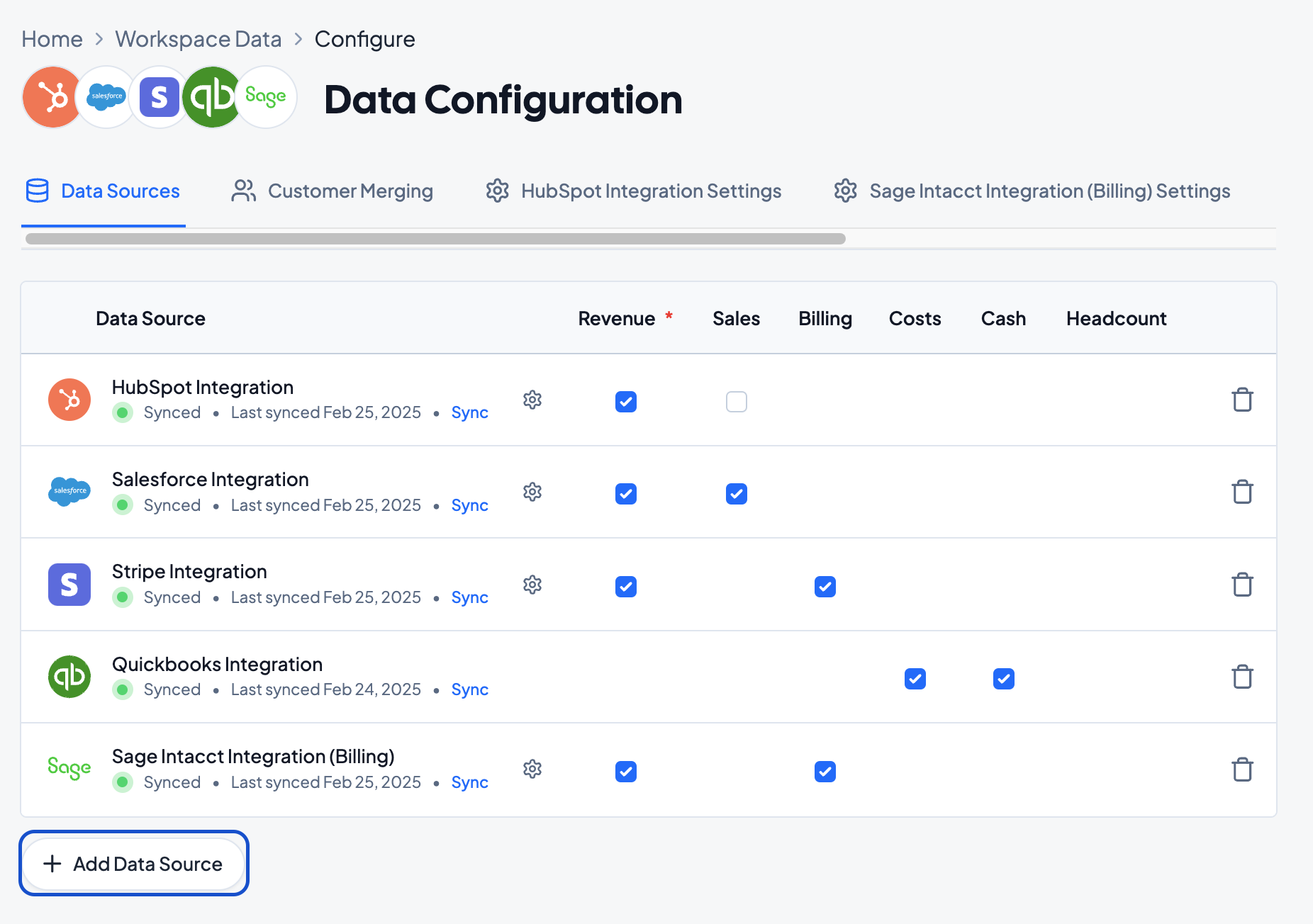
Select Configure Data on the top right and then +Add Data Source. Select the Xero tile.
Configuring the Xero Rules Flow
Step 1 - Products
Grid will read all the available products in Xero and prompt you to classify each of the Xero products.
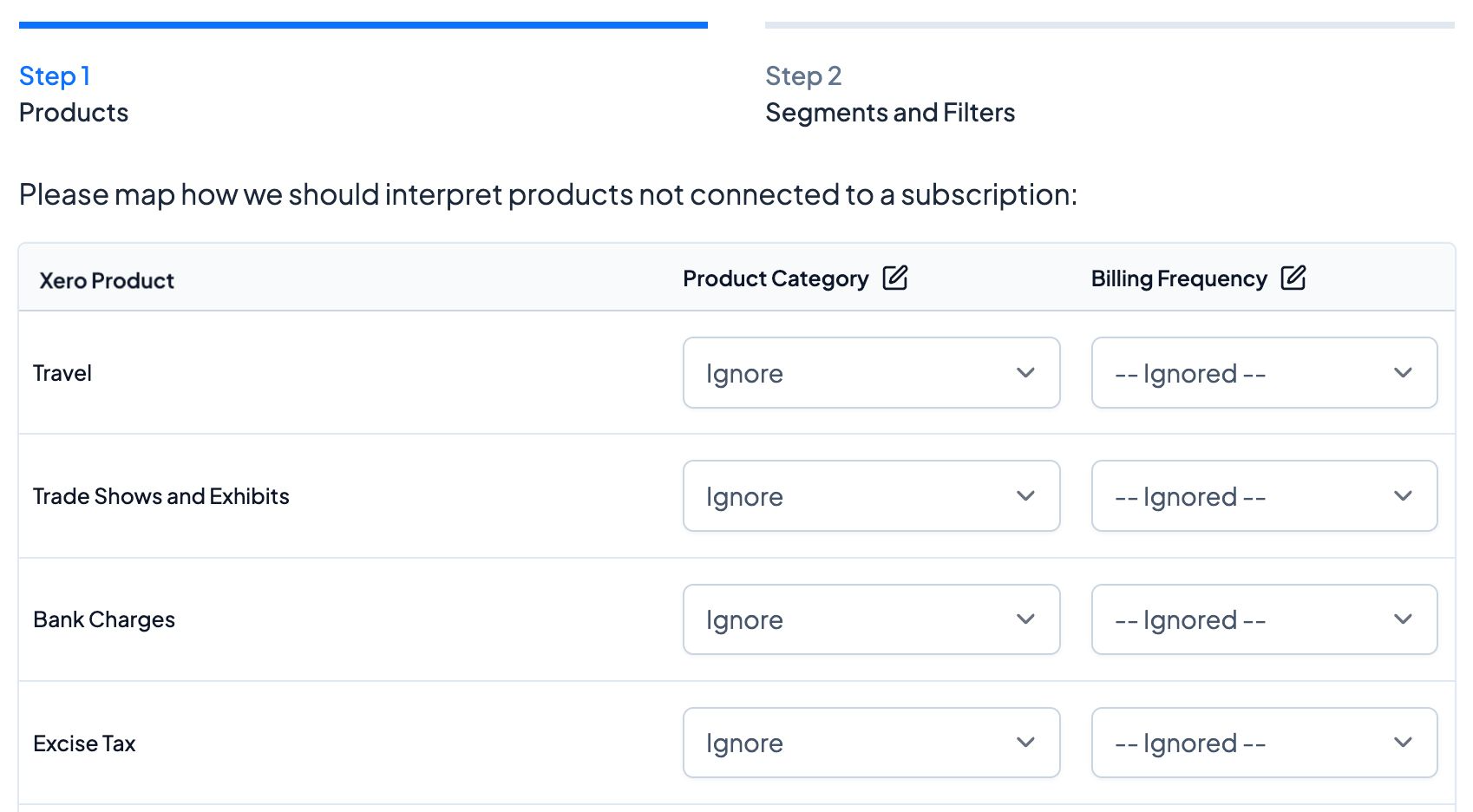
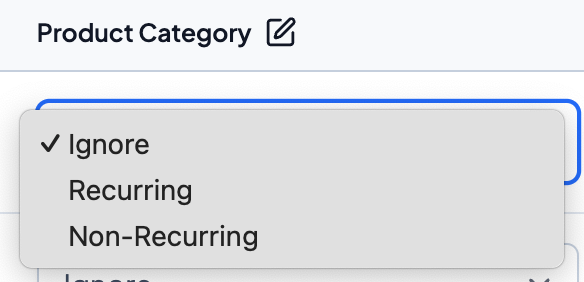
Select if each product should be marked as recurring, non-recurring, or ignored.
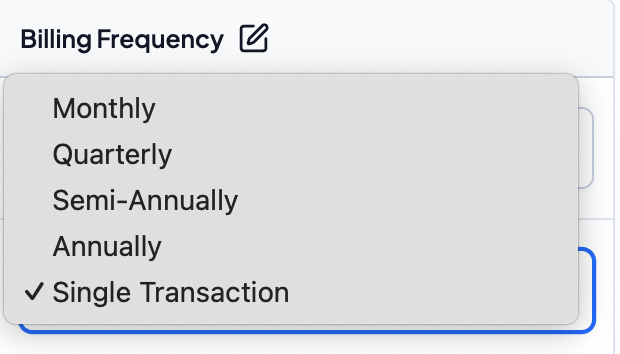
For Products that are not Ignored, select the appropriate Billing Frequency.
Step 2 - Segments and Filters
If there are fields at the Customer level that you'd like to create Segments (see more about Segments here), configure those here. You can always index more fields in the future as you need them.
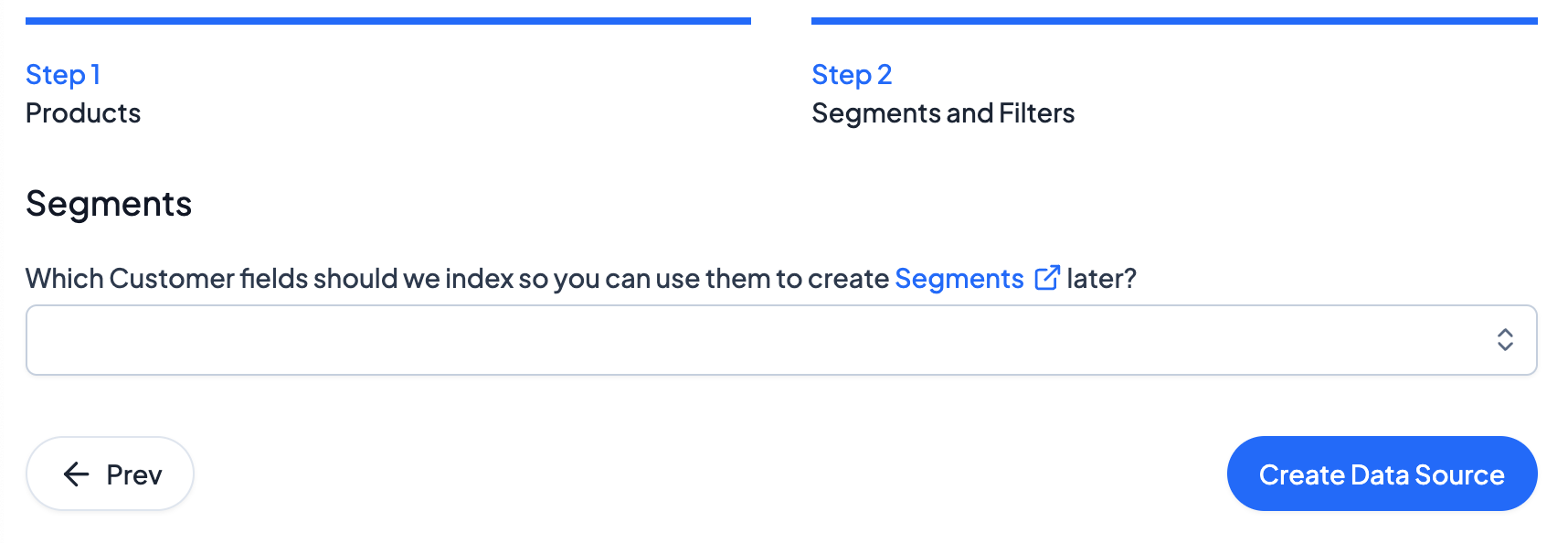
From there, click Create Data Source. You should be all set to go with your Xero Data Source!