Additional Metrics
Last updated: April 16, 2026
Grid supports data models beyond calculated metrics. To import data into Grid, add any additional metrics or data into a spreadsheet. Grid supports multiple formats; specify the time period as columns and any categories as rows.
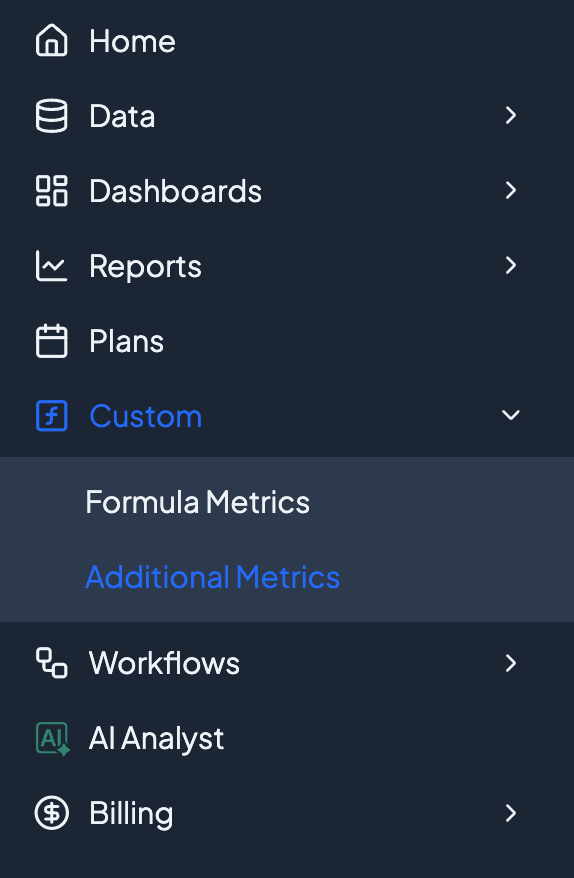
Navigate to Custom > Additional Metrics from the left navigation bar.
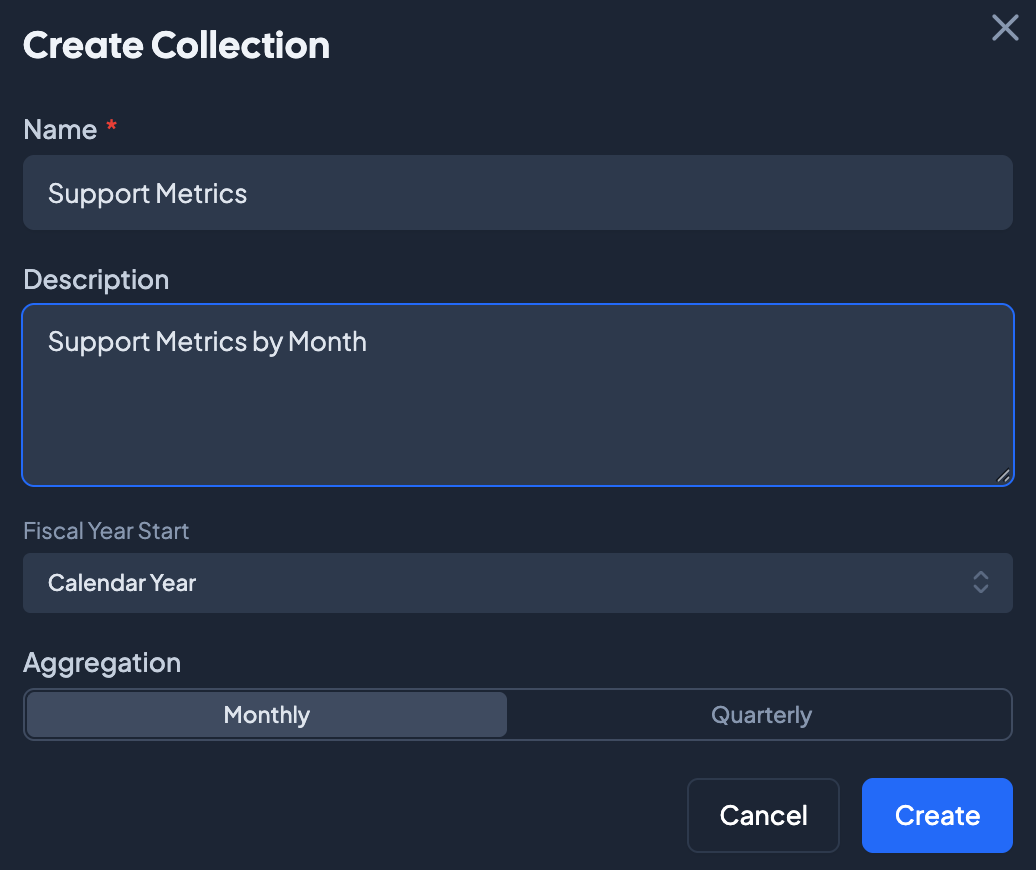
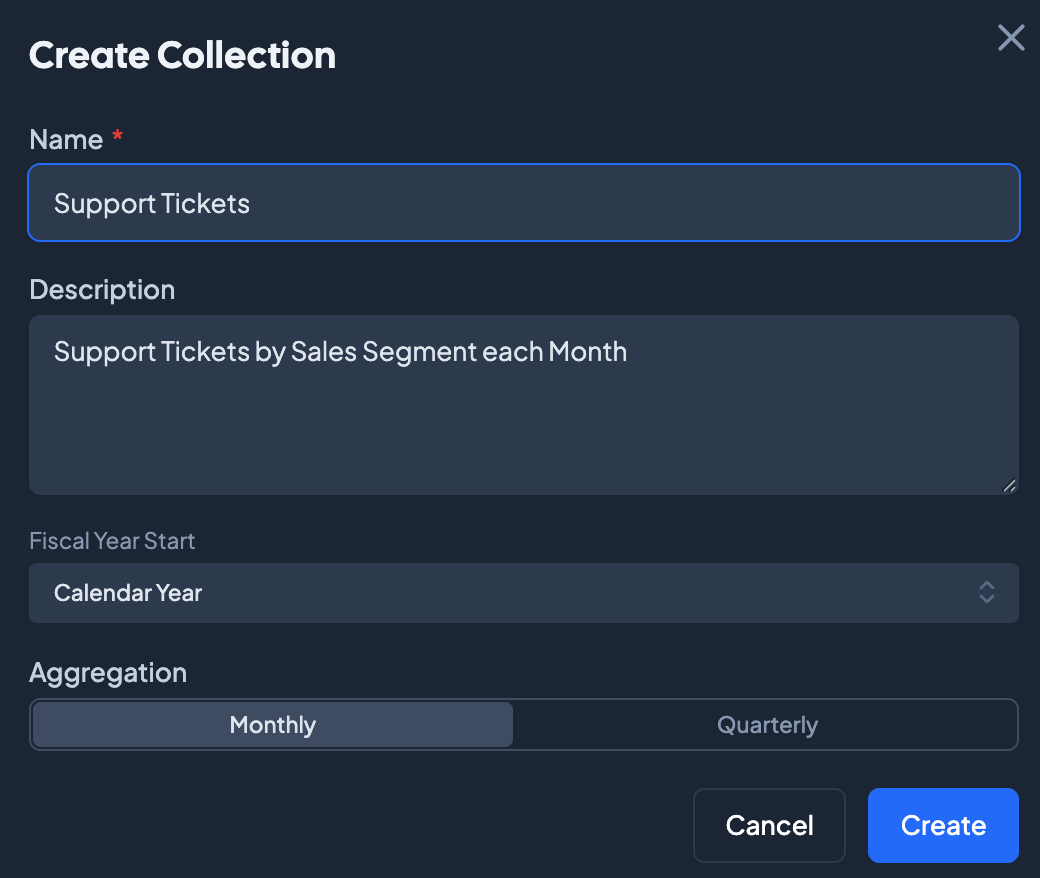
Create a new Collection of metrics and specify name, description, year start, and aggregation settings for the Collection. All metrics included in the spreadsheet will be included in the Collection. Click Create to make the collection.
Grid supports two methods of uploading data into Additional Metrics:
Method 1: Manual Entry
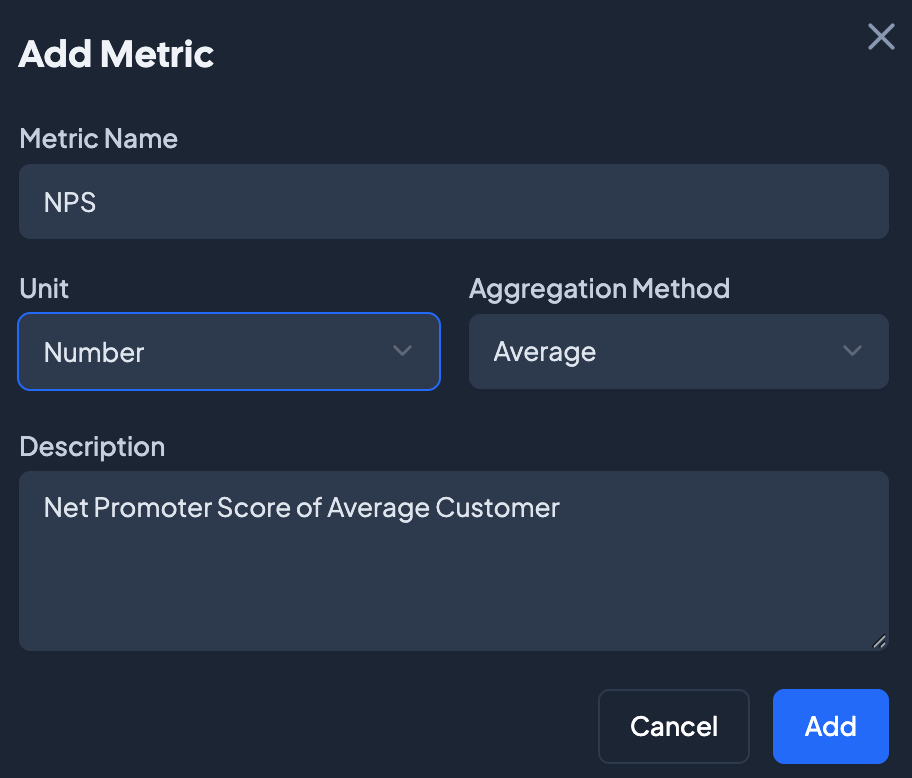
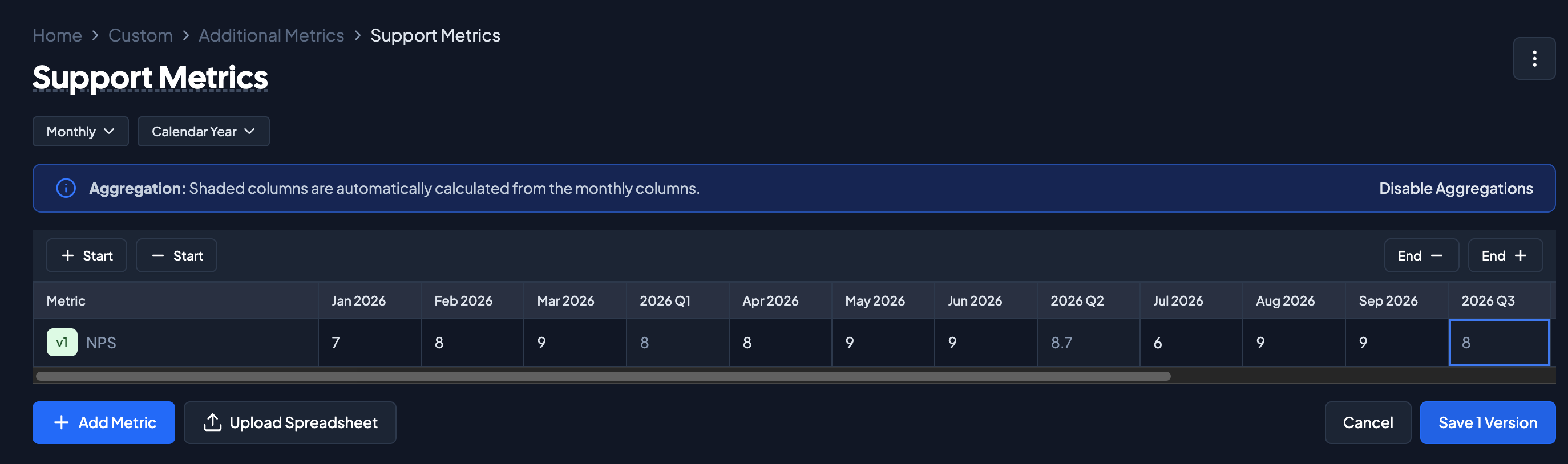
Select + Add Metric to add a new row to the Collection and specify the name, unit, aggregation method, and description of the metric. Select the correct data type for Unit, and select the correct Aggregation Method for aggregated periods. For Aggregation Periods, see the table below:
Sum | Values accumulate through the periods (i.e. ARR, expenses, emails sent, support tickets generated) |
Average | Values are rates or ratios that are not added (i.e. Win Rates, NPS, CSAT) |
Last Period | Takes the last period of data as the aggregated period value (i.e. headcount, cash balance, runway, total customer count) |
Once added, the metric is available to edit. Input values and click Save Version.
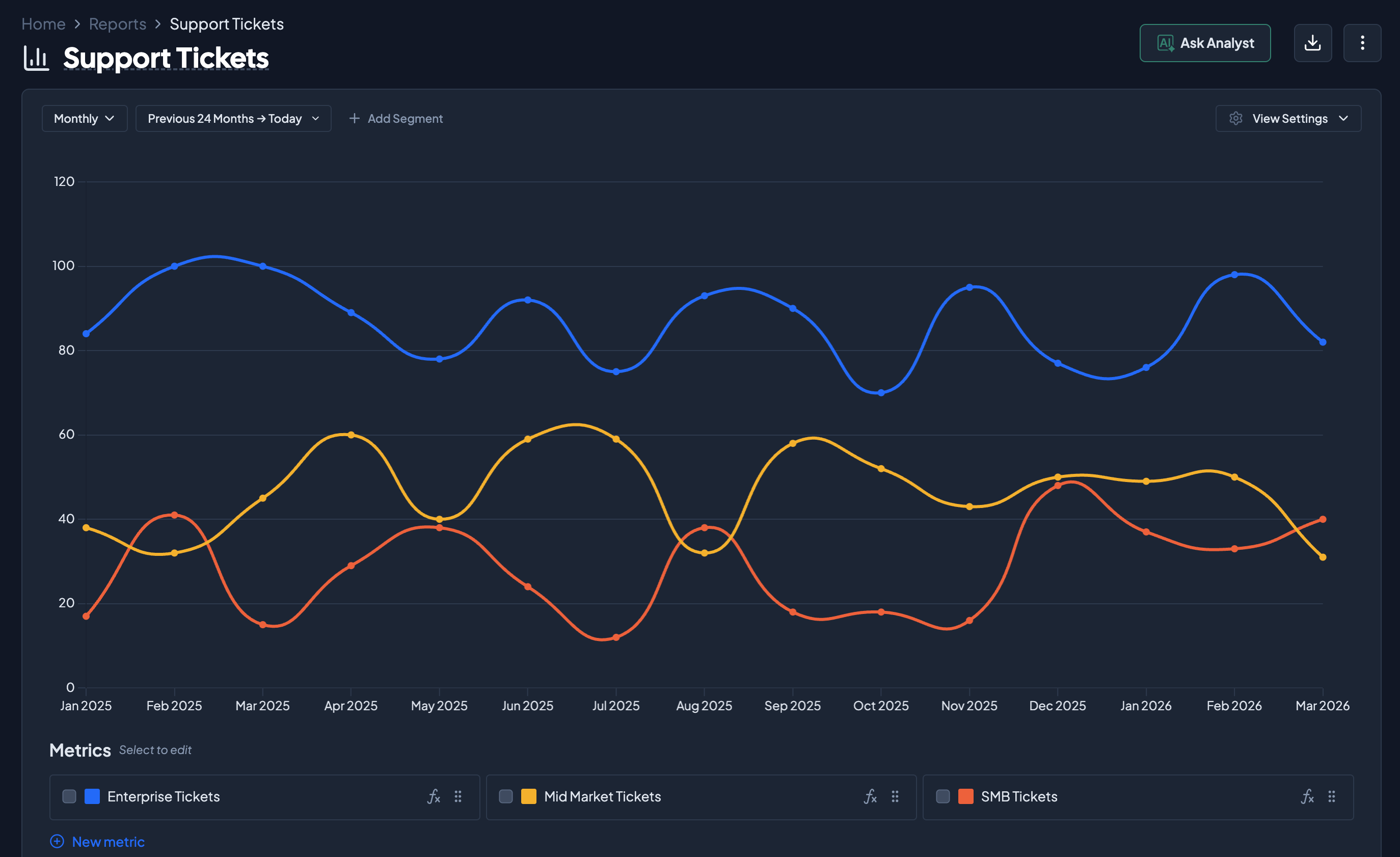
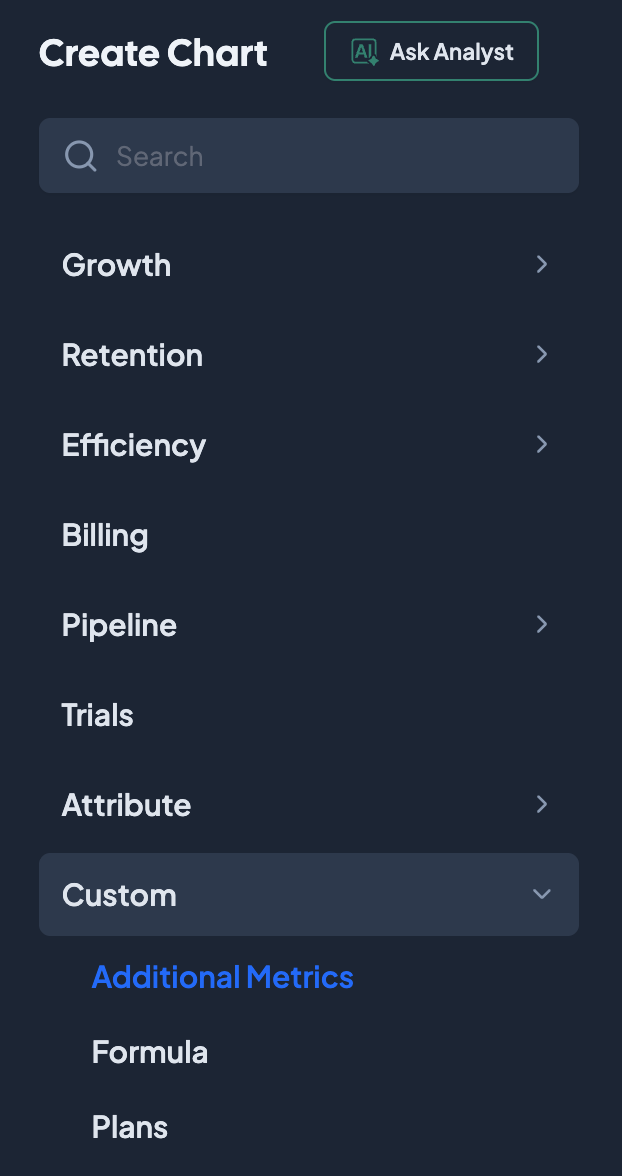
Once saved, the metric will be available to be charted in Grid. Create a new report and select the metric under Custom.
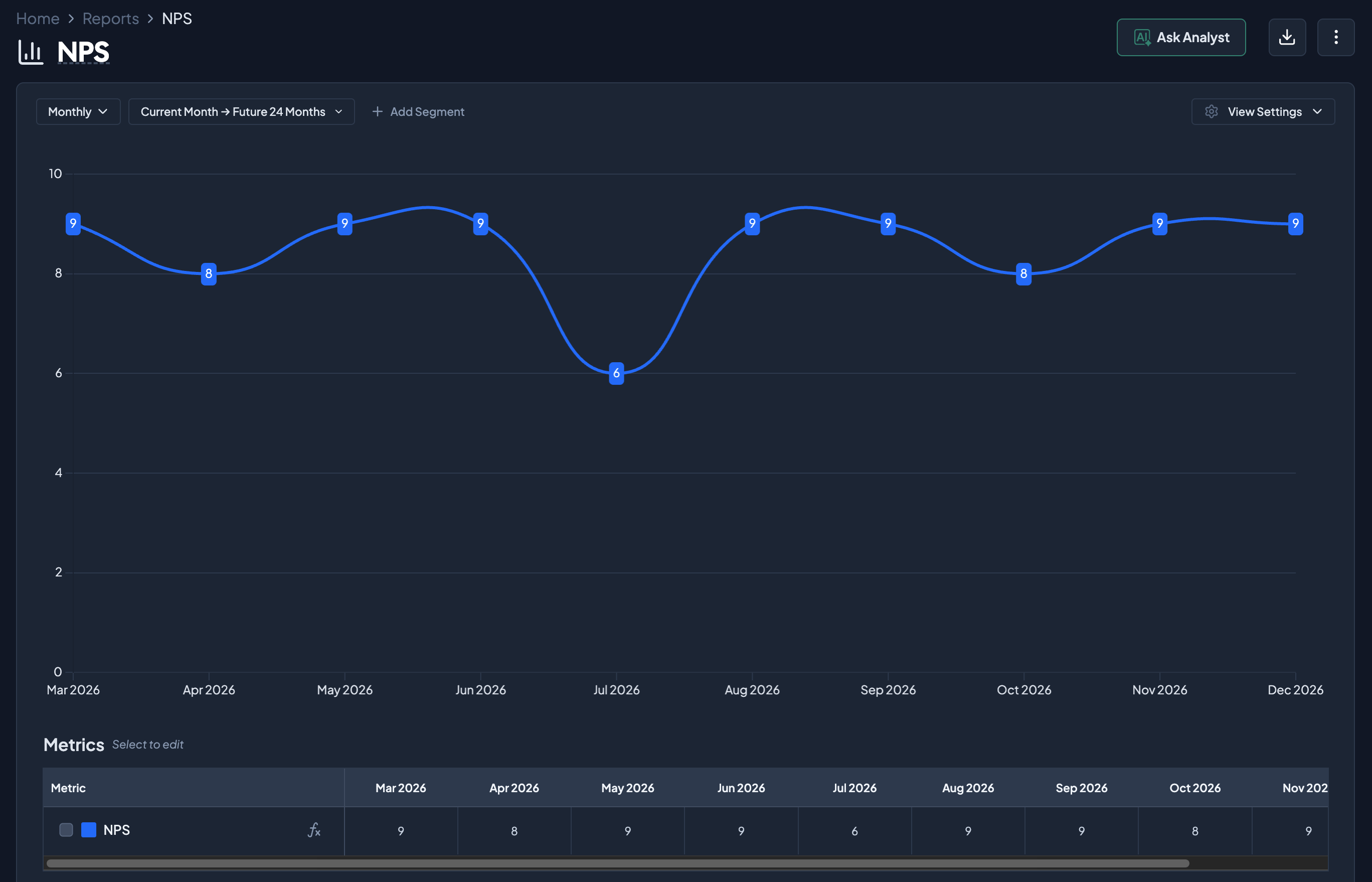
Grid will then generate a chart of the metric.
Method 2: Spreadsheet
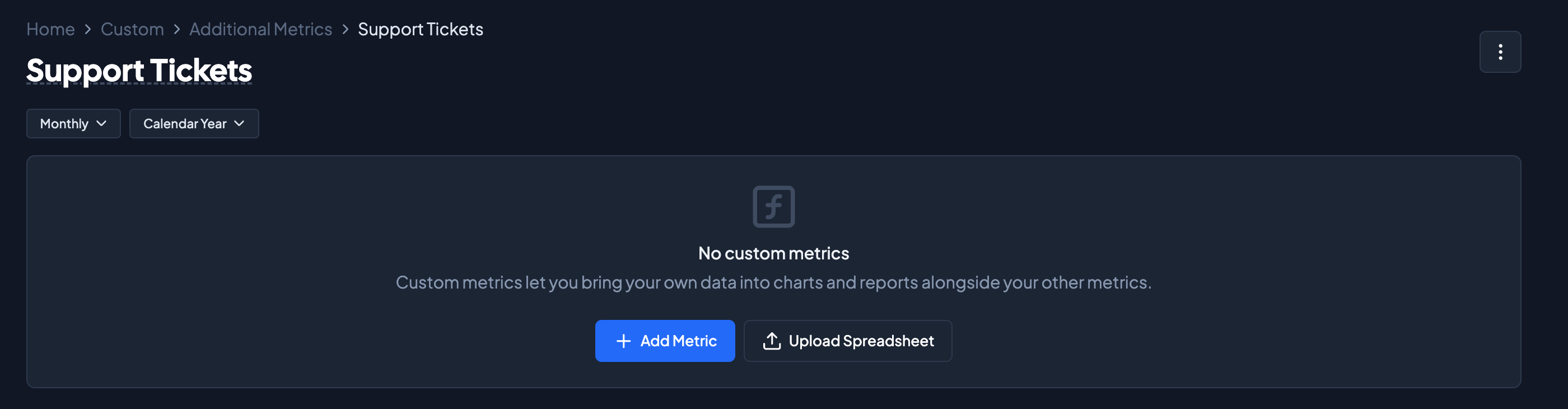
Under the collection, select Upload Spreadsheet and add an Excel file or link a Google Sheet.
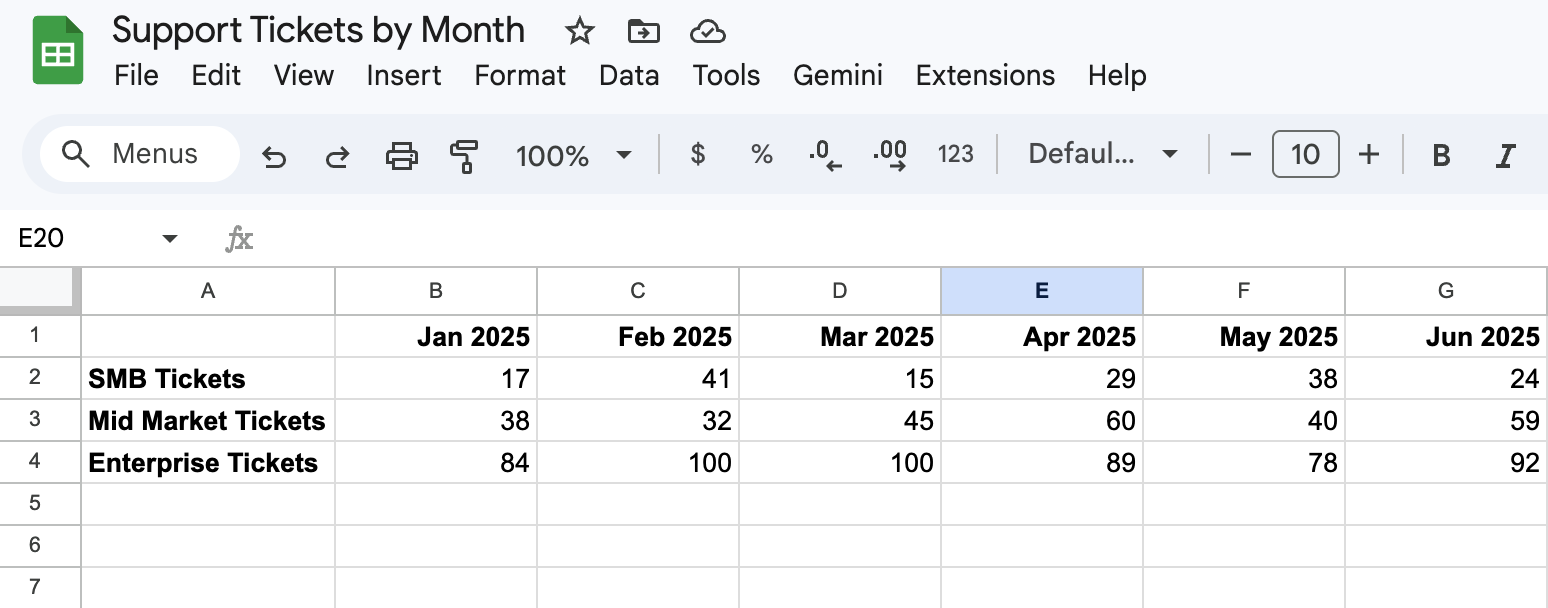
For connected spreadsheets, use columns to indicate the time periods and rows to indicate each metric category.
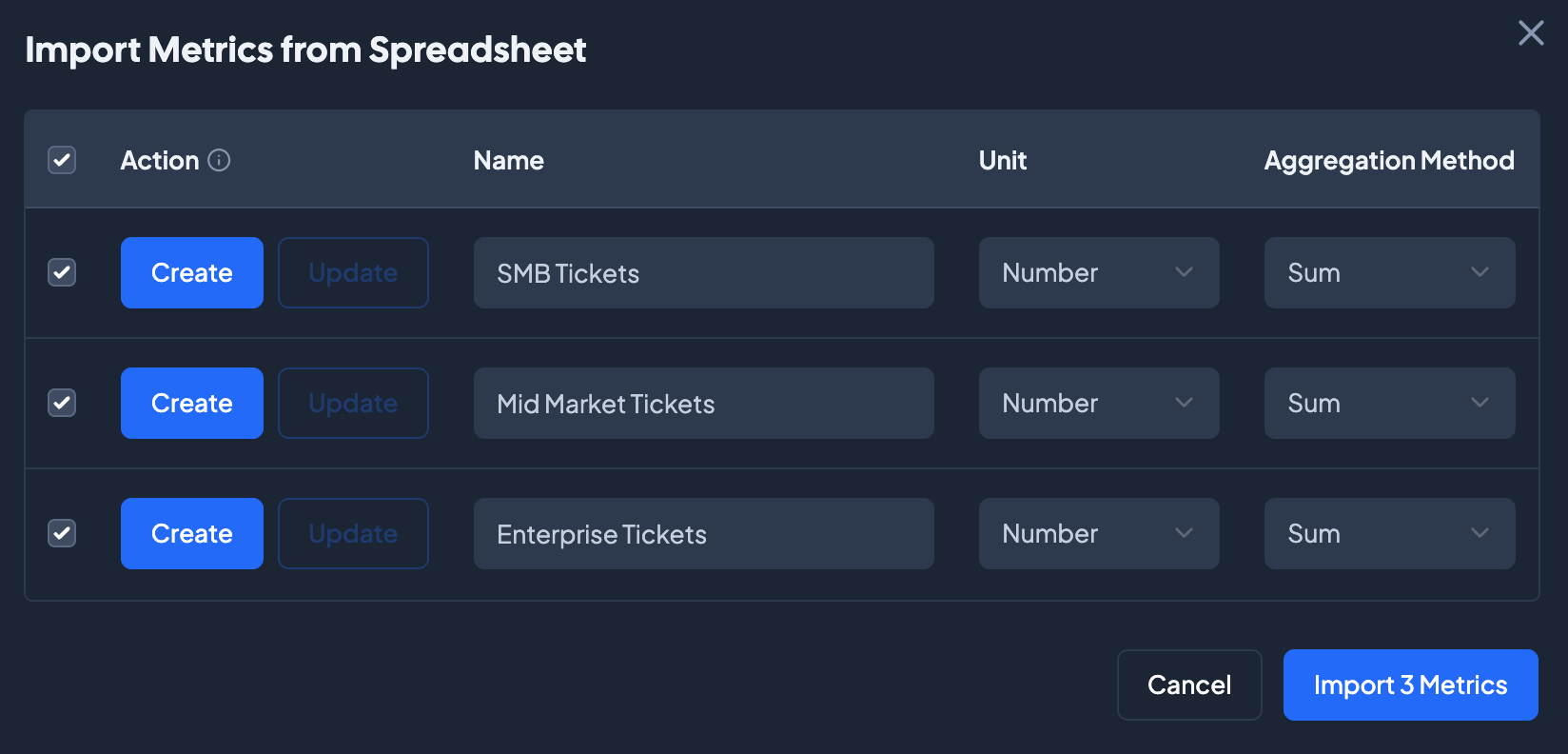
Once uploaded, make any modifications to the metrics. If updating the metric, toggle Update instead of Create. Adjust the Unit and Aggregation Method as needed. When finished, select Import Metrics.
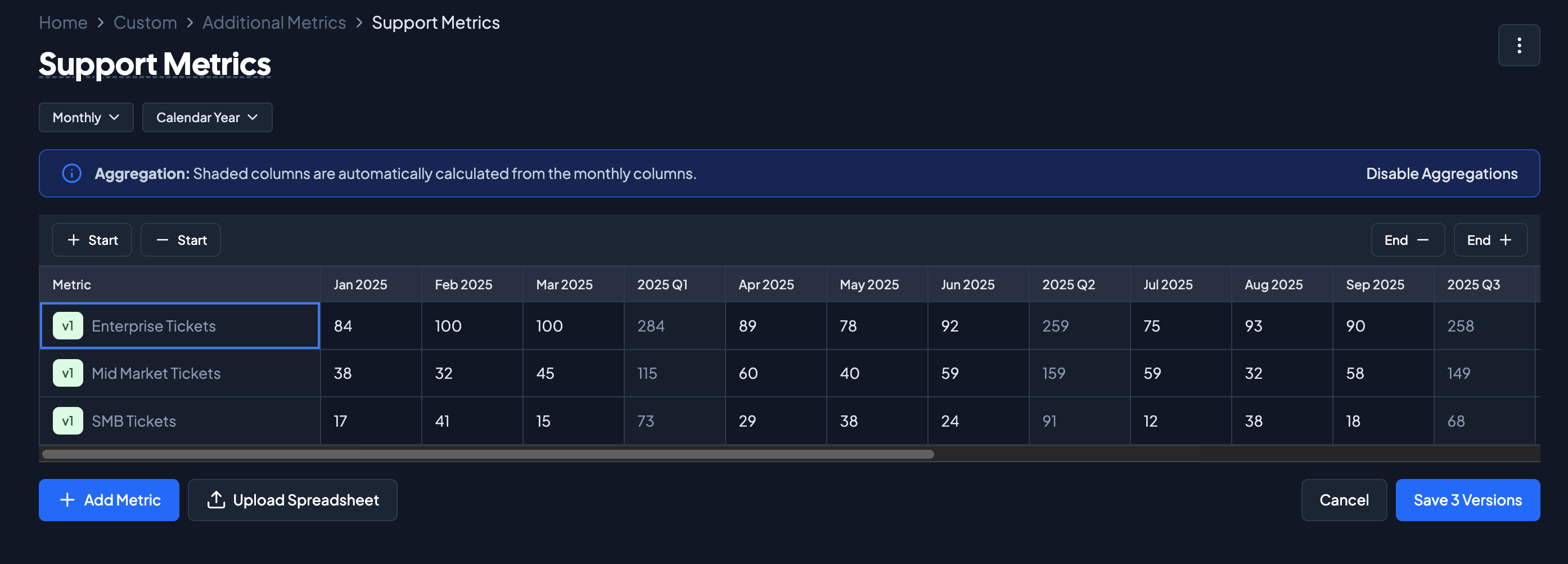
Once imported, metrics will be available on in the Collection. Click on Save Versions to save the metrics in the Collection.
To chart these metrics, create a report and select the metrics from the the Custom section.
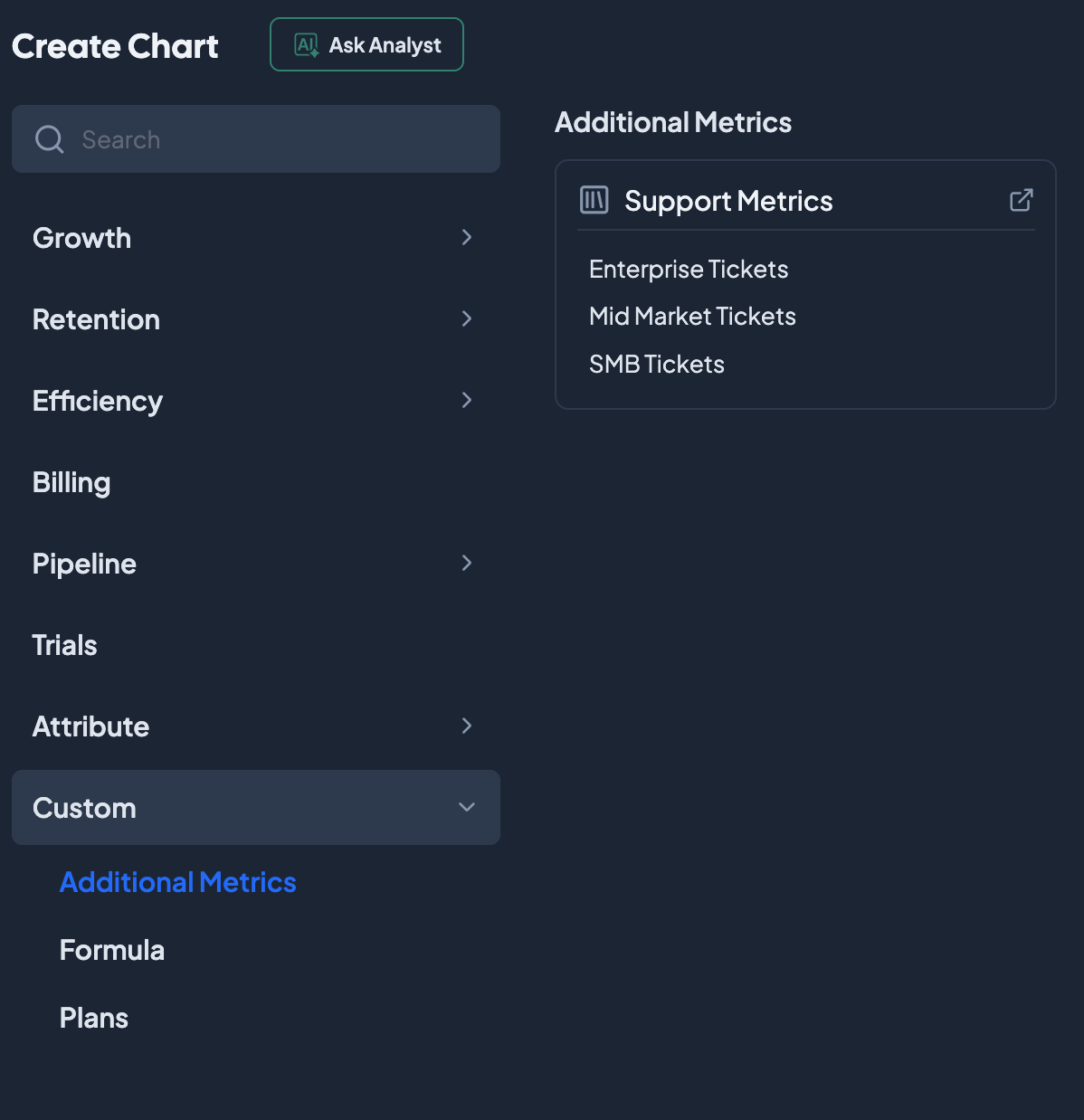
Grid will generate the chart for the metric; other metrics can be added after the initial metric.