Expense Segments
Last updated: February 26, 2026
Grid allows you to build segments and filter costs and cash from your accounting integrations. With Expense Segments, you can calculate efficiency metrics using specific expenses.
Creating an Expense Segment
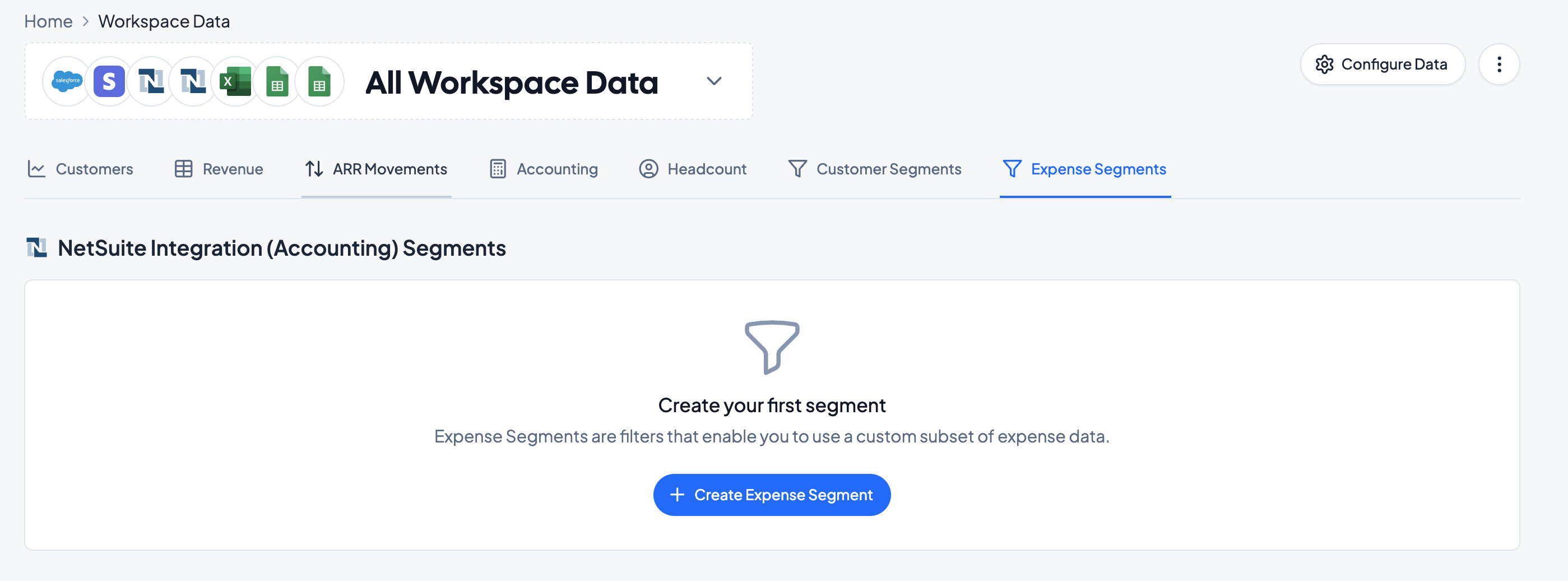
To make an Expense segment, navigate to Workspace Data and select the Expense Segments tab.
All created Expense Segments (categorized by Data Source) will be listed here, with Costs, Cash, and Create Dates detailed. Expense Segments can be edited and deleted in this view.
To make a new segment, click on Create Expense Segment + within the relevant Data Source (if applicable).
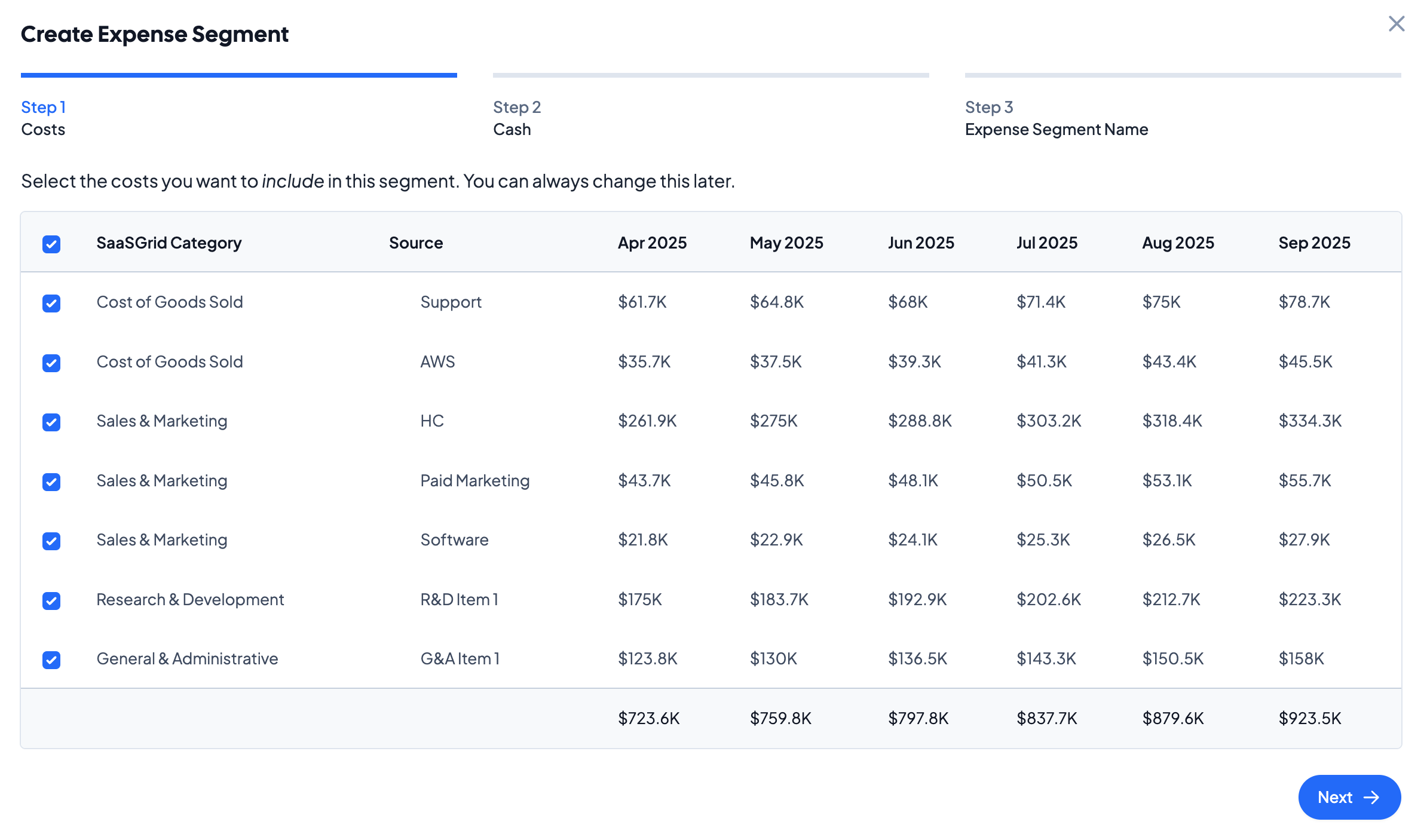
Step 1: Costs
Mark the checkboxes for all cost items that will be included for the segment. Click on Next when finished.
Step 2: Cash
Similar to the Costs section, mark the checkboxes for all cash items that will be included for the segment. Click on Next when finished.
Step 3: Expense Segment Name
Create a name for the Segment. Click on Save when finished. The segment will now be saved and modifiable.
Using an Expense Segment
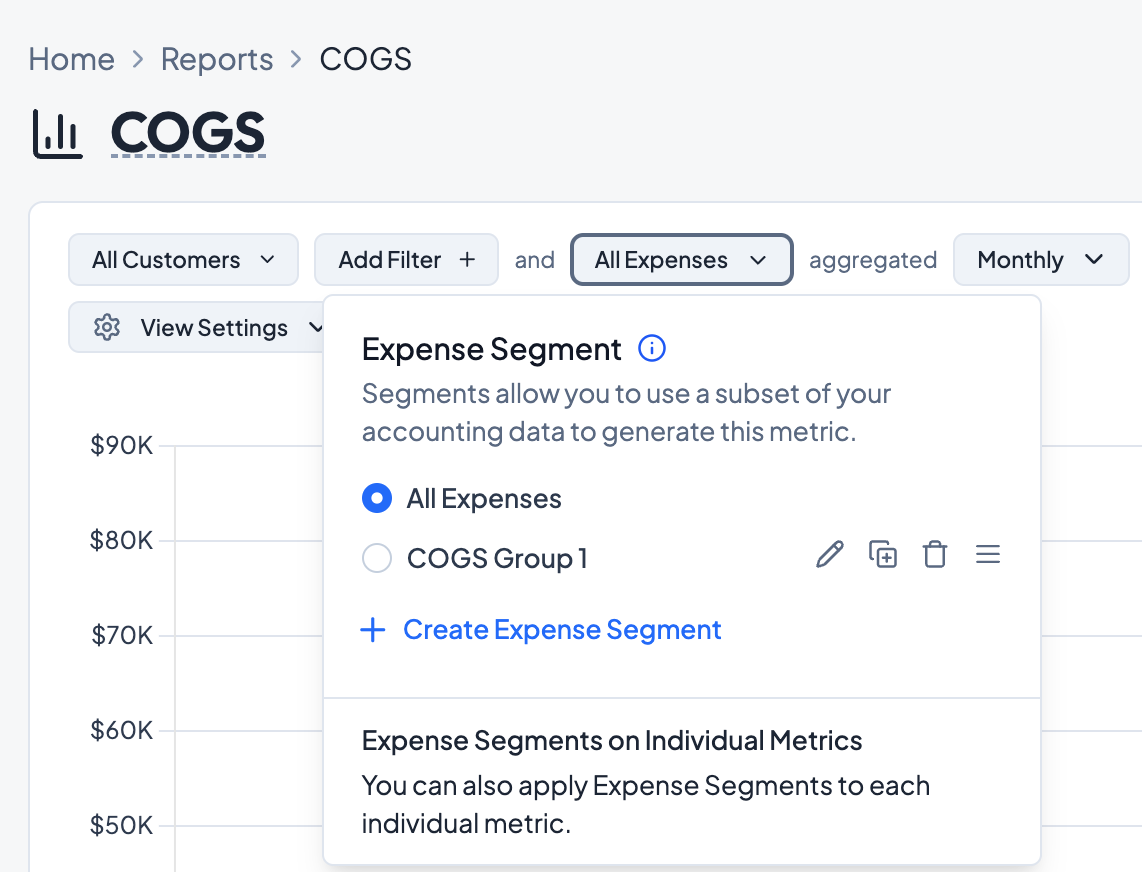
After adding an expense metric to a report (e.g. S&M Expenses), Grid will ask you to select the Expense Segment at the top of the report. By default, expense metrics will include all expenses. To modify, click on All Expenses after adding an expenses metric. This option will be available for all metrics that show expenses or use expenses in a calculation.