Retroactive Changes
Last updated: March 11, 2026
Changes in CRMs can affect reporting for previous periods. Grid can selectively allow changes to historical data via Retroactive Changes.
To manage changes to CRM data in Grid, navigate to Data in the left navigation pane and select the CRM integration. Select the Retroactive Changes tab to view changes from the CRM that affect historical metrics.
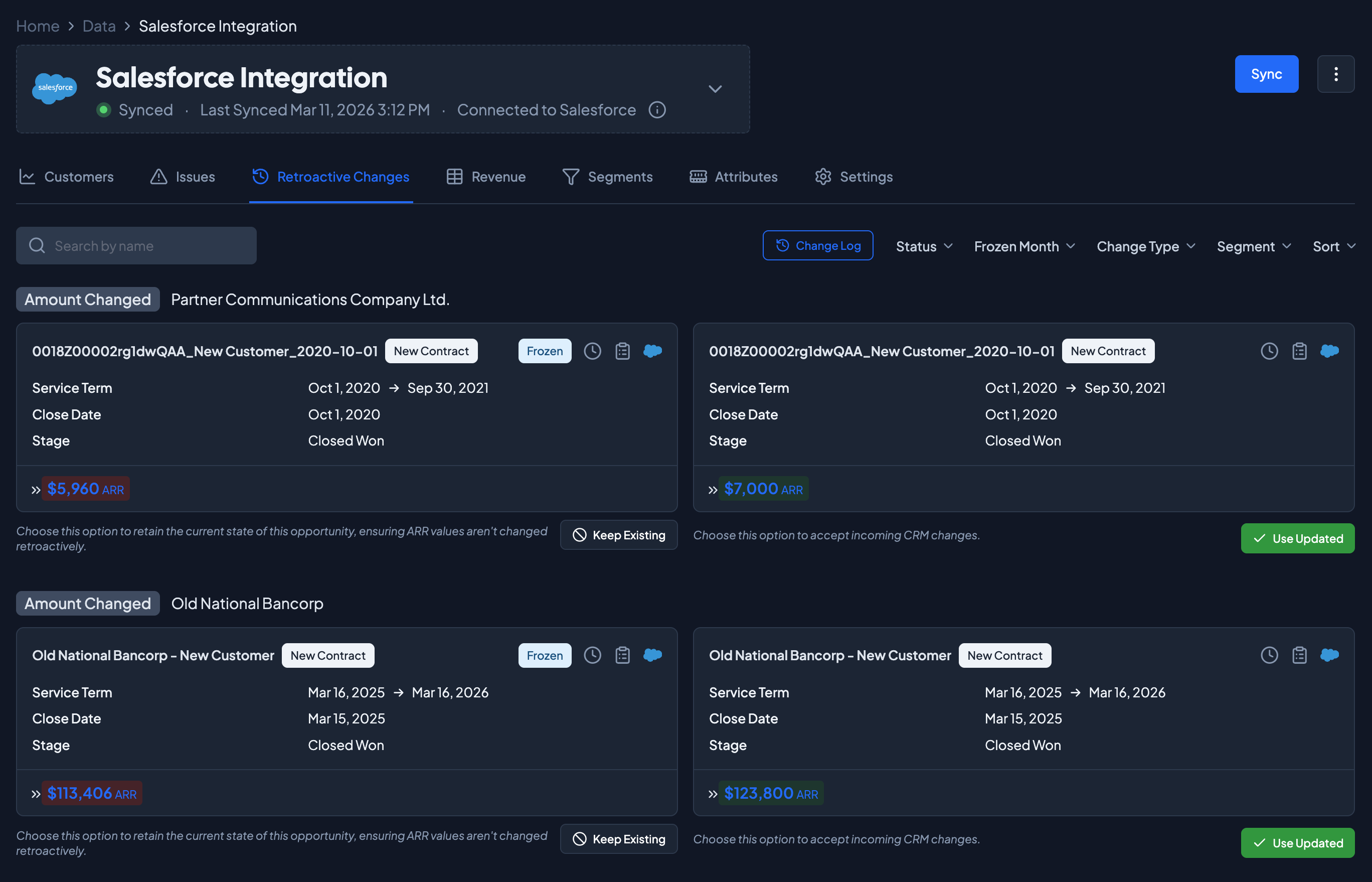
The left column details the previous state of the contract.
Amount Changed indicates the ARR amount of the opportunity that has changed.
Frozen indicates that this opportunity is currently being used for reporting. The modified opportunity (in the right column) is not being used.
The red highlighted ARR number indicates the historical ARR value.
Selecting ⦸ Keep Existing will keep the original opportunity values for historical reporting.
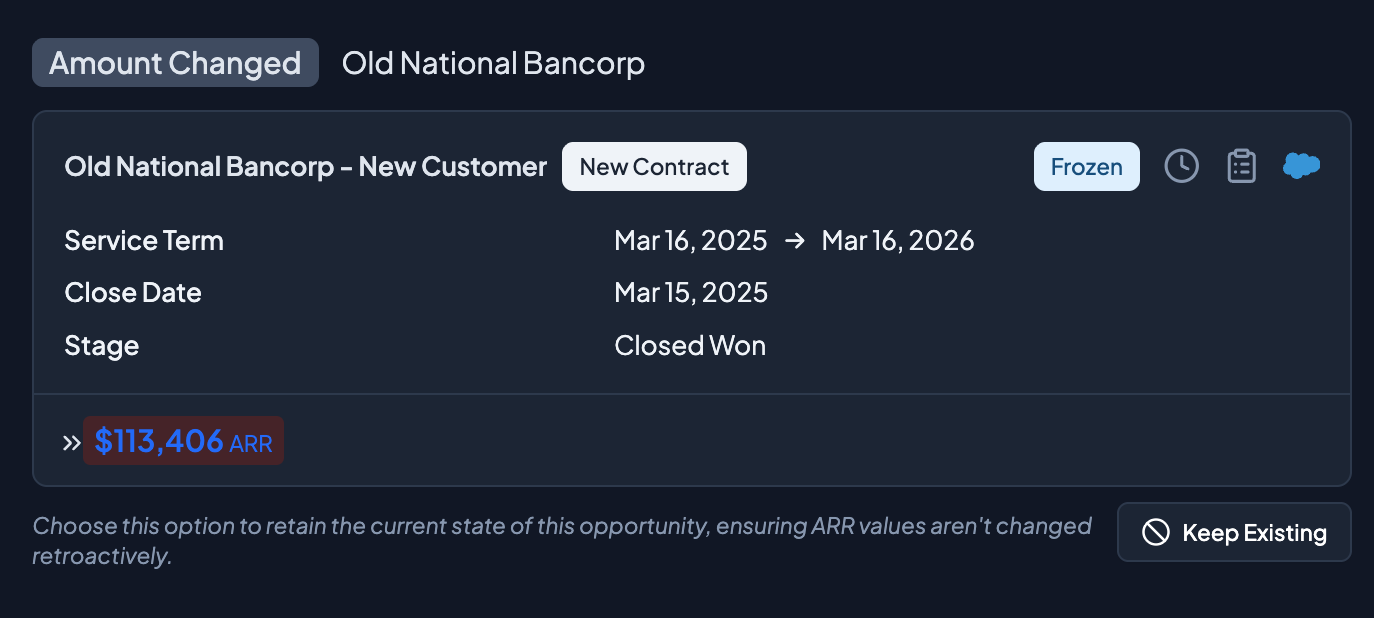
The right column details the new, current state of the contract.
The green highlighted ARR indicates the changed ARR value currently on the opportunity.
Selecting ✓ Use Updated will update the contract value in Grid to match the current CRM value
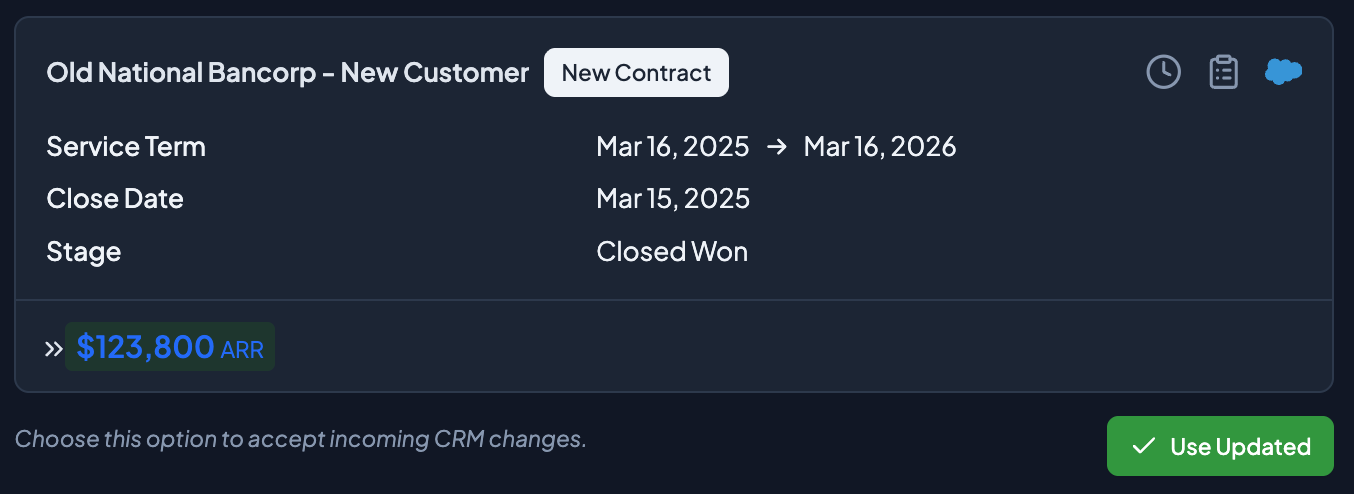
To filter retroactive changes, select the attribute to filter on.
Select Status to filter by Current or Resolved changes. To see or revert completed retroactive changes, select Resolved under Status. For a complete list of historical changes, select Change Log in Grid.
Frozen Month filters for the month with the historical date value.
Change Type indicates the type of change. Amount indicates a change in amount, while Service Term Date indicates a change in the Start or End Date.
Segment can filter to any existing segments for the CRM integration.
Sort allows different sorting based on date or name fields
