Setting up Orders
Last updated: February 26, 2026
Grid supports using Orders from Salesforce to calculate revenue and retention metrics. To set up your Salesforce Data Source with Orders, follow the instructions in the Salesforce Rules Flow.
Step 1:
On the first page of the Salesforce Rules flow, select Orders for the revenue source data.
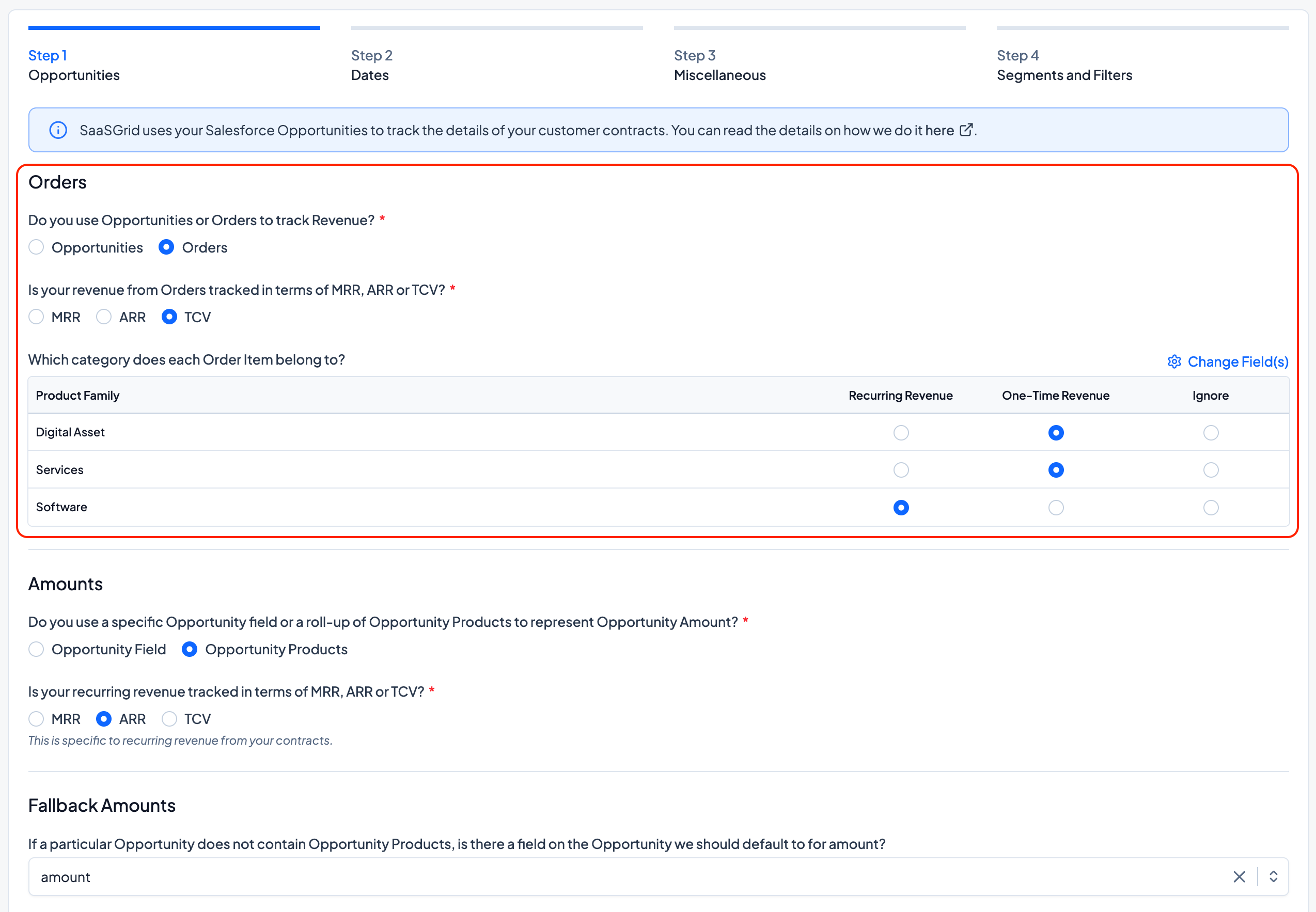
Grid uses the OOtB price and quantity fields on the related Order Items. [griffin/teddy to insert logic on how order item discounts are incorporated]. Select whether the amount calculated represents MRR, ARR or TCV.
Next, categorize which line items should be Recurring or One-Time Revenue. Select Change Fields to change the field you would like to use to categorize your Line Items. If new values are added, they will automatically be categorized as “Ignore’. [should this be default behaviour??]
Step 2:
On this next page, configure how dates are set up in your Orders.
First, for your Contract Start Dates, indicate whether that field exists on the Order or on the Order Item and what that field should be. Optionally, define a fallback field that Grid will use if the first field indicated is blank.
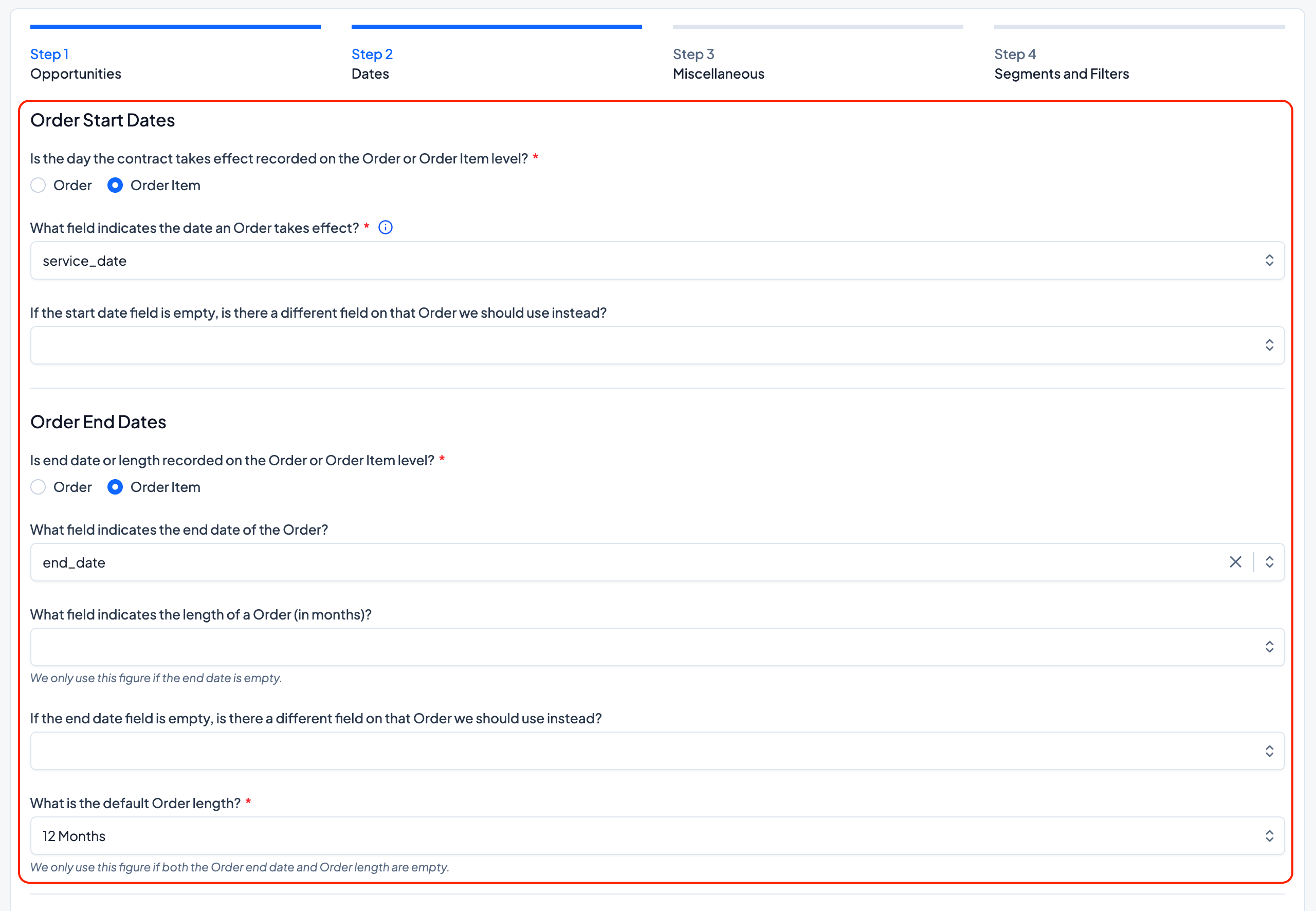
Similarly for End Date, indicate whether that field exists on the Order or on the Order Item and what that field should be. Optionally indicate a field that captures the length of a contract, which Grid will use if the End Date field chosen is empty. If both the End Date and the Contract Length fields are both empty, the default Order Length field is what Grid will fall back to.
Step 4:
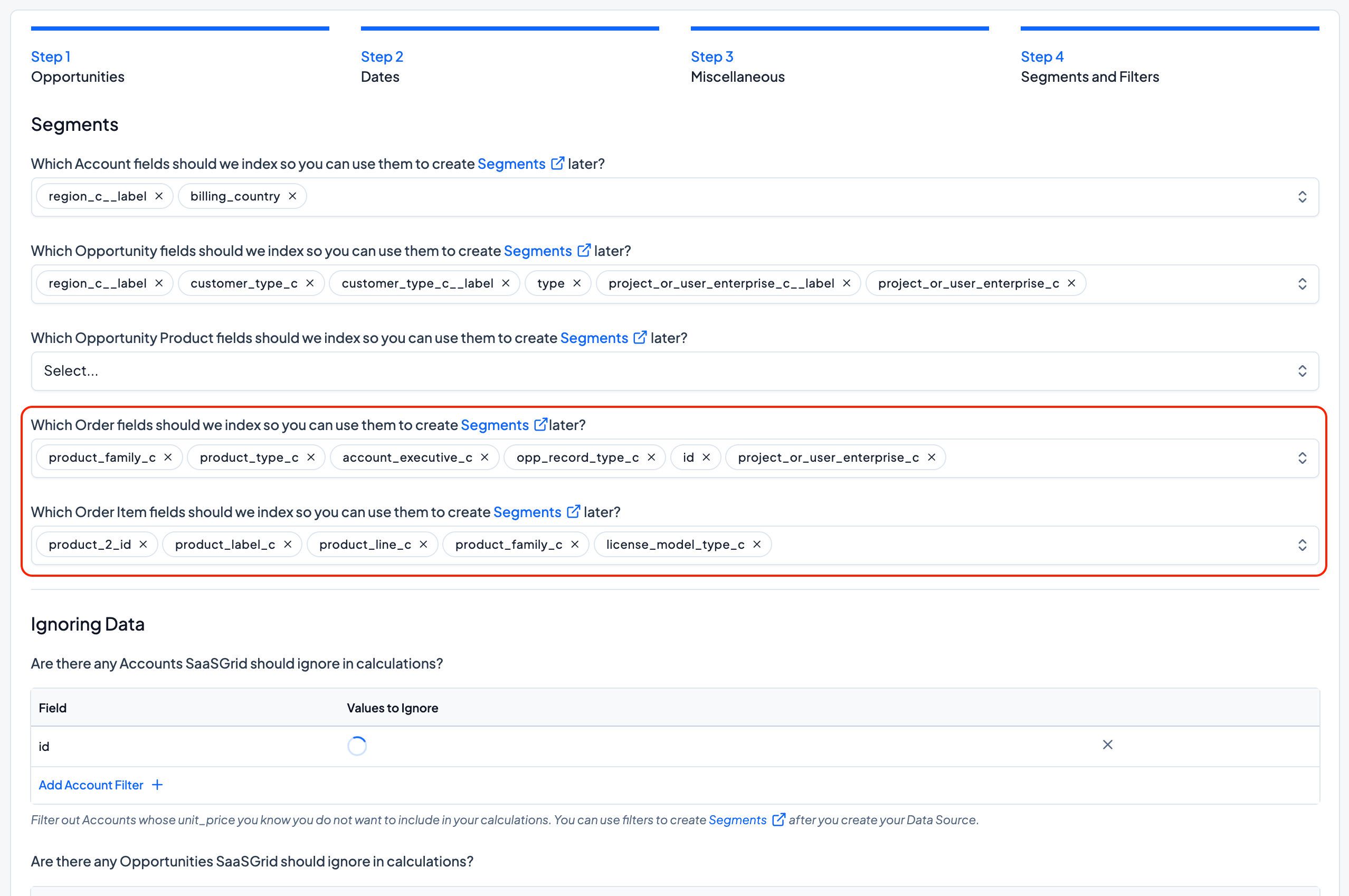
If you would like to pull in additional Order fields to build Segments, create Groupings, or more, you index additional fields.
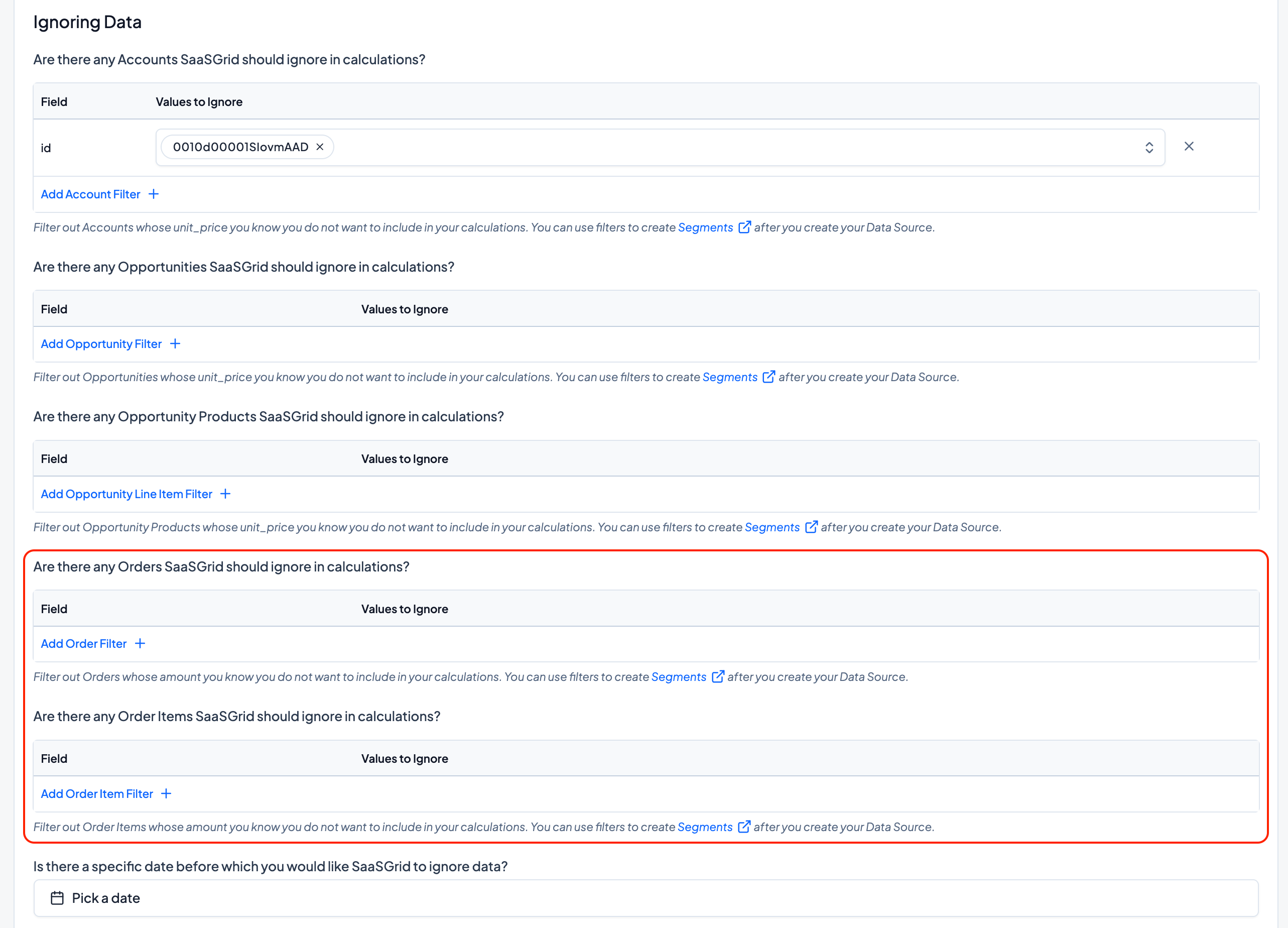
If there are Orders you would like Grid to ignore (test date, duplicate data, etc.), you can configure that here. Select the field you’d like to filter on (eg. ID field, boolean field, etc.), and select the values that you would like Grid to ignore.