Pushing Data to CRM
Last updated: April 16, 2026
Grid can optionally push metrics and attributes to your CRM, connecting data from billing systems to your CRM.
To configure this setting, navigate to Workspace Data and click on Configure Data in the top right corner. Click on the new Push to CRM Integration tab (this will be named differently based on your CRM integration.
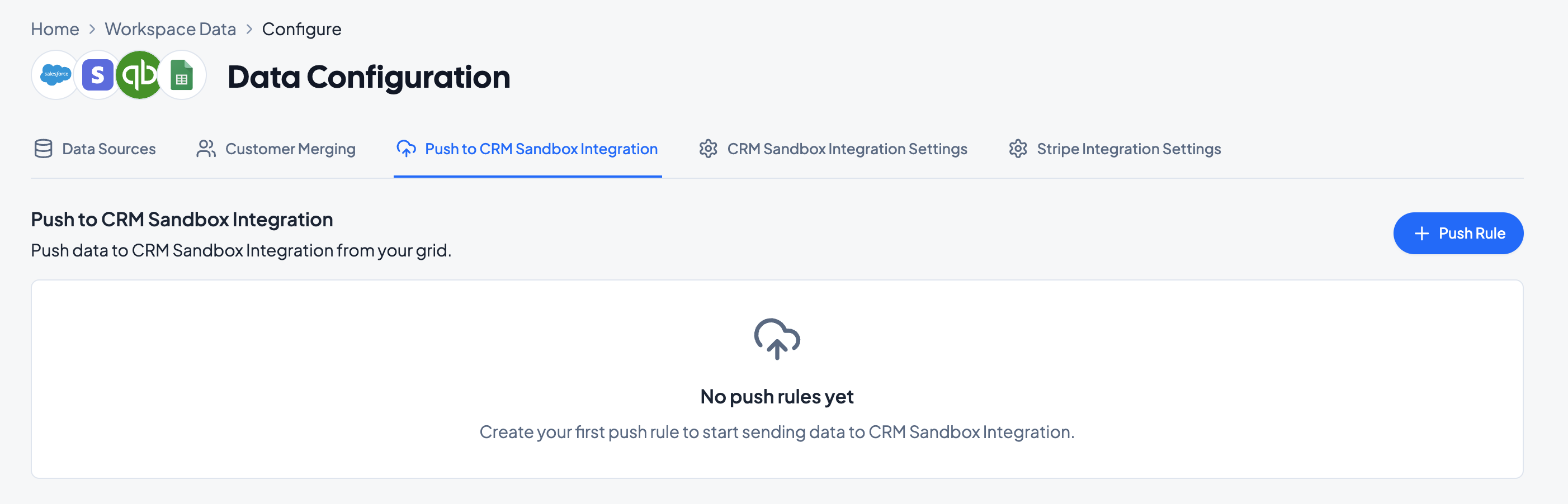
Click on + Push Rule to create a rule to push metrics or attributes to CRM, and select either Metric or Attribute to push to CRM.
Pushing Metrics to CRM
Select Metric to push Grid-calculated metrics to CRM and follow the rules flow to
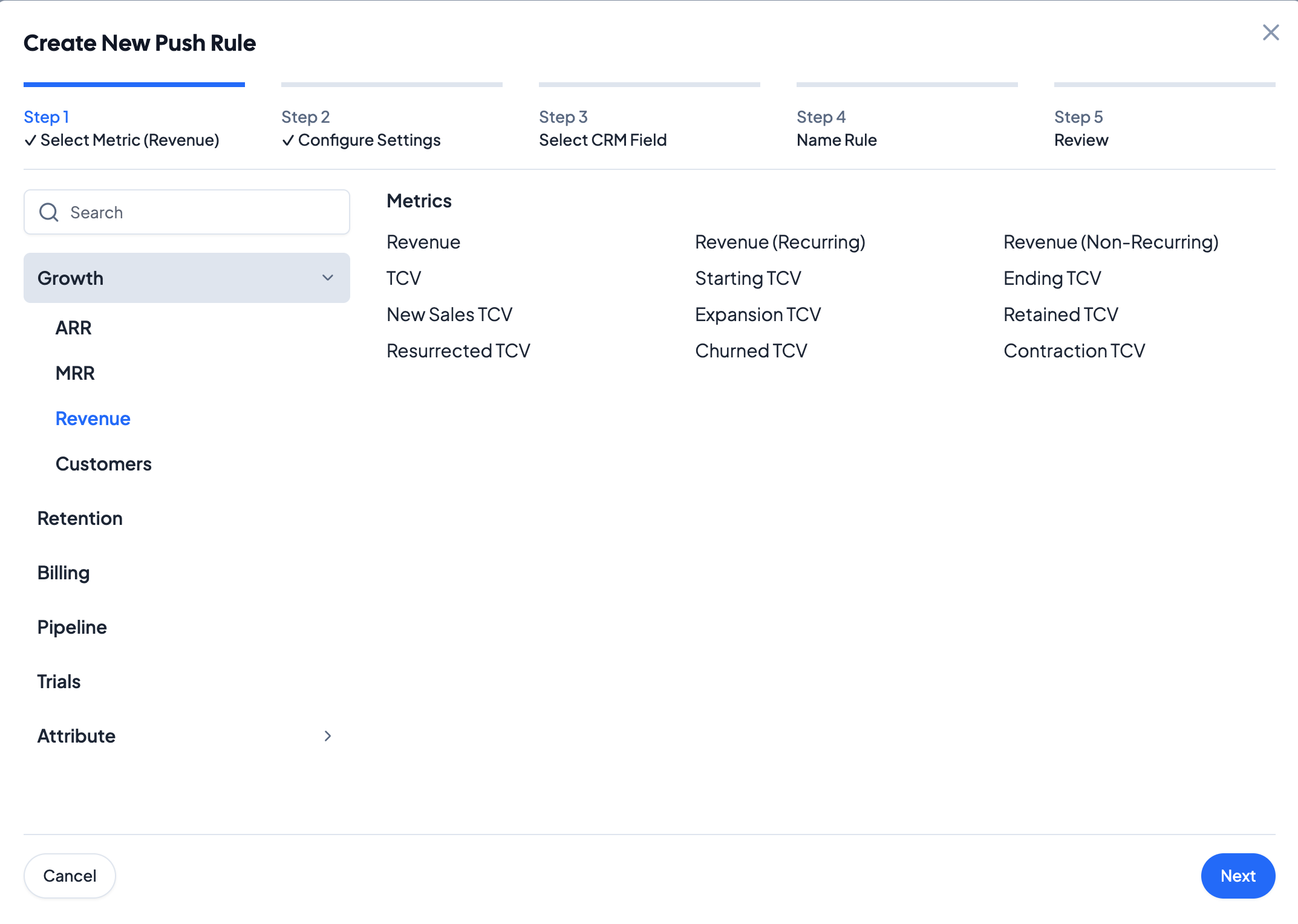
Step 1: Select Metric
Select the metric to push to CRM. Choose either a default metric or an attribute metric.
Step 2: Configure Settings
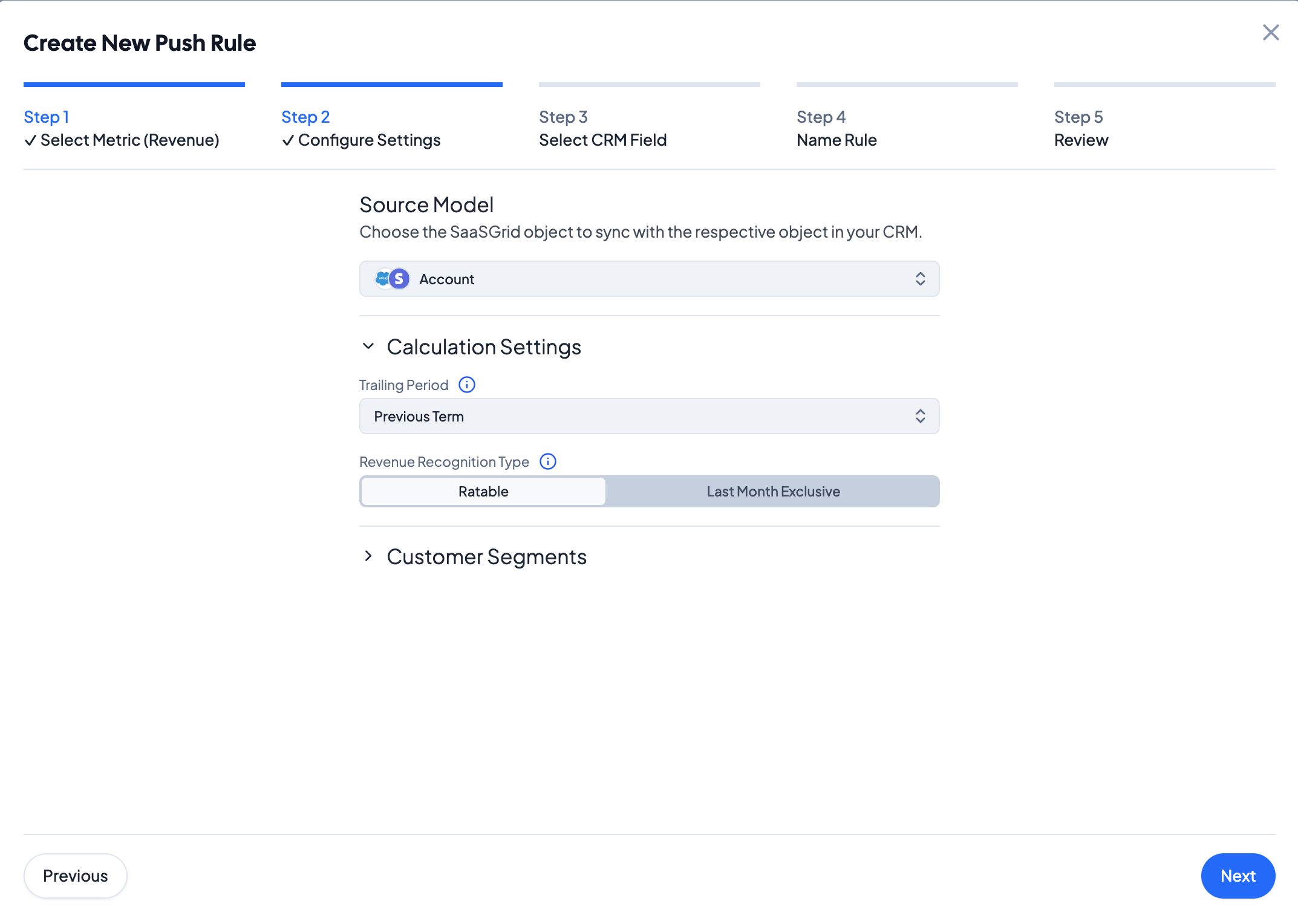
Choose the Grid Source Model from which the metric should be calculated from. For customer-level metrics, select objects like Account, Company, or Customer. For deal-level metrics, select objects like Opportunity, Deal, or Subscription.
Select the appropriate Calculation Settings for this metric and specify if this rule is only for a particular segment of customers in the Customer Segments tab.
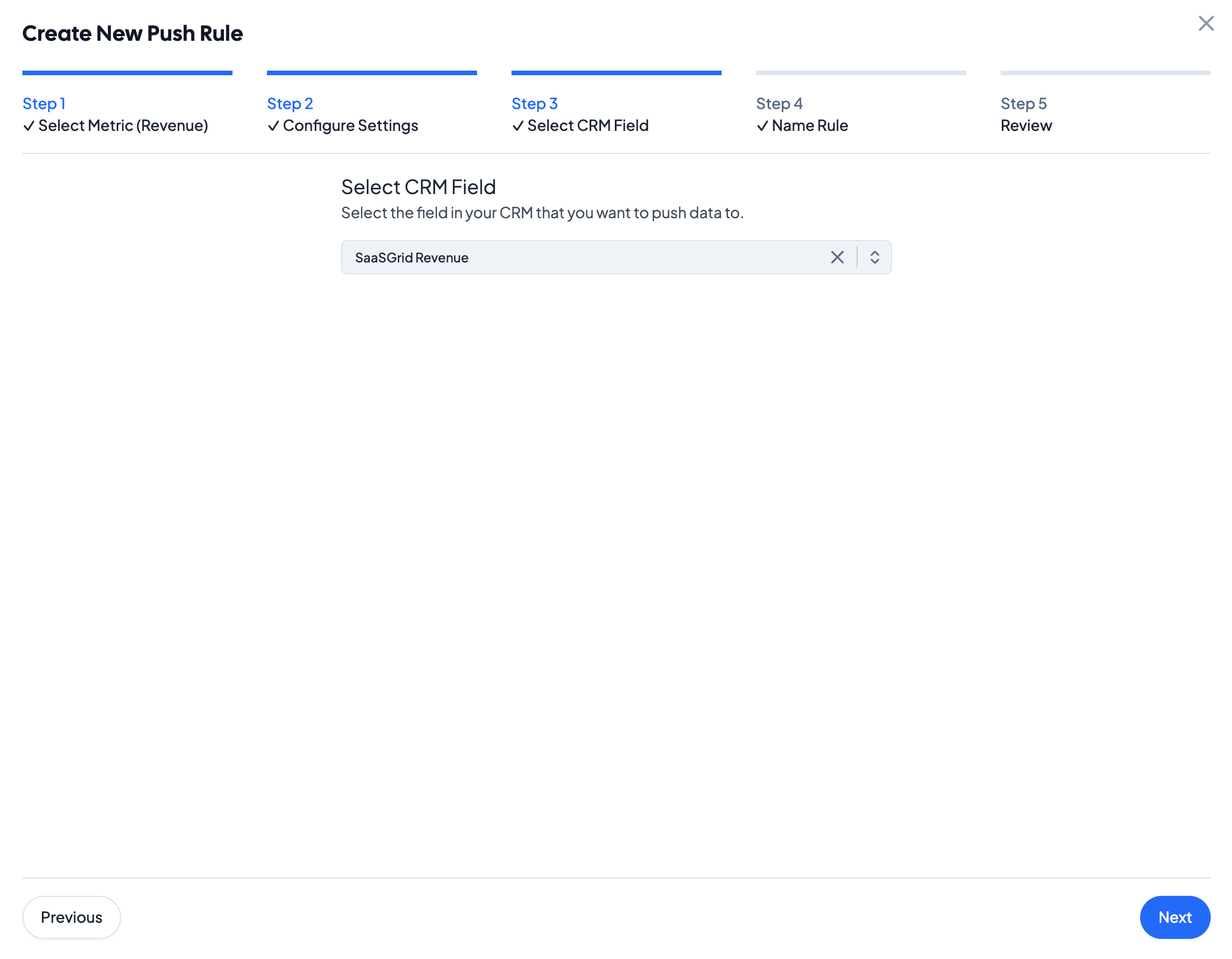
Step 3: Select CRM Field
Select the target CRM field for the Grid metric. Based on the object selected in Step 2, Grid will list available CRM fields on the corresponding object.
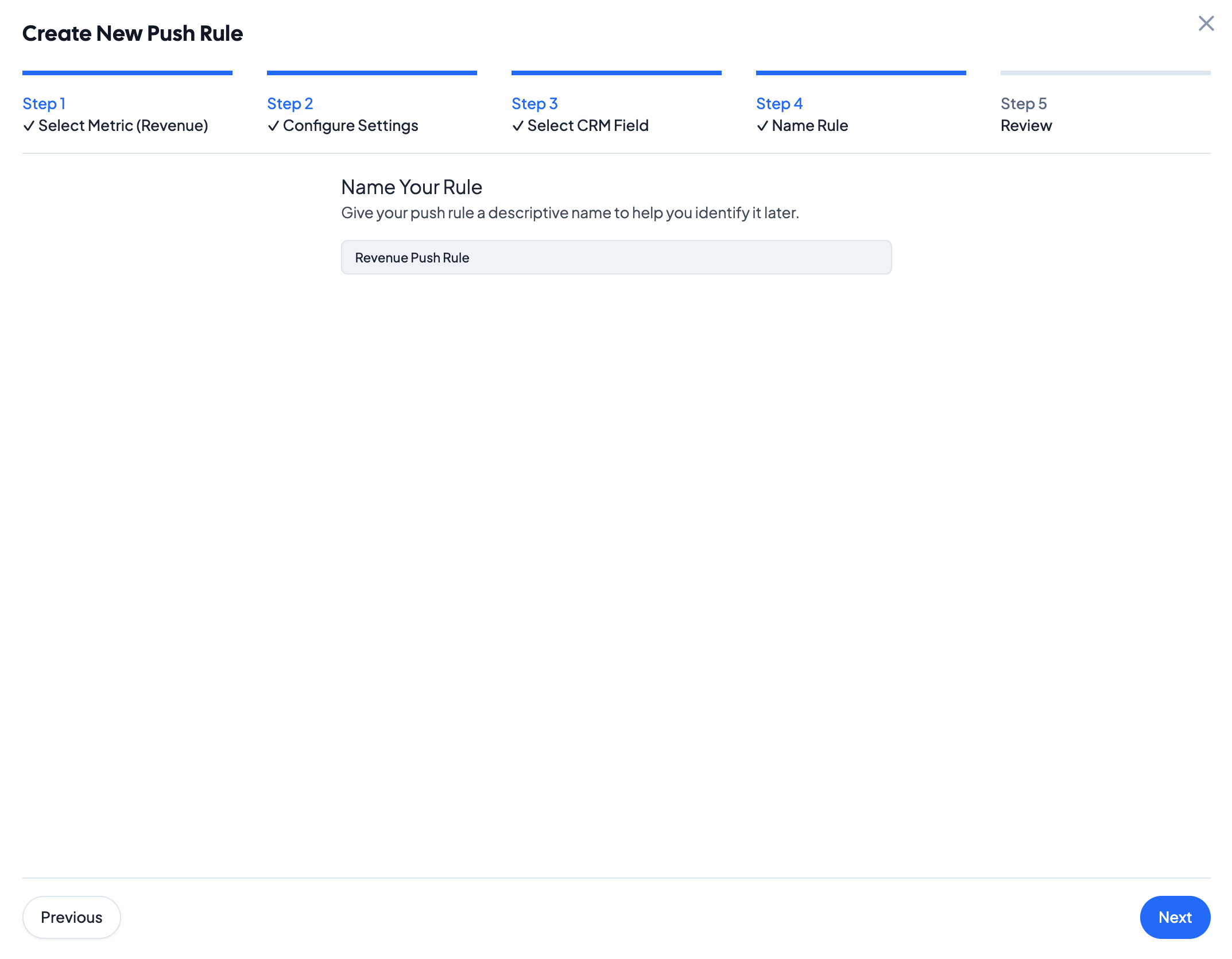
Step 4: Name Rule
Name the CRM push rule. Grid will display multiple rules in the rule manager, so make sure to specify the data fields that are involved in the rule.
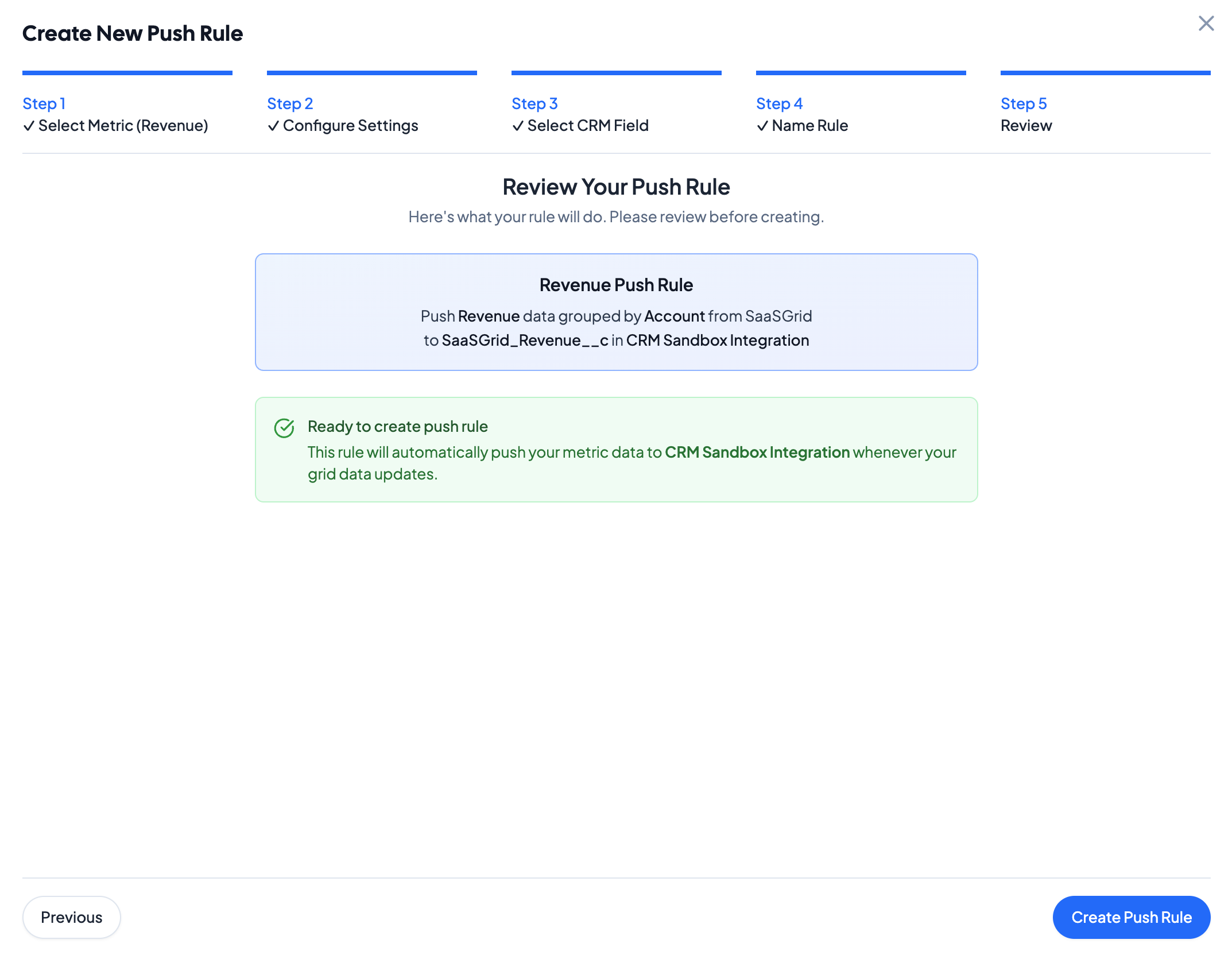
Step 5: Review
Review the push rule. To save and create the rule, click Create Push Rule at the bottom of the page. The metric from Grid will now sync to CRM when the integration syncs.
Pushing Attributes to CRM
Grid can also push attributes to CRM. Select + Create Push Rule and select Attribute to create a new push rule for attributes.
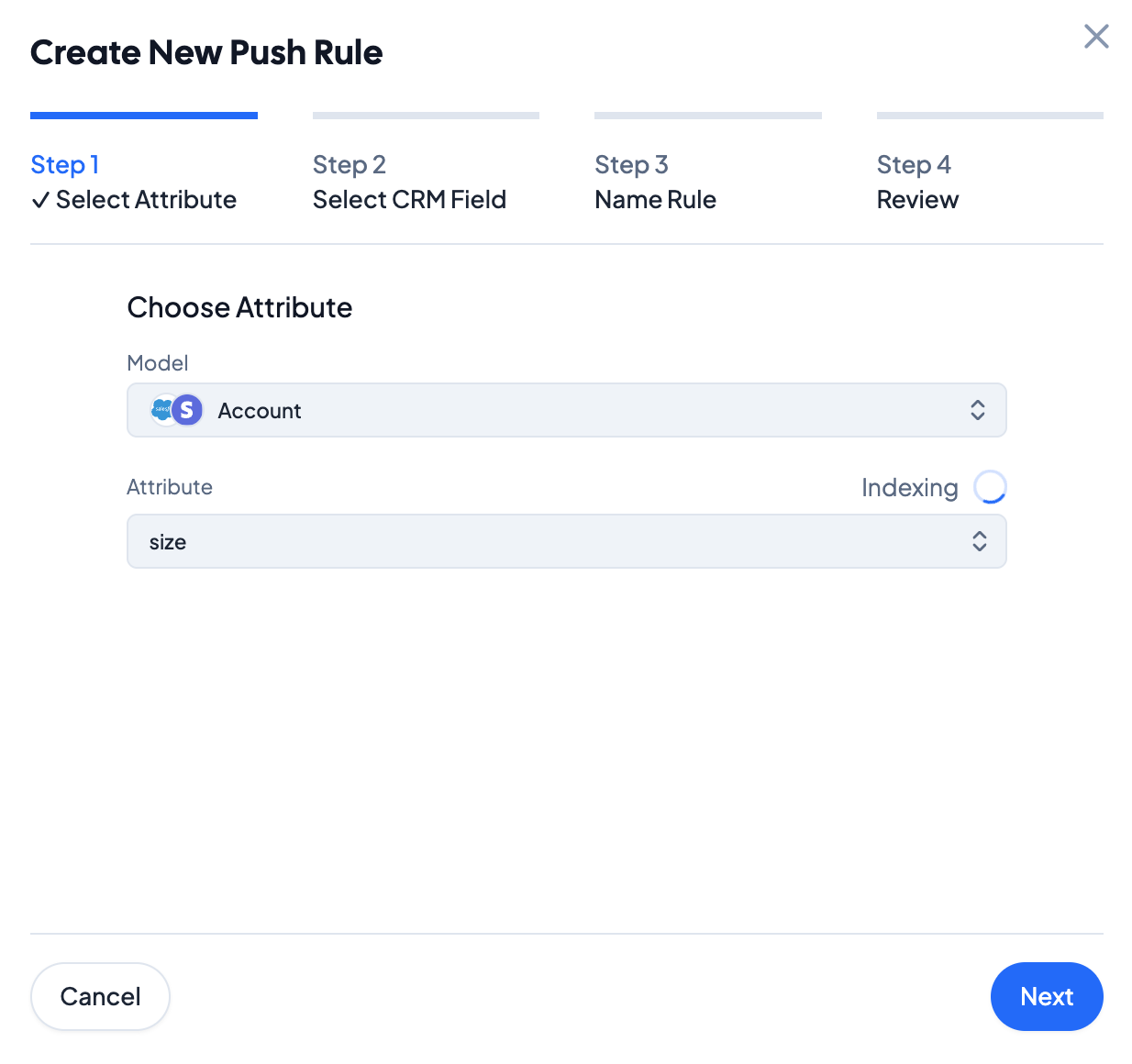
Step 1: Select Attribute
Select the attribute to push to CRM. This can be from any Grid object (here the Account object). In this example, the size attribute is from Stripe.
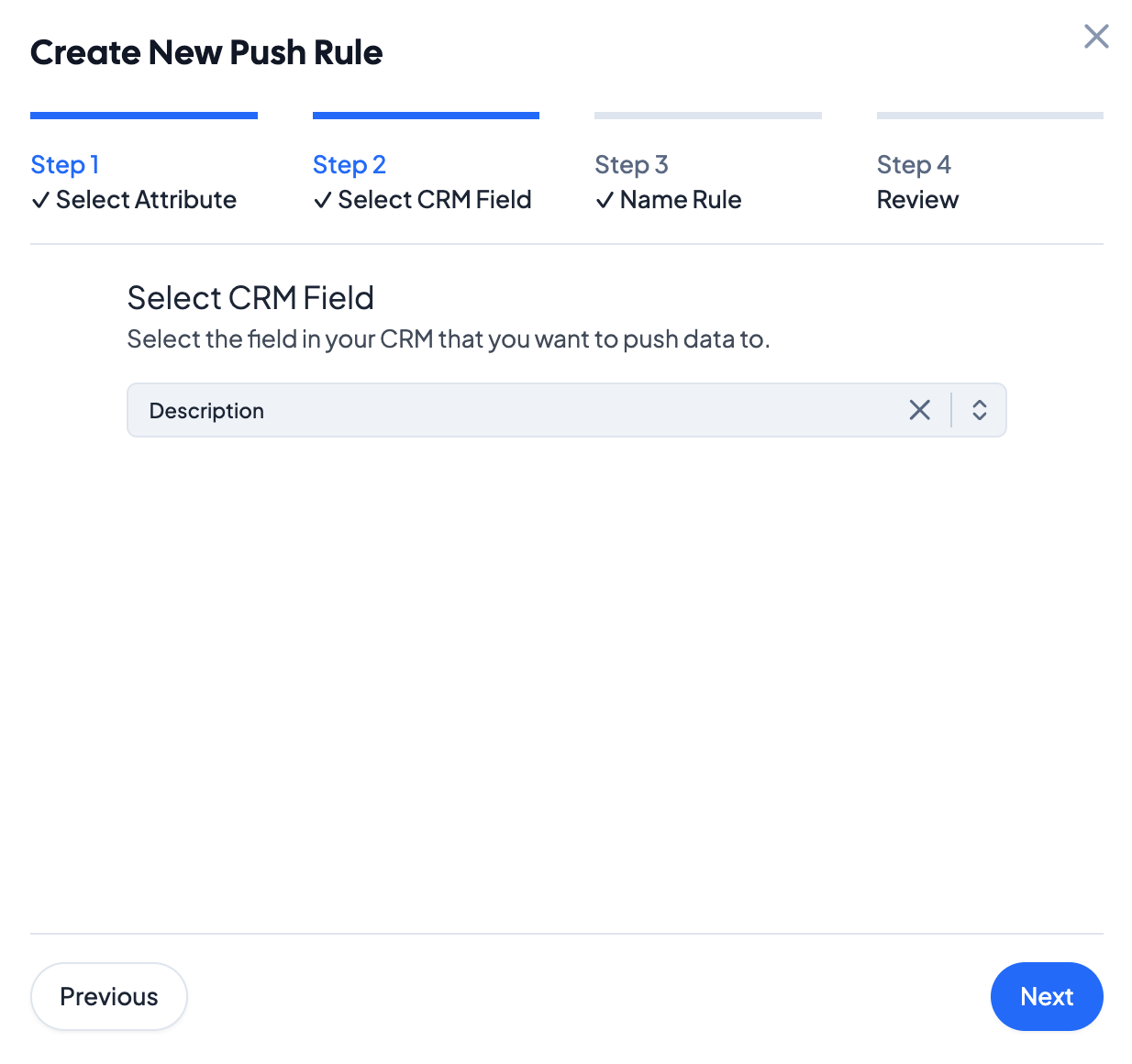
Step 2: Select CRM Field
Select the target CRM field to push this attribute to. Note that the list of available fields is at the Account level, as the attribute being pushed exists at the customer level in Grid.
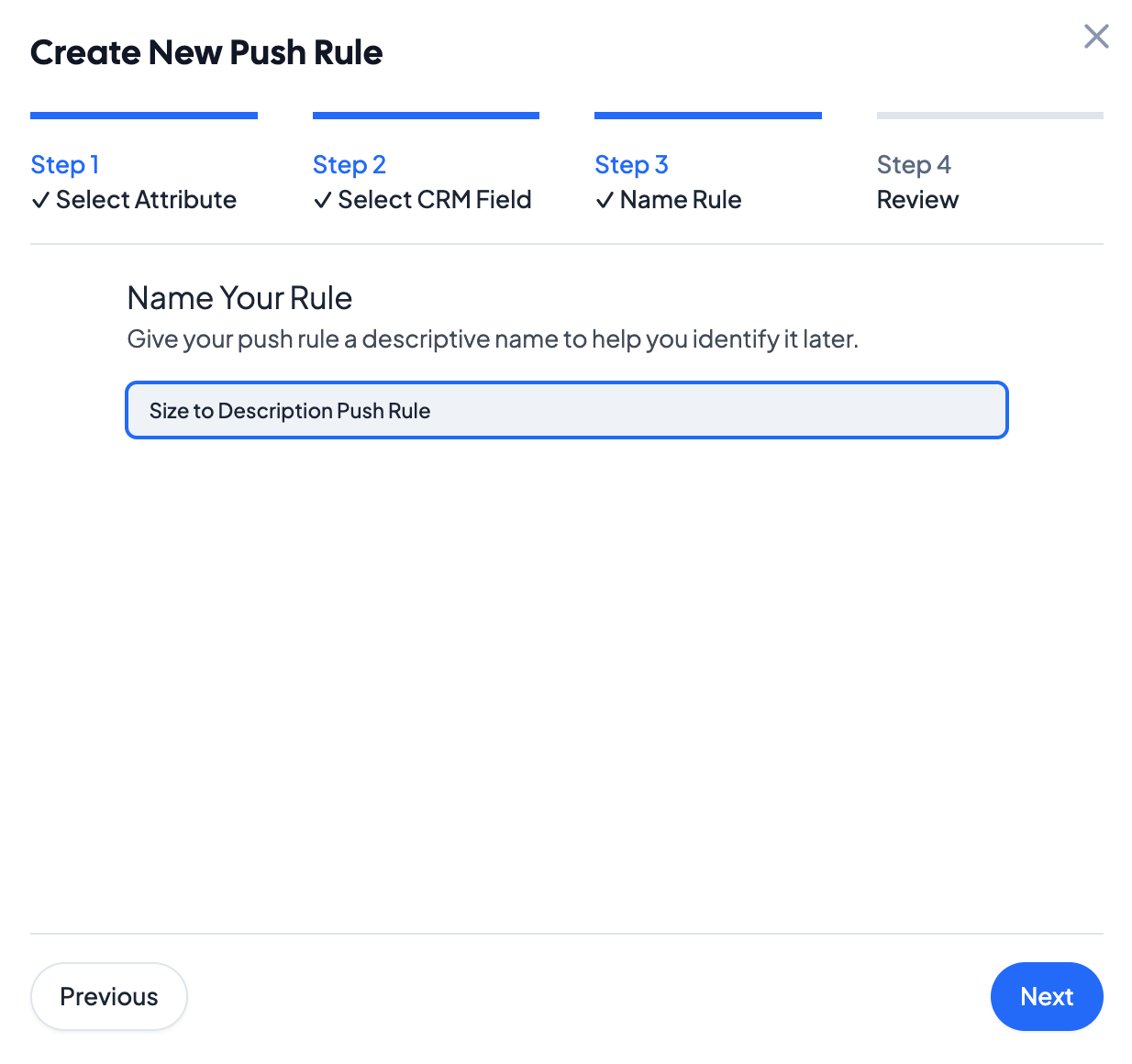
Step 3: Name Rule
Name the attribute push rule. Grid will display multiple rules in the rule manager, so make sure to specify the data fields that are involved in the rule.
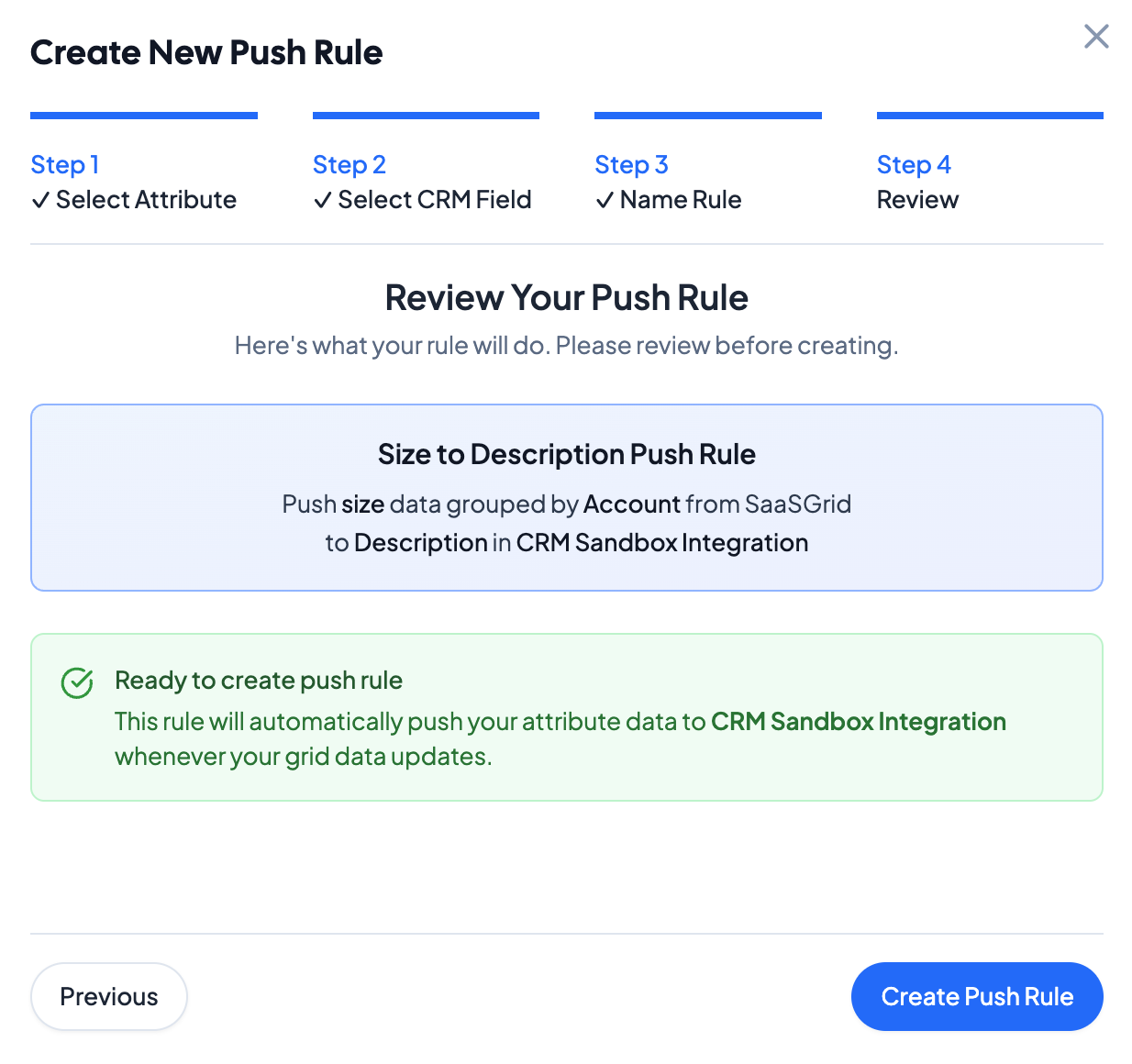
Step 4: Review
Review the push rule. To save and create the rule, click Create Push Rule at the bottom of the page. The metric from Grid will now sync to CRM when the integration syncs.