Connect HubSpot to Grid
Last updated: April 16, 2026
To connect your HubSpot Account to Grid, follow these steps.
Adding HubSpot as a Linked Account
Login to Grid and navigate to Organization Data in the bottom left corner.
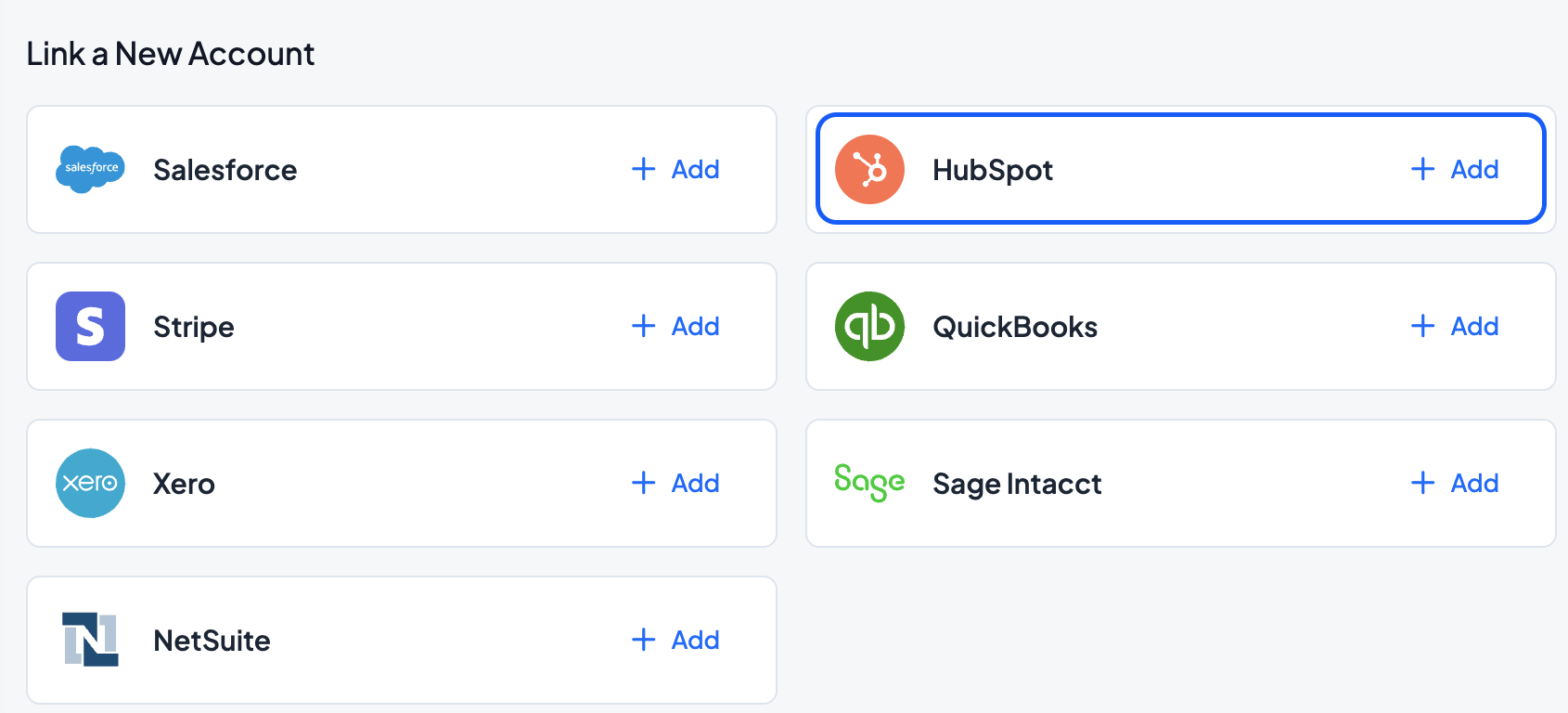
Navigate to the Linked Accounts tab and click +Add next to the HubSpot tile in the Link a New Account section. You can follow this flow even if you have an existing HubSpot account linked and want to authorize a new account.
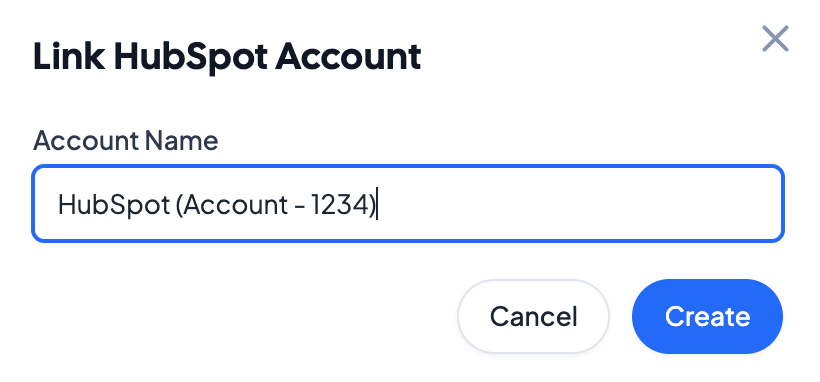
Name your Account and click Create. We recommend adding a descriptive name to help identify what HubSpot account you are connecting.
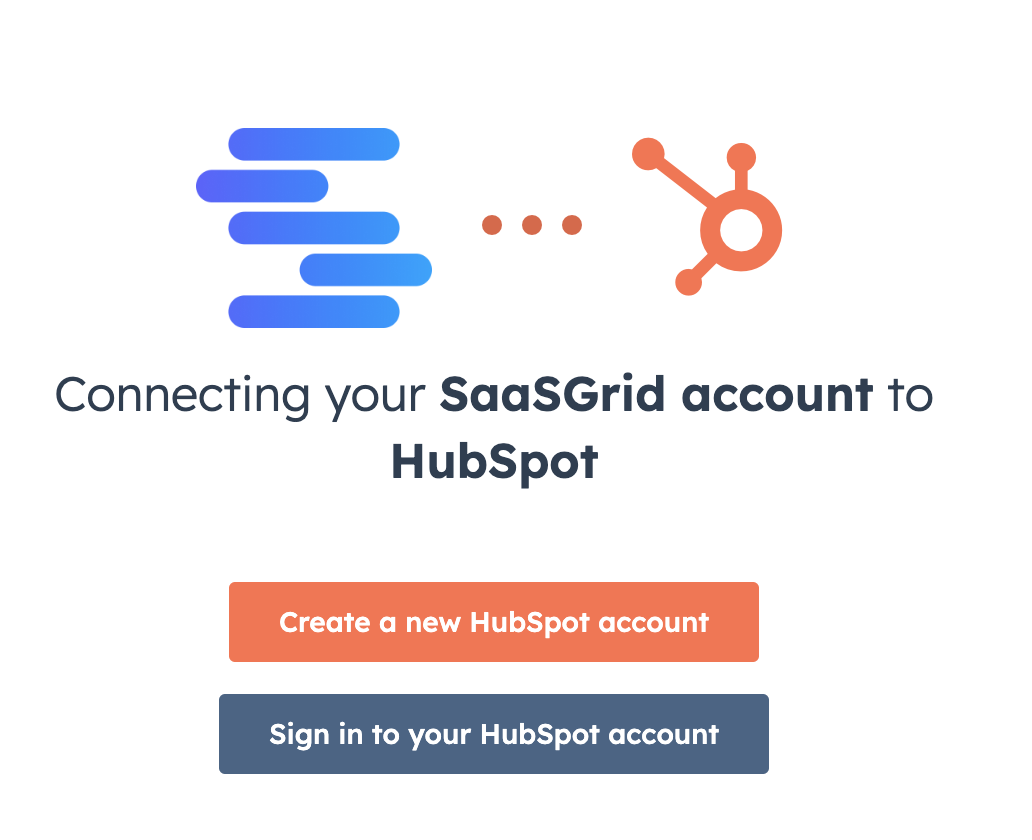
You should be redirected to a popup screen. Enter your HubSpot credentials (if you aren't currently logged in) and then select the appropriate Account to link.
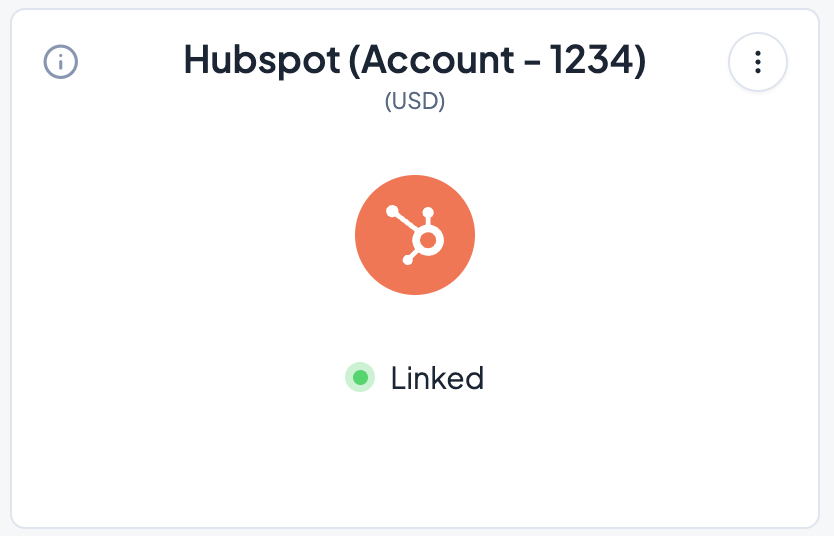
Once successfully synced, you should be redirected back to Grid. You should now see your newly connected HubSpot account show up under the Linked Accounts section. This will first show as Syncing (rather than Linked). The first sync from HubSpot will always take longer than subsequent syncs into Grid.
Adding your HubSpot Linked Account as a Workspace Data Source
Once set up as a Linked Account, you should be able to configure the HubSpot account on a Workspace by Workspace basis. Navigate to Data in the left navigation bar.
Select All Data at the top of the screen and click + Data Source.
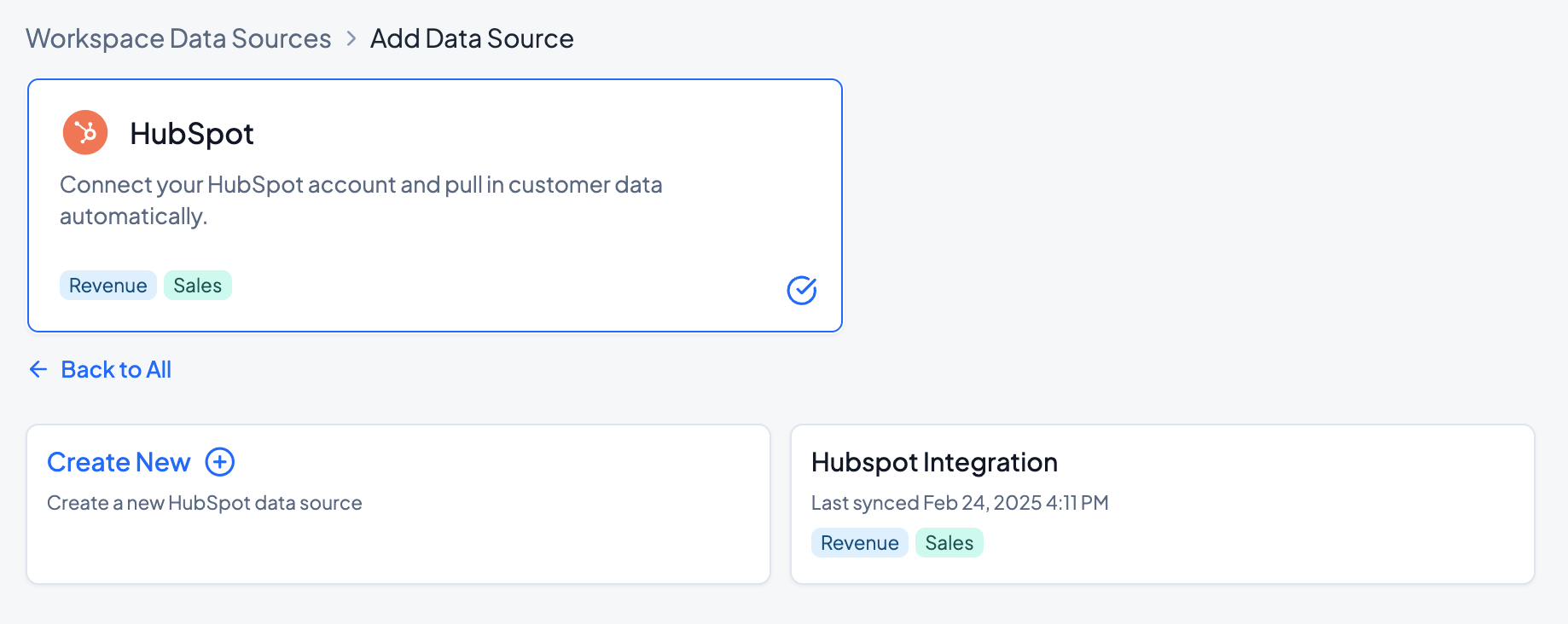
Select the HubSpot tile. You should see your newly configured HubSpot Linked Account on this page.