Segments
Last updated: February 26, 2026
Segments are filters to show a subset of your customer data, and can be used for both Charts and Reports. In the article, when a Chart is mentioned, the same action can be applied to Reports.
Creating a New Segment
Navigate to Data in the left navigation pane and click "Customer Segments".
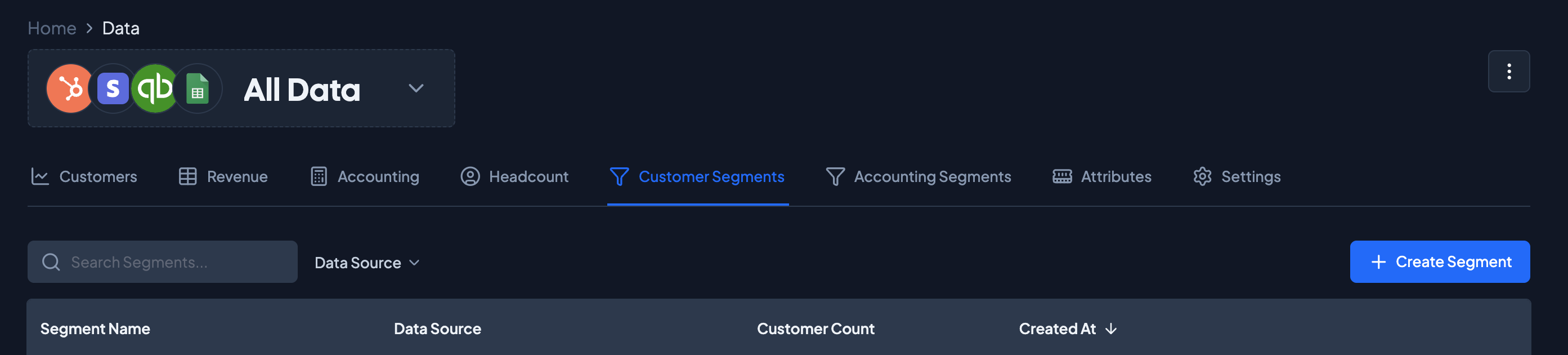
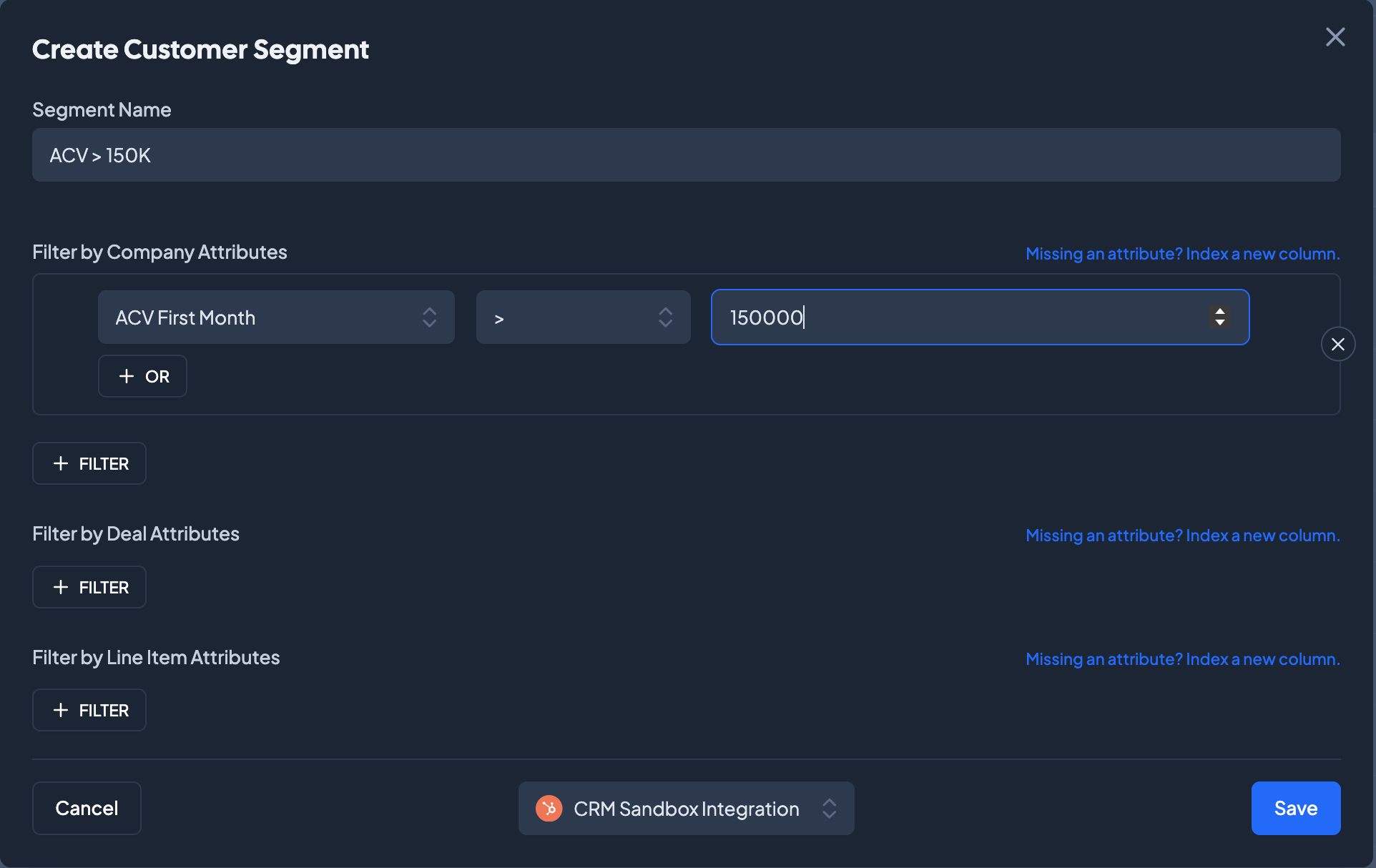
Click "Create Segment". Name your Segment and use the filters to create logic that provides you with the subset of customers you are looking for.
Using Segments in Dashboards
Segments can be applied at the Dashboard level, which gives users an easy way to quickly filter data over multiple charts and reports.
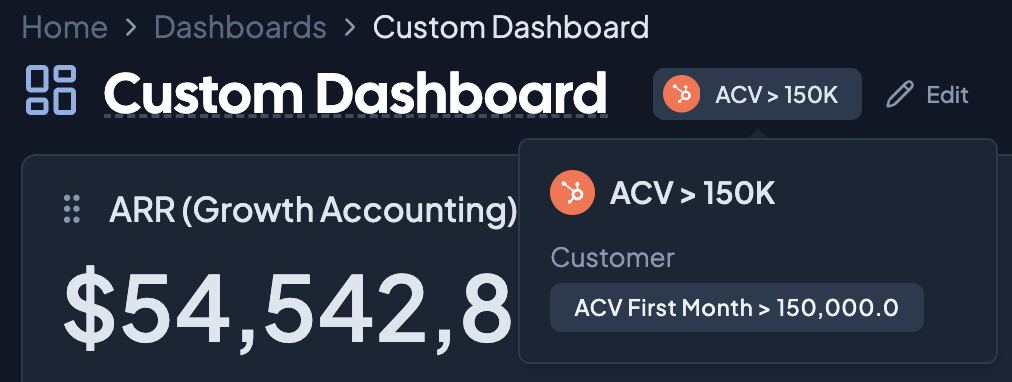
Currently applied segments will be listed to the right of the Dashboard name. Hovering over the Segment name will give you a preview into the formula powering the Segment.
To add a segment to a Dashboard, select the +Add Segment button next to the Dashboard name. This will open up a menu on the right hand side of the page. Select the segment(s) you want applied - if you select multiple, Grid will select customers that satisfy the conditions of all segments applied.
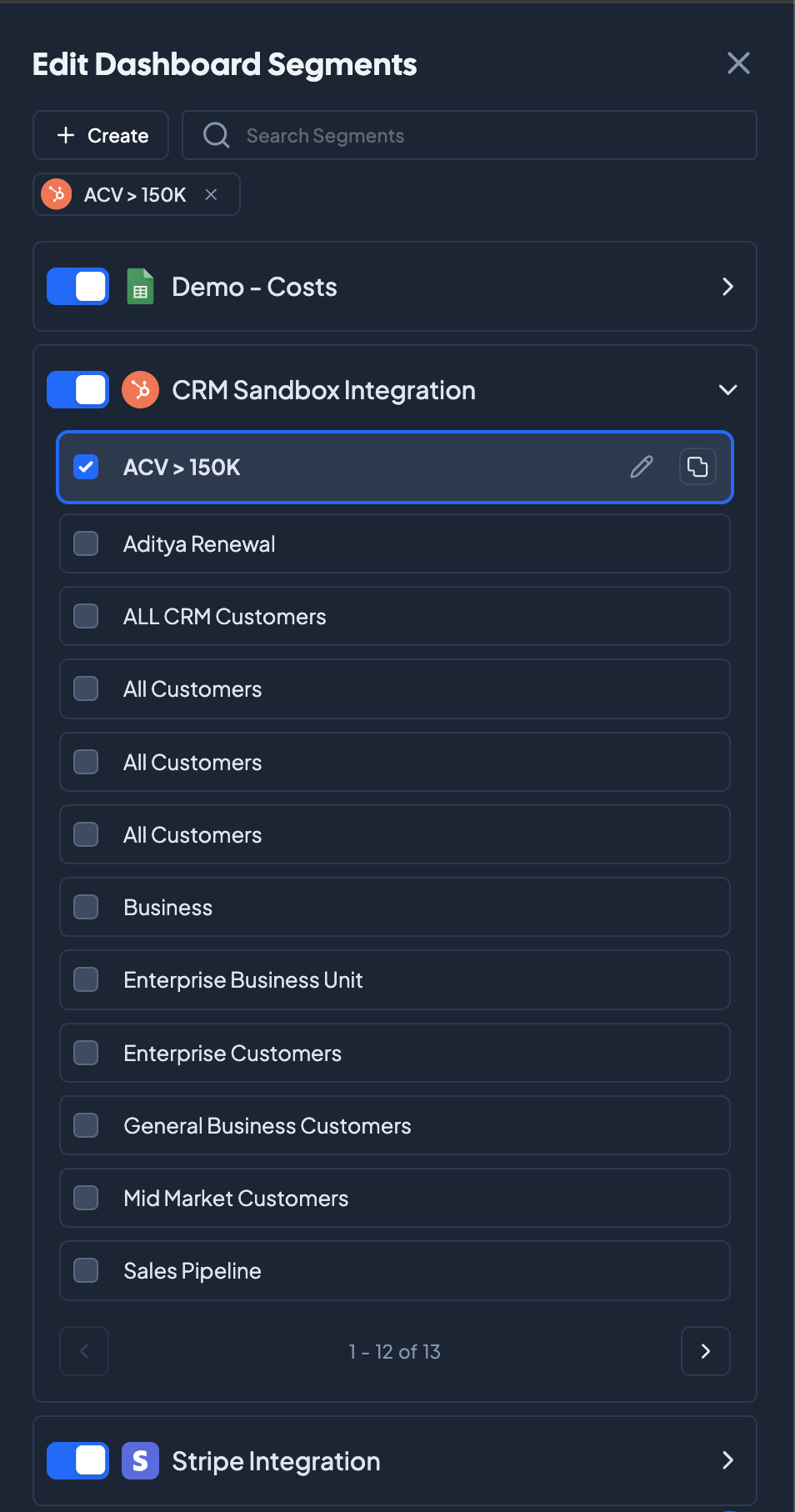
Customers and contracts that come from other data sources (than the ones that are powering Segments that are applied) will still be included. Create segments to exclude them if necessary.
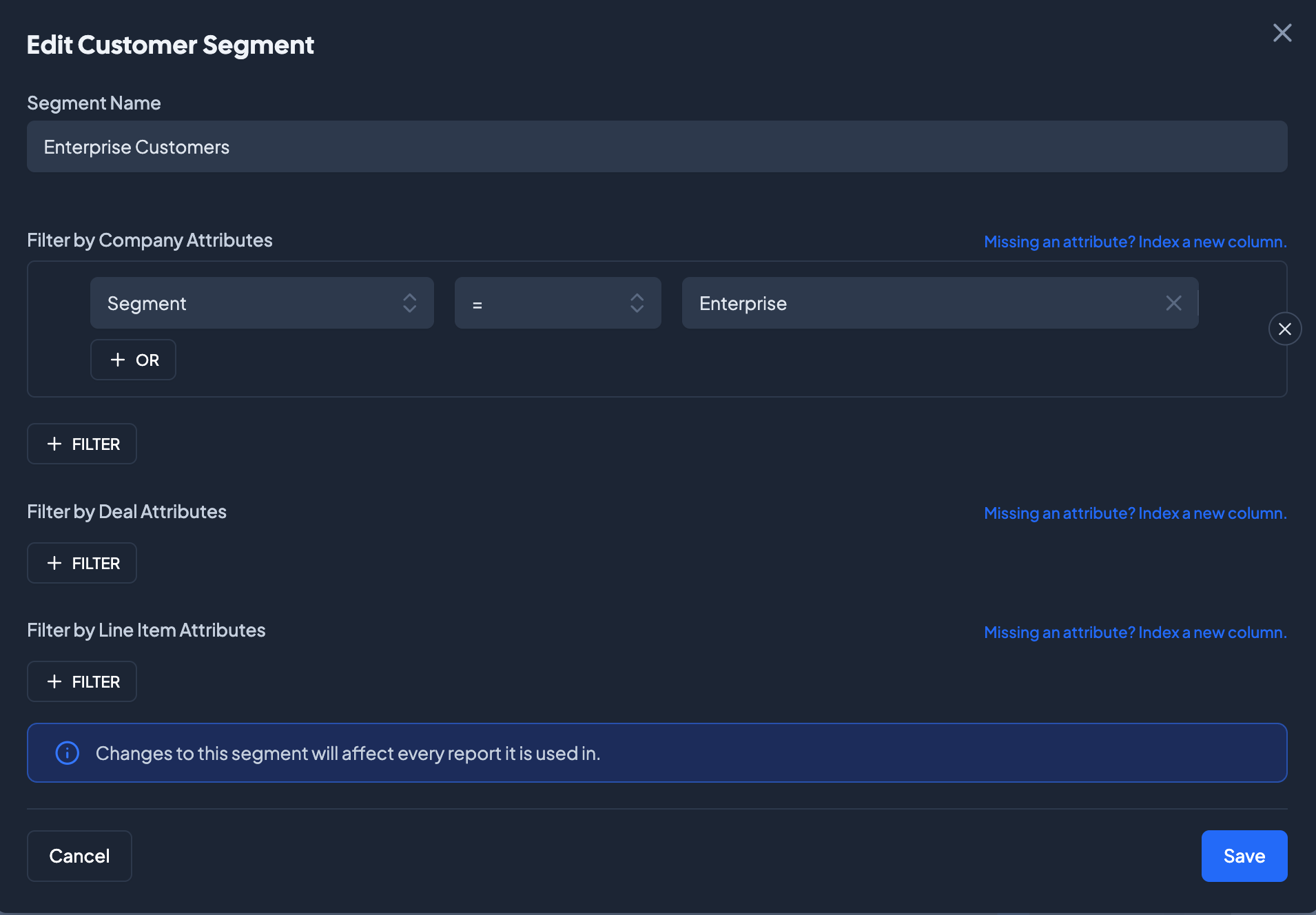
To create segments
Using Segments in Charts and Reports
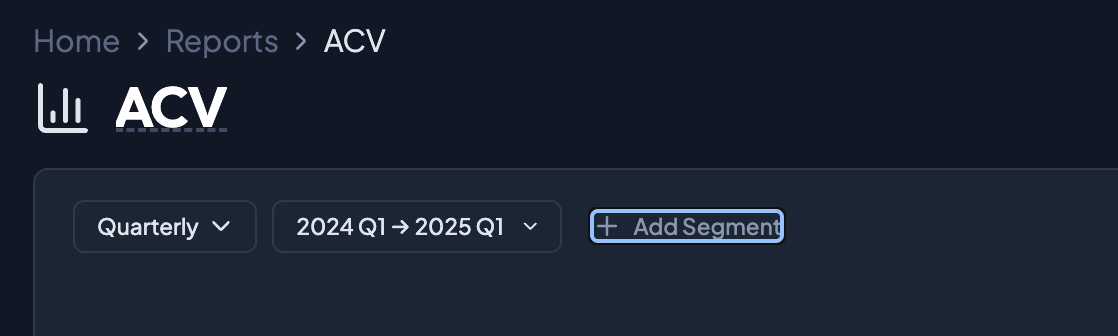
Segments can be applied across all Metrics on a Chart, or selected for each Metric individually. To apply the Segment to an entire report (and all Metrics on that Report), select + Add Segment to open the Segment list.
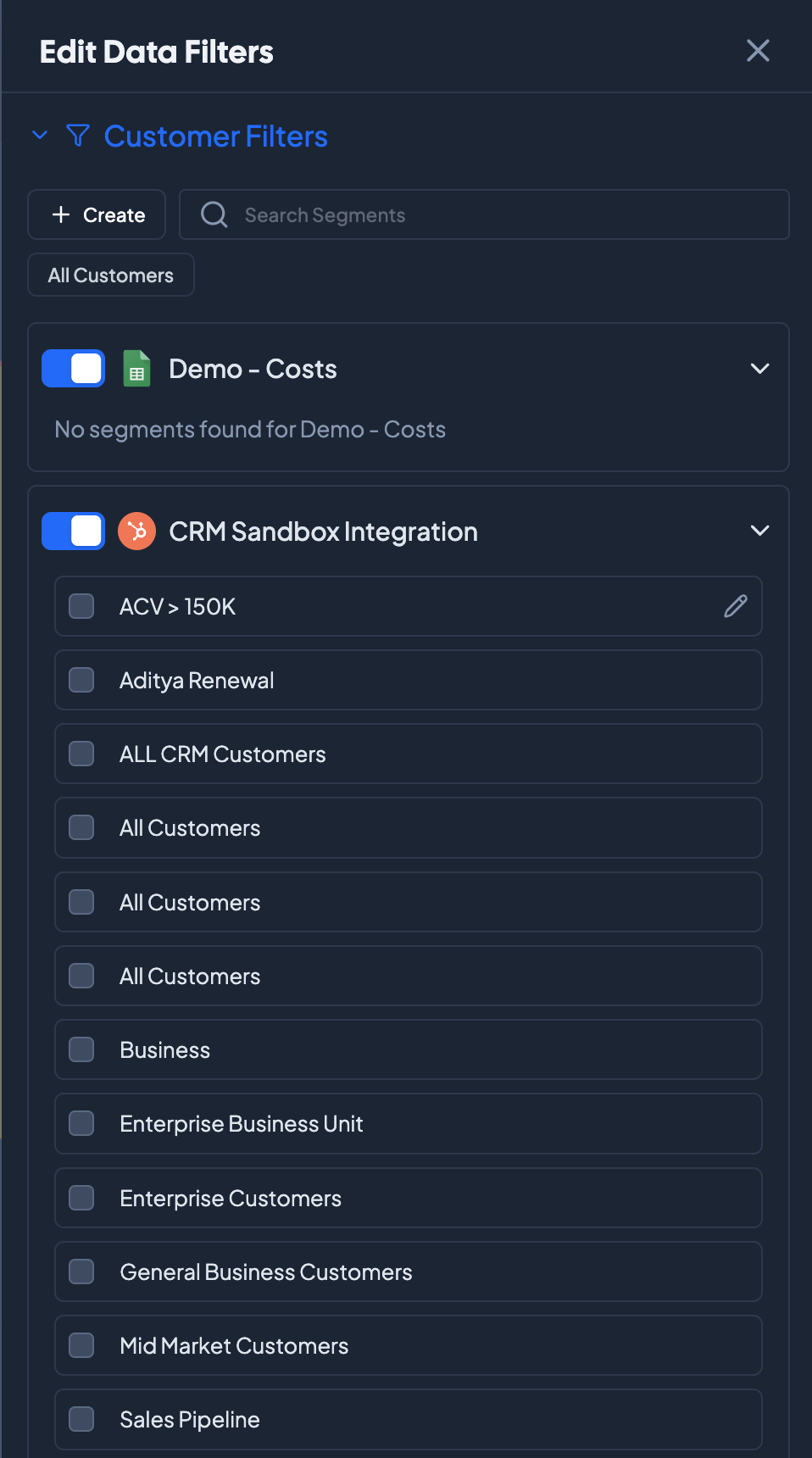
In the menu, create new Segments or Bulk Apply an existing Segment across all Metrics on a Chart. Select all the Segments that apply. To the right of each Segment, you can edit or delete Segments.
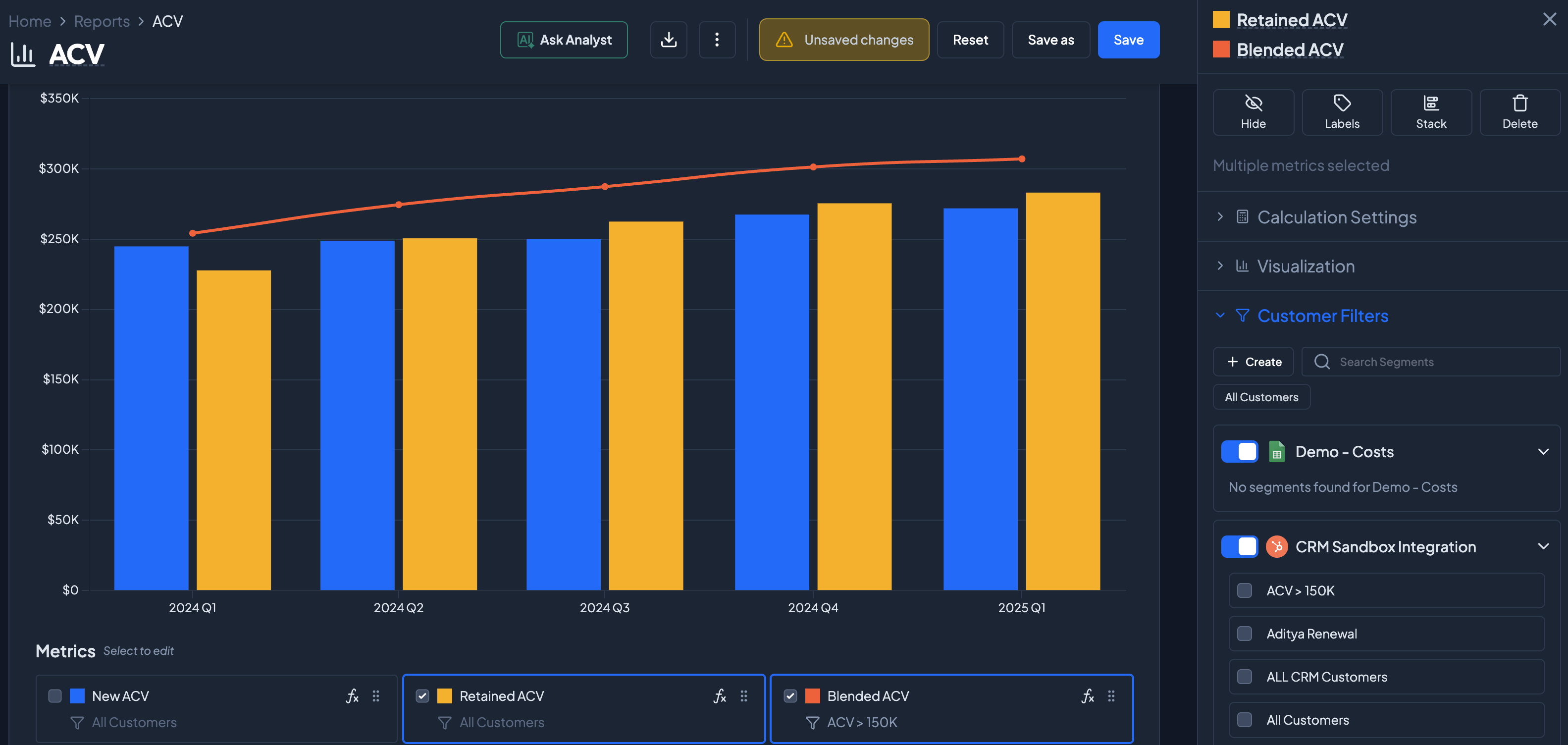
To apply Segments to a particular metric, navigate to the legend at the bottom of the Report. Within the Legend, the funnel icon lists the Segments applied for each specific metric. Segments can be different per metric, and multiple Segments may be applied to each metric.

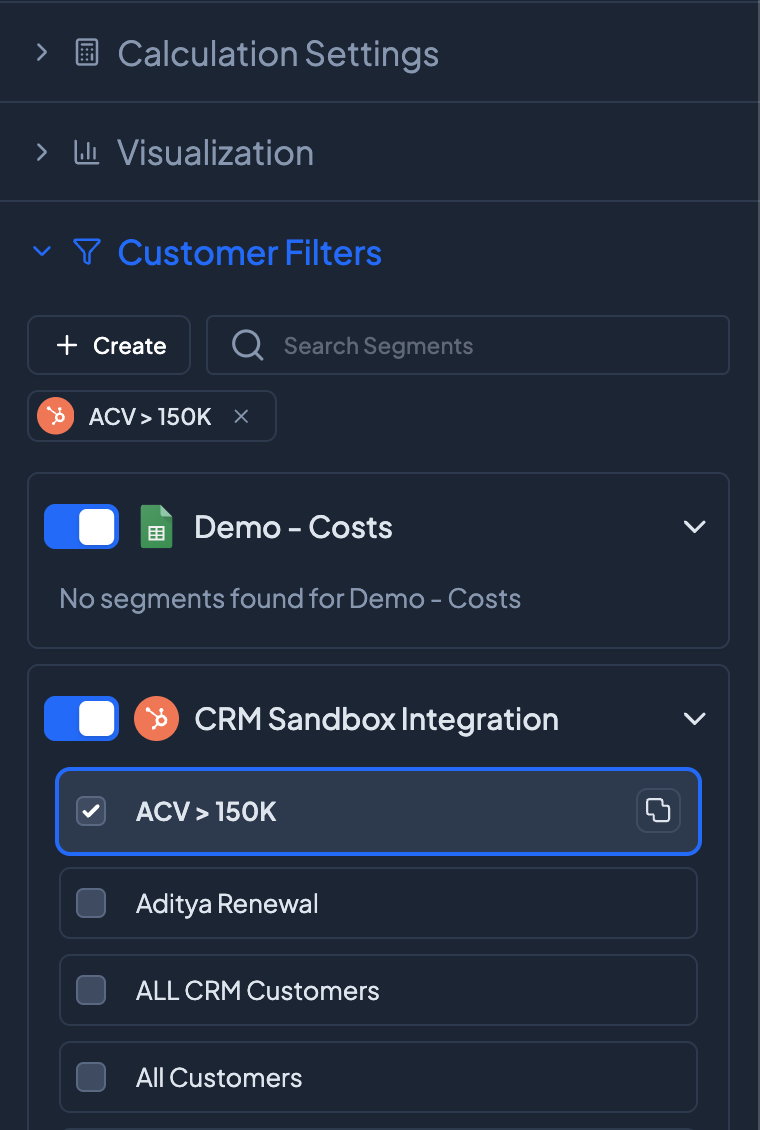
To add a segment to a particular metric, click on the metric and navigate to the Customer Filters section on the right hand pane. Select the applicable segments for that metric. Note that only the selected metric will be filtered; other metrics will remain unchanged. Make sure to click Apply at the bottom of the pane.
Bulk Apply Segments
If you would like to apply a specific Segment to multiple metrics, select multiple metrics and apply the correct Segment. Select "Apply" and all selected metrics should be updated accordingly.