Creating and Editing Plans (V2)
Last updated: February 26, 2026
Incorporating your metrics into a structured plan is essential for evaluating success.
Grid provides a planning tool for specific metrics to assist in monitoring progress against the plan.
Create a Plan
To create a Plan, navigate to the left hand pane of reports and click on the blue + to get started.

Add a name and description for the plan, and specify the calendar period (calendar year, SaaS year, etc.) and aggregation for the plan (monthly or quarterly targets). Click on Create Plan to start the plan
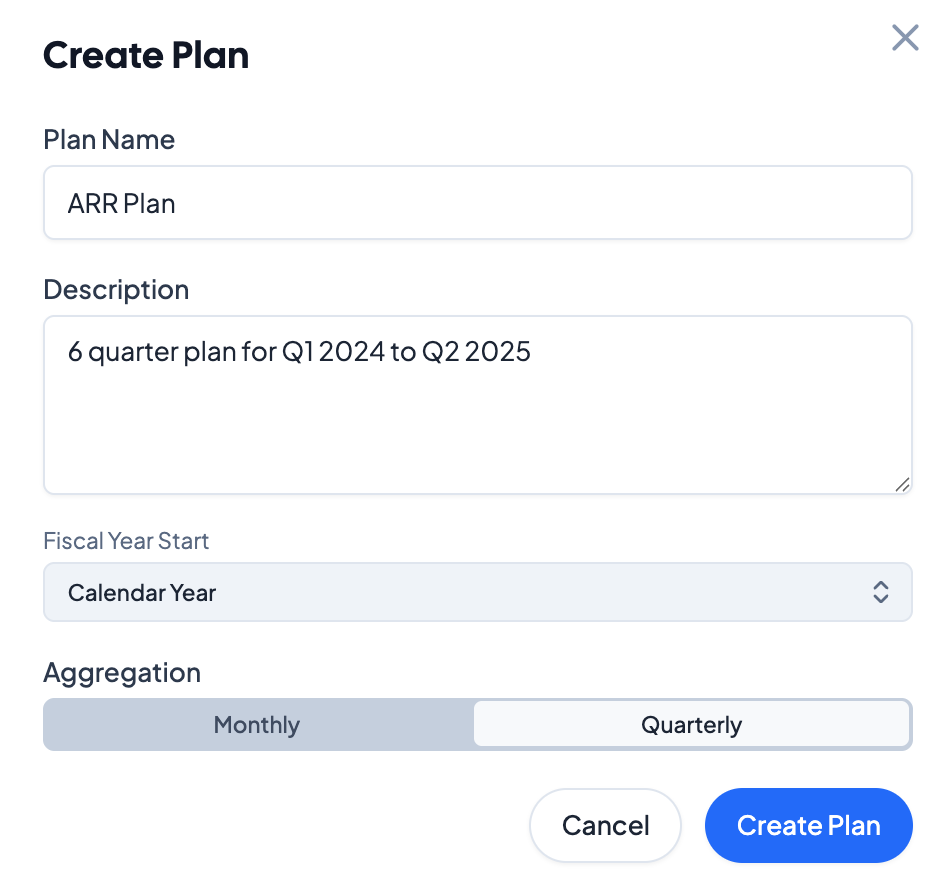
Add metrics to plan by clicking on + Add Metric. Modify the date range of the plan with the + Start and - Start to adjust the first period of the plan, and + End and - End to adjust the last period of the plan.
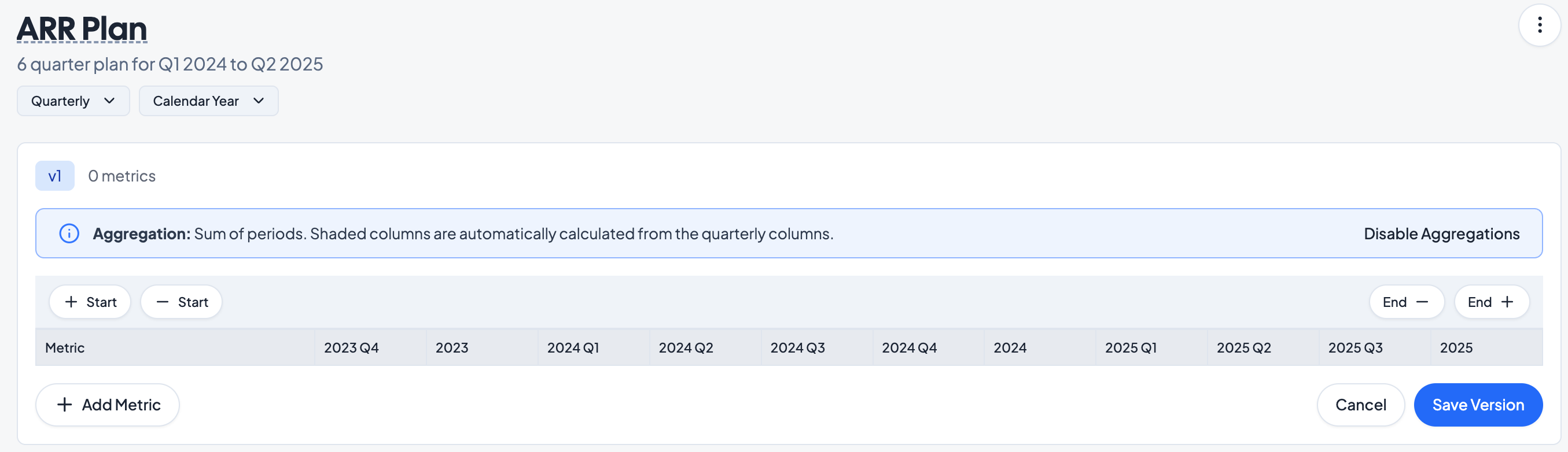
Click on + Add Metric to the bottom left to add a new metric to the plan. Enter metric target values for each period in the plan.
Note that there are uneditable aggregation periods in the plan as well that reflect the sum of the periods. Clicking Disable Aggregations in the blue information box will remove these aggregation cells from the plan. Note that since the plan below concludes in 2025 Q2, the 2025 aggregation indicates $0, as there are no future values in the plan.

Once all values are entered, click Save Version to generate the plan.
Editing Plans
To create a new version of the plan, click on + Add Version in the top right of the screen for an existing plan. Note that old versions of plans cannot be deleted - plans will be updated with the latest saved version, with previous versions visible in the plan history.
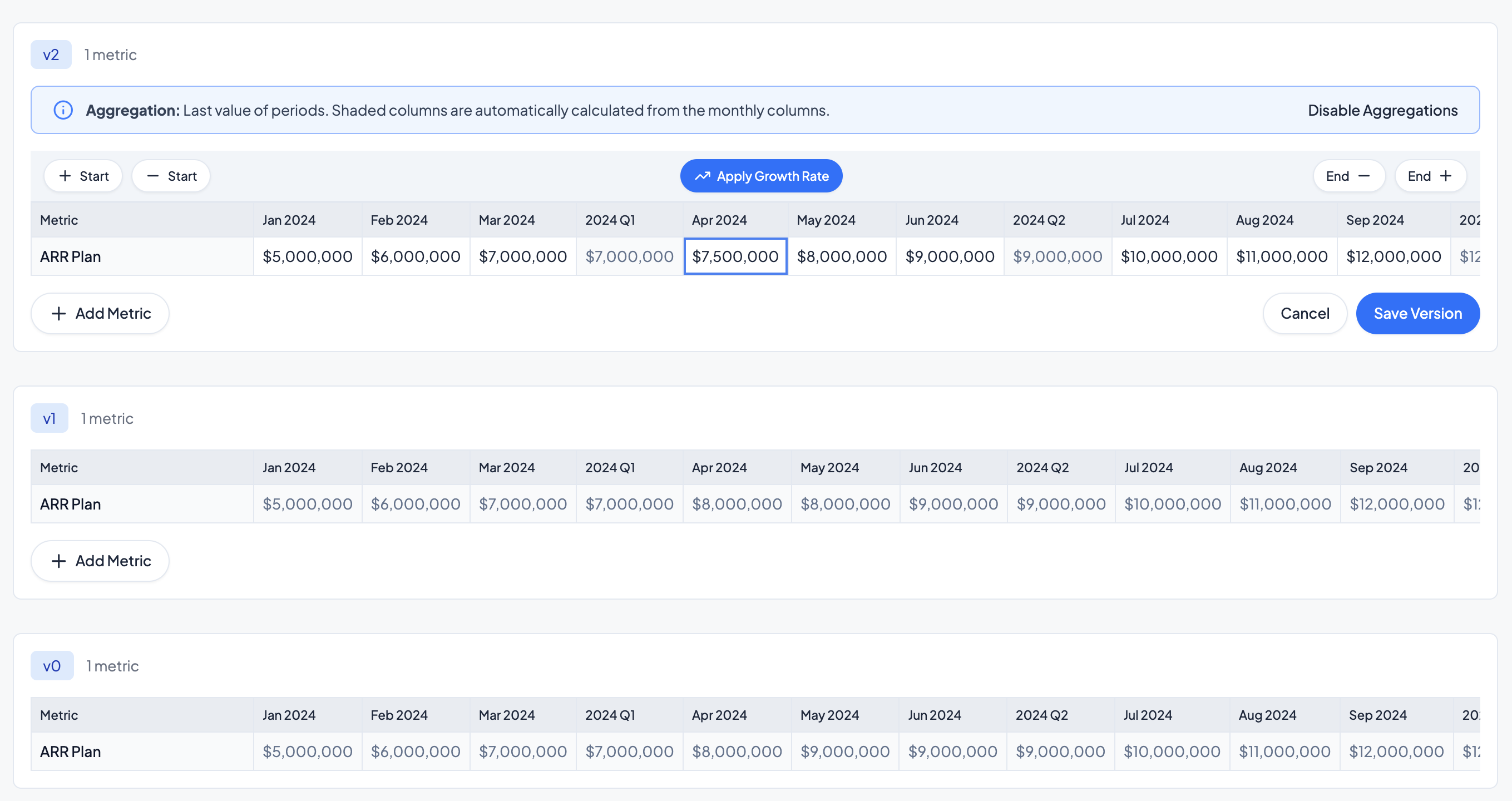
Modify the old plan - note that older versions will be visible below. To remove metrics from plans in newer versions, select the metric and click on the trash icon.
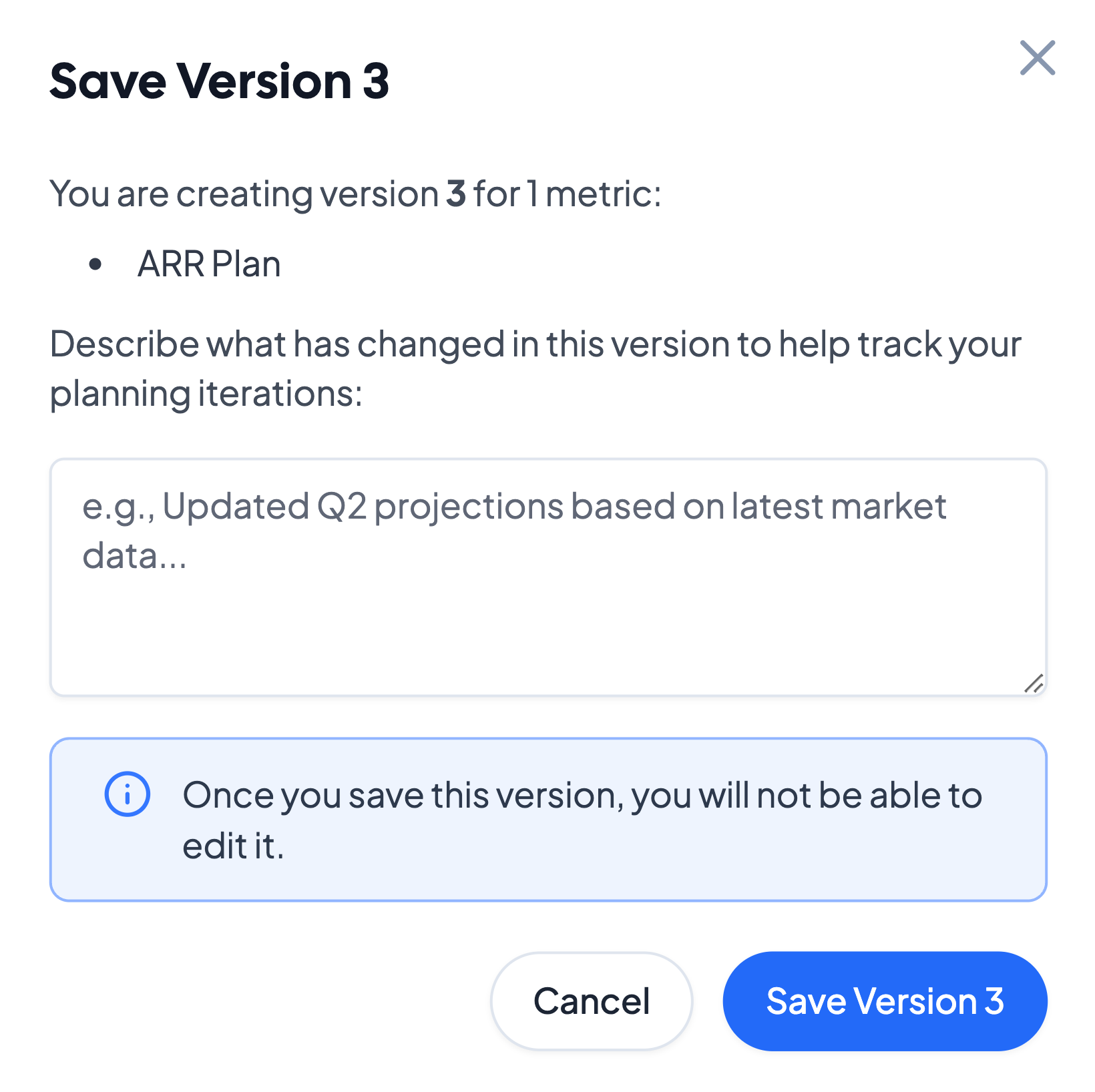
After modifying the plan, note any changes in the version description. Note that plans are not editable after saving - new versions will need to be made to the plan to any future changes. Click Save to get the latest version of the Plan.
Adding Plans to Reports
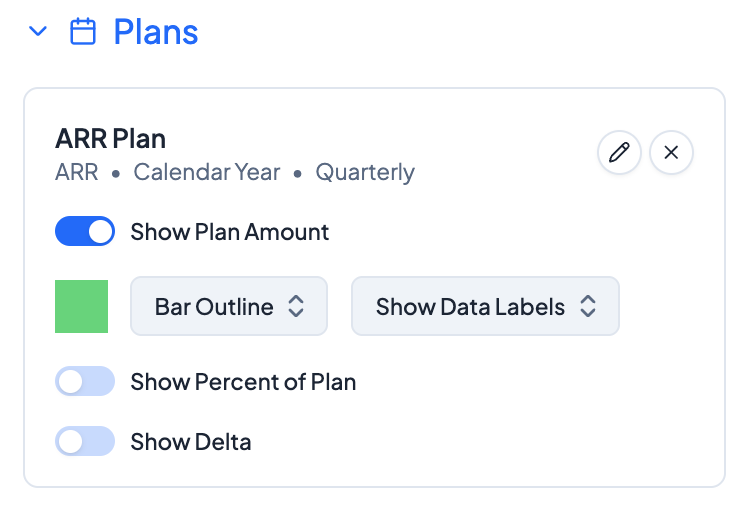
To overlay a plan on a metric, navigate to a report with that metric. For ARR, navigate to an ARR report and select the ARR metric. Expand the Plans section on the right hand pane.

Select + Add Plan and select the desired plan from the list of plans.
Modify the plan visualization in the settings pane: choose to include the Plan Amount, Percent of Plan, and Delta between Plan and Actual. For each component, select the color, chart type, and data label option.
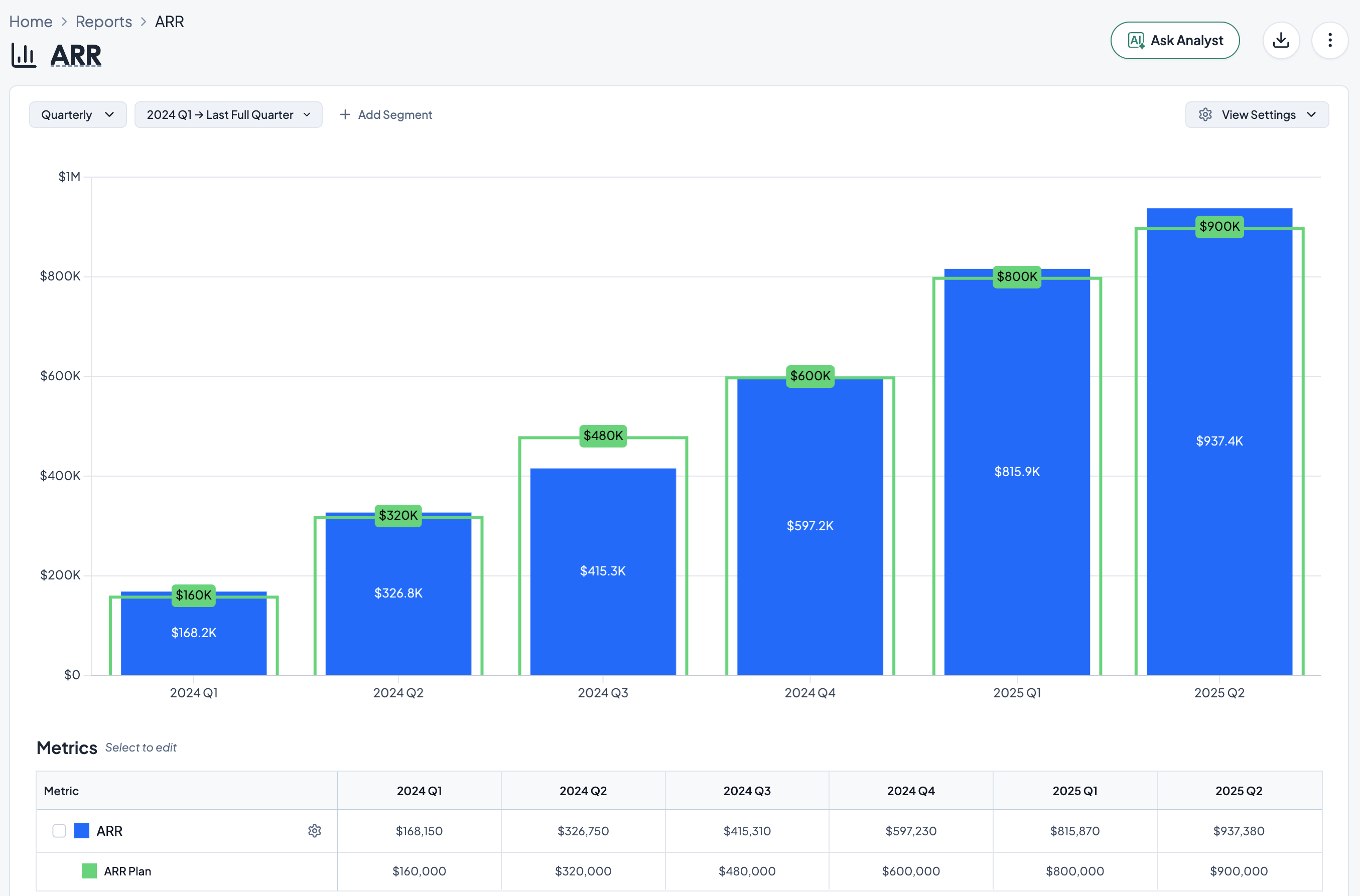
When finished, click Apply at the bottom of the page. In the chart, note the plan overlay on the metric.