Getting your Data into Grid
Last updated: April 16, 2026
Link your Accounts
Navigate to Organization Data, located at the bottom left of the left navigation bar. Click on Linked Accounts at the top of the page and select any Integrations you want to connect to Grid. Integrations can sync via API key or log-in.
Set up your Organization Data Sources
Select the Organization Data tab on the left navigation page and click the Data Sources tab on the top Navigation Bar. Here, you can create and modify Data Sources in your Organization.
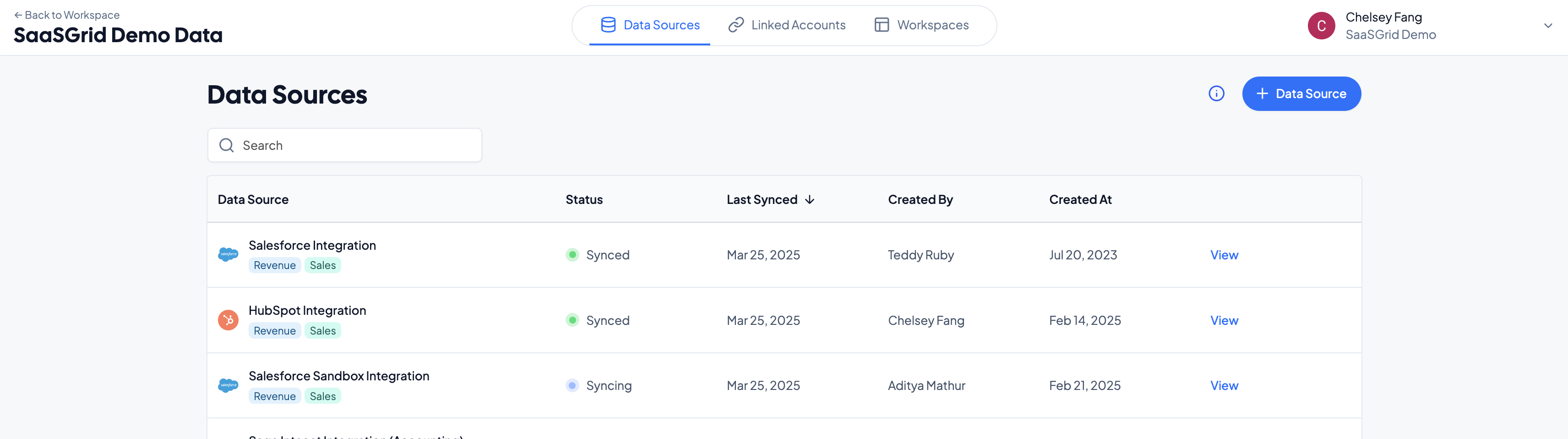
For different data sources, follow the directions linked below:
Spreadsheet uploads (📄 Uploading a File Template)
CRM Platforms - HubSpot and Salesforce
Billing Platforms - Stripe, QuickBooks, Sage Intacct, Netsuite and Xero
Accounting Platforms - QuickBooks, Sage Intacct, Netsuite and Xero
Add your Data Sources to a Workspace
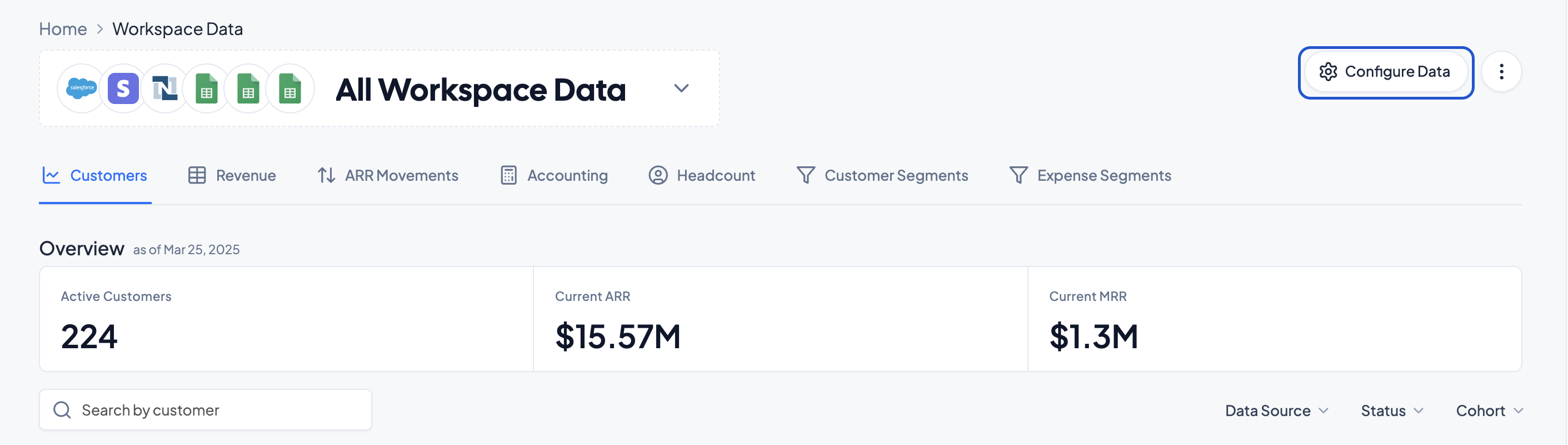
Navigate to Workspace Data on the left hand tab and select Configure Data.
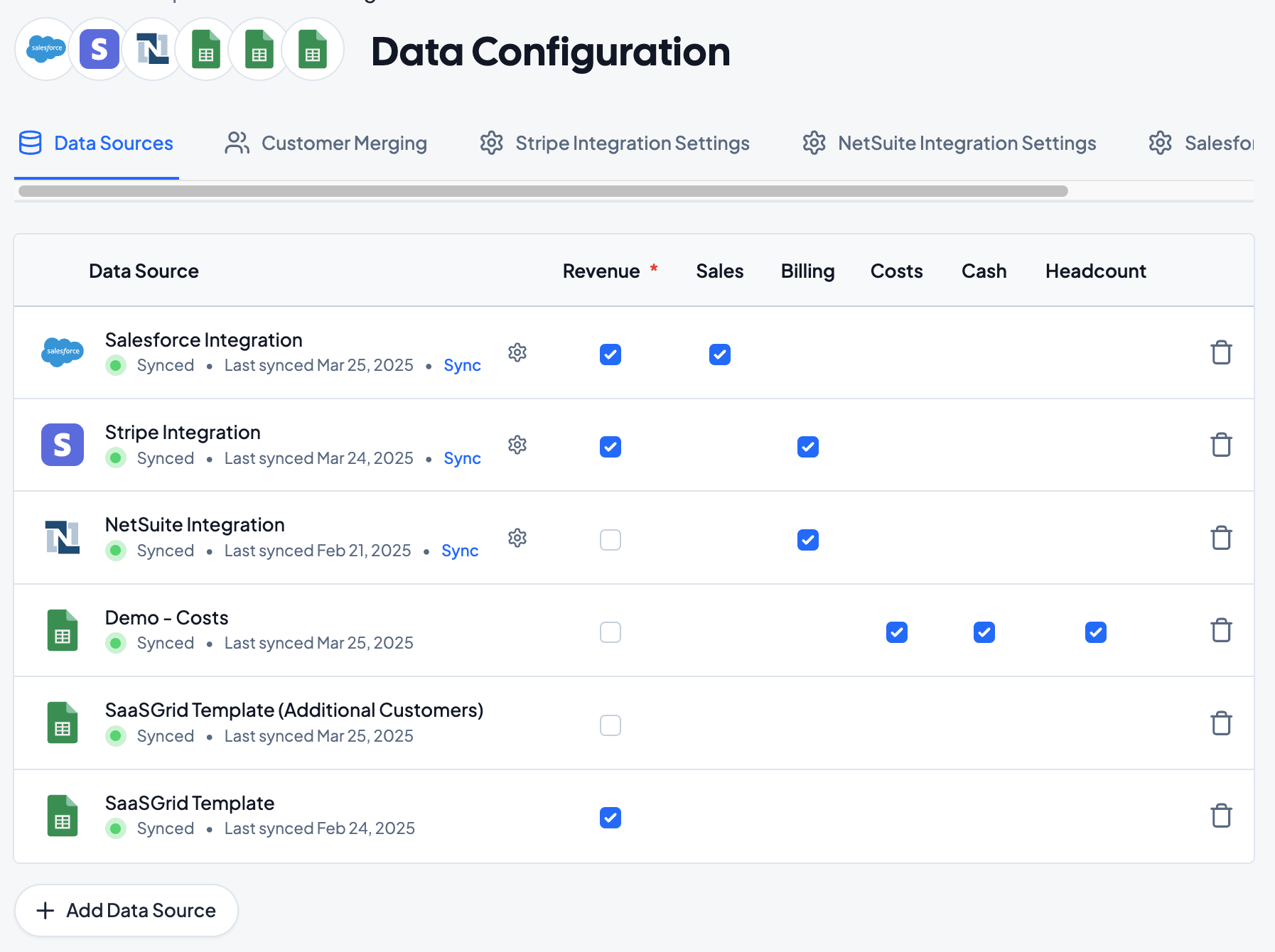
From here, you can add any Data Sources that you would like in that specific Workspace. Additionally, you'll want to mark which Data Source should be used for the various data source categories that we support.
Create Reports & Dashboards
Click on Home on the left navigation bar to return to the primary workspace. In your workspace, you can develop Dashboards(📄 Creating and Editing Dashboards (V1)) and Reports for your SaaS metrics.
If you have any questions during set-up, email us at support@saasgrid.com or live chat with us in the product! For more resources, visit our Help Center and Metrics Library.